Tutorial 1: Generating a Single Similar mBOM
You can initiate the  Generate from Existing BOMs action by selecting one or more similar eBOMs in the upstream view and the template mBOM in the downstream view. In this tutorial, a single similar eBOM is selected before initiating the Generate from Existing BOMs action.
Generate from Existing BOMs action by selecting one or more similar eBOMs in the upstream view and the template mBOM in the downstream view. In this tutorial, a single similar eBOM is selected before initiating the Generate from Existing BOMs action.Consider that the following structure is present in the BOM Transformer:

• The parts 000000142, Similar, (Design) and 000000142, Similar, (Manufacturing) are considered as similar nodes.
• The structure under the part 000000143, Top, (Design) is considered as the template eBOM and the structure under the part 000000143, Top, (Manufacturing) is considered as the template mBOM.
Perform the following steps:
1. Select part 000000143, Top (Design), and create a copy of the structure present under 000000143, Top (Design) using the Save As action. The structure created with Save As appears as follows:
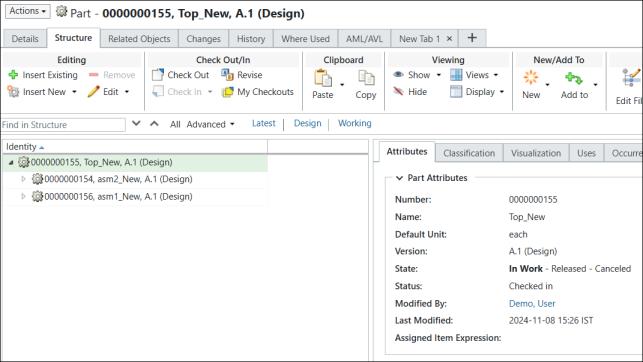
The structure present under the part 000000155, Top_New, (Design) is considered as a similar eBOM structure.
2. In the BOM Transformer, insert the similar eBOM structure under the similar part 000000142, Similar, (Design). The updated structure appears as follows:
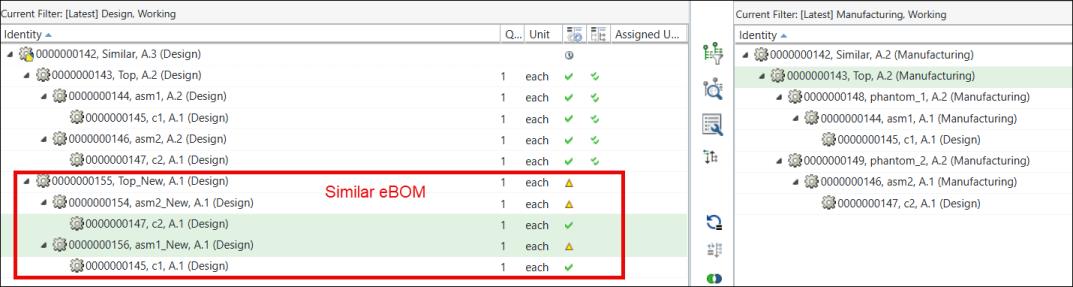
.
3. Add a new part under the part 0000000156, asm1_New, (Design).
4. The updated structure appears as follows:
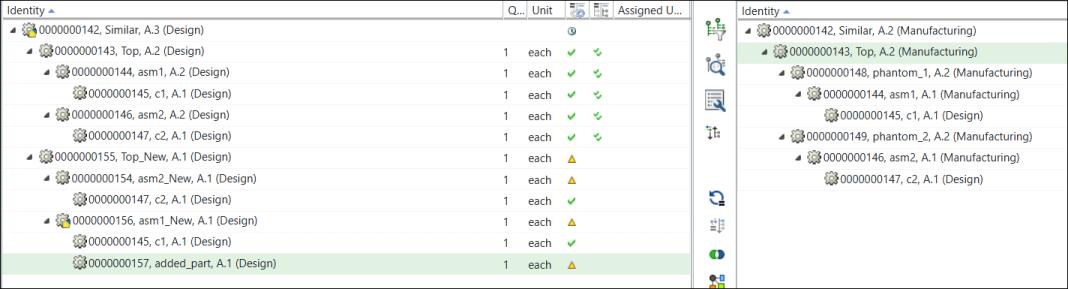
The part 000000157, added_part, (Design) is added under the part 000000156, asm1_New, (Design).
5. Remove the part 0000000147, c2, (Design) present under the part 0000000154, asm2_New, (Design).
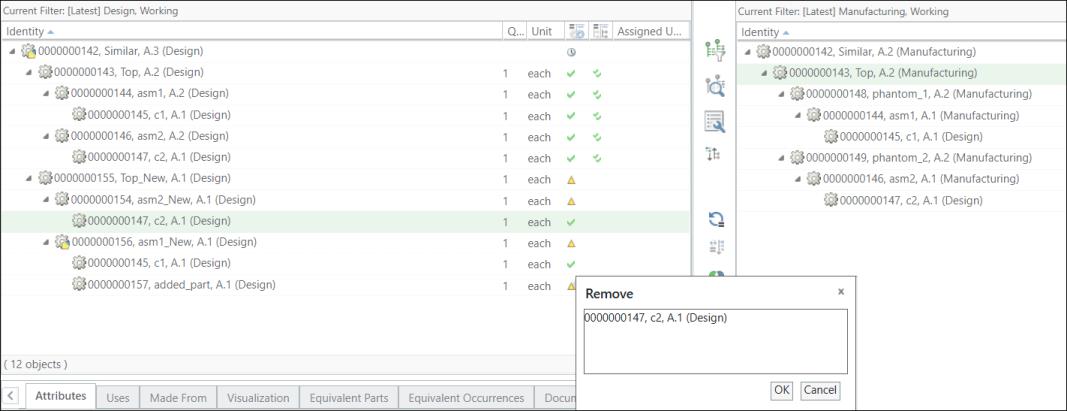
The updated structure appears as follows:
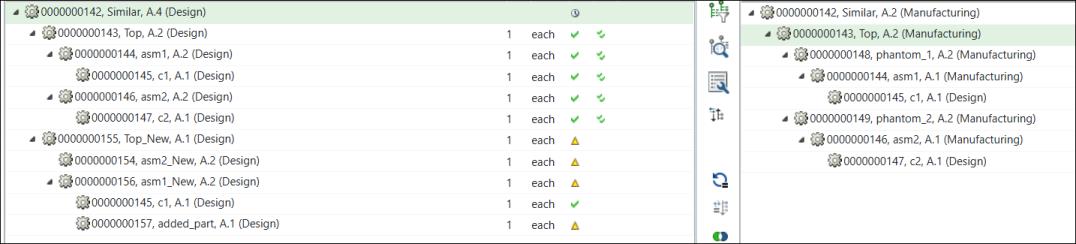
6. Select the similar eBOM root node 0000000155, Top_New, (Design) in the upstream. Also, select the template mBOM root node 0000000143, Top, (Manufacturing) in the downstream.
7. In the middle pane toolbar, select  Generate BOMs > Generate from Existing BOMs.
Generate BOMs > Generate from Existing BOMs.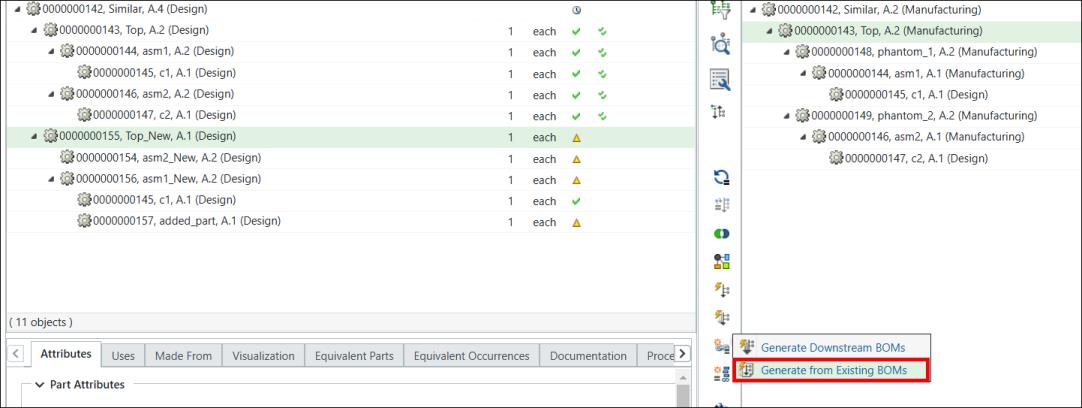
The Generate from Existing BOMs dialog box opens.
8. In the View Upstream Parameters section, the system displays the selected similar eBOM root node.
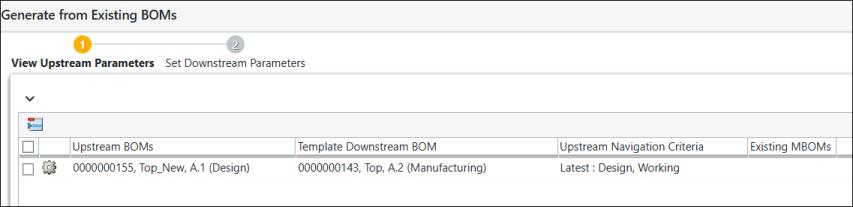
The following columns appear in the View Upstream Parameters section:
◦ Upstream BOMs — Displays the selected similar eBOM root node.
◦ Template Downstream BOM — Displays the selected template mBOM root node.
◦ Upstream Navigation Criteria — Displays the upstream navigation criteria.
◦ Existing MBOMs — Displays the already generated similar mBOMs.
9. Click Next. The Set Downstream Parameters section appears.
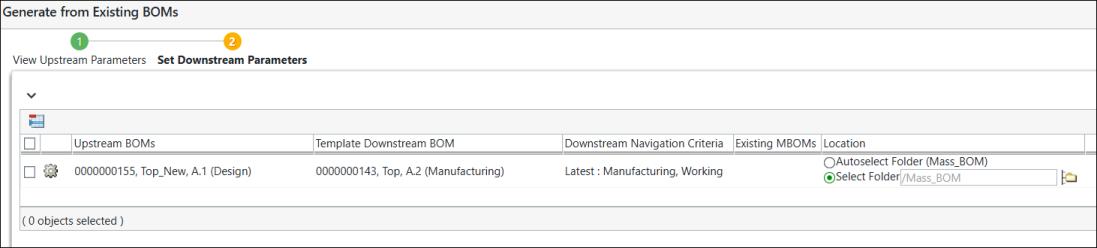
The following columns appear in the Set Downstream Parameters section:
◦ Upstream BOMs — Displays the selected similar eBOM root node.
◦ Template Downstream BOM — Displays the selected template mBOM root node.
◦ Downstream Navigation Criteria — Displays the downstream navigation criteria.
◦ Existing MBOMs — Displays the already generated similar mBOMs.
◦ Location — Displays the location. You can select the location where you want to save the generated similar mBOMs.
You can also use the  Set Location action to set a location. The Set Location window opens when you click Set Location. Select the Context and Folder, and then click OK. You can view the contents of the selected folder by clicking Open. For more information, see About Set Location Action in MPMLink.
Set Location action to set a location. The Set Location window opens when you click Set Location. Select the Context and Folder, and then click OK. You can view the contents of the selected folder by clicking Open. For more information, see About Set Location Action in MPMLink. | • You must have the appropriate permissions to access the specified folders. • If you select the rows for which the location is already set, and initiate the Set Location action, the system displays the following user message:You can set the location only for editable rows. Select only editable rows, and then click Set Location. |
10. Click Finish. The generated similar mBOM structure with the root node 000000155, Top_New, (Manufacturing) is added under the similar node 000000142, Similar, (Manufacturing).
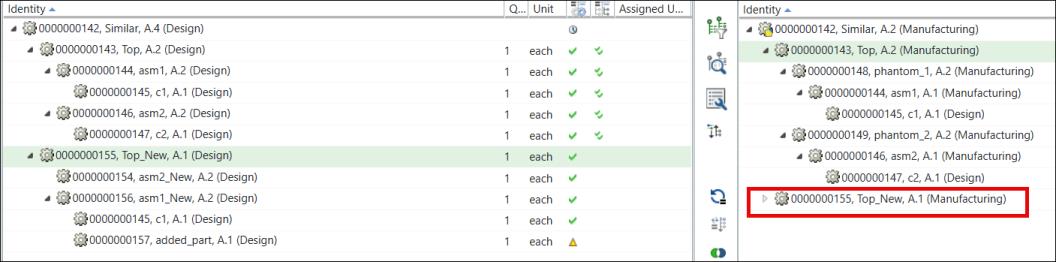
In the expanded form, the structure appears as follows:
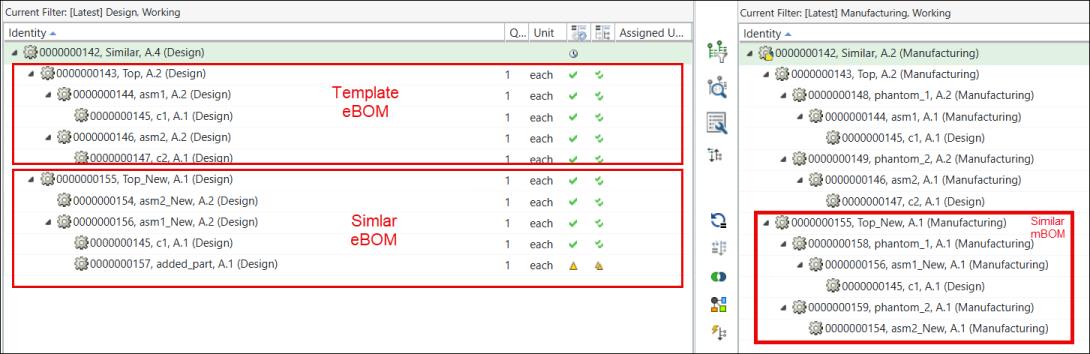
| | For more information about the implementation of the Generate from Existing BOMs action, see the Logic section in Generating Using Existing BOMs. |
• A save as link exists for all the parts between the template eBOM and similar eBOM except for part 00000000157, added_part, (Design). This part is newly added. As it is newly added, there is no save as link, component ID, or the same master part. Because of this, the part is not transformed in the similar mBOM structure.
• A save as link exists for all parts between the template eBOM and similar eBOM except for part 00000000157, added_part, (Design). This part is newly added; therefore, it does not have a save as link, component ID, or the same master part. Because of this, the part is not transformed in the similar mBOM structure.
• A save as link exists between 00000000156, asm1_New, (Design) present in the similar eBOM structure and the part 00000000144, asm1, (Design). The part 00000000144, asm1, (Design) was transformed as a new branch in the template mBOM. Because of this, part 00000000156, asm1_New, (Design) is also transformed as a new branch in similar mBOM. The transformed part is 00000000156, asm1_New, (Manufacturing).