Configuring the Indexing User
Out-of-the-box, the Indexing User field on the Indexing Dashboard is blank. To enable indexing, you must configure a valid indexing user.
If you assign a site administrator as the indexing user, all site data becomes available for indexing, and no additional access control rules are required.
 |
Using a site administrator as the indexing user is not recommended for production environments.
|
The responsibility for creating and configuring the indexing user depends on your environment:
• On‑prem environments—The site administrator creates and configures the indexing user.
• SaaS environments—The business administrator creates and configures the indexing user
By applying context‑level access controls, you can include or exclude specific product content from indexing.
 |
Before you configure the indexing user, ensure that the following requirements are met:
• The indexing user has both site‑level and context‑level access.
• The indexing user is added to one of the base licenses through a license exclusion group. For more information, see License Exclusion Groups.
• The indexing user belongs to the same organization as the data being indexed (context-specific).
• When you index data from a different organization, update the indexing user's organization accordingly.
• If you create and configure the indexing user but do not define policy administration rules or grant context access, no data is indexed.
|
Configure System Access Control Policies for the Indexing User
To configure access control policies for the indexing user, complete the following steps:
1. Ensure that you have created an indexing user in Windchill. For information, see Creating an Indexing User.
2. Configure context-level access controls. These controls define which data is indexed by Azure AI Search.
a. Navigate to > in Windchill.
b. Select All Context. In the table, select > > . Set these access controls for the Product contexts whose parts require indexing. The selection works the same way for Product or Library context types.
c. Create new access control rules.
The indexing process requires Read and Download permissions for the business objects that you want Azure AI Search to index. In the following example, permissions are granted broadly at the top level using WTObject.
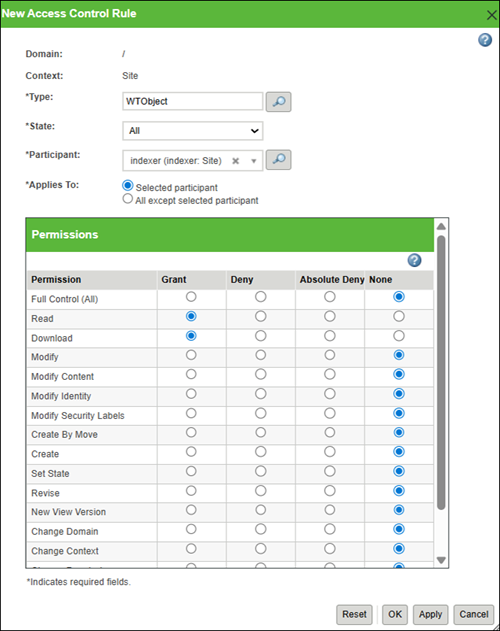
Depending on your requirements, you can configure more granular rules to support indexing only specific object types, as listed in Document Indexing Specifications.
| | When configuring the indexing user, it is recommended to provide access to specific contexts such as Site, Product, Library, Project, or Organization for the indexing user. If you want to index only certain data within a specific context, you must ensure that permissions for the object types in that context are properly granted. If access is not restricted, all objects in the Windchill database will be indexed, which may be unnecessary and will significantly increase the time required for indexing. Select what to index with caution because the license uses AI credits. Unnecessary indexing consumes these credits, which could lead to additional costs for purchasing more credits later. Configuring permissions carefully helps control what is indexed and prevents unnecessary resource consumption. Granting access permissions to specific contexts or document types does not automatically initiate indexing. To start indexing, you must select the context to be indexed and allow the required entity types in the Indexing Dashboard of the Windchill AI Assistant. For more information, see Configuring the Indexing Dashboard. |
| | If your organization provides default policies for context access permissions, review them for the indexing user and revoke unnecessary permissions by using the Absolute Deny option. |