Search Duplicate Parts for a Selected Part
You can initiate similarity searches against a particular part directly from the Windchill side.
The Search for Duplicates action enables users to identify duplicate or similar parts by launching a similarity search for a single selected part from supported Windchill launch points. The results are displayed on the Compare Parts in Group page of Duplicate Part Search feature, where potential duplicate parts are listed based on the best similarity matches. The action launches Compare Parts in Group in a new browser window.
 |
Update Windchill to support AI icons  and to enable the Search for Duplicates action. and to enable the Search for Duplicates action. |
You can initiate the Search for Duplicates action from the following Windchill locations:
• Advanced Search Results Page: Perform an advanced search for a part. On the Search Results page, select a single part, right-click, and then click Search for Duplicates. For more information see Search Results.
• Folder Browser Page Folder Contents table of Products, Libraries, and Projects: Select a single part, right-click, and then click Search for Duplicates. For more information see Folder Contents Table Actions.
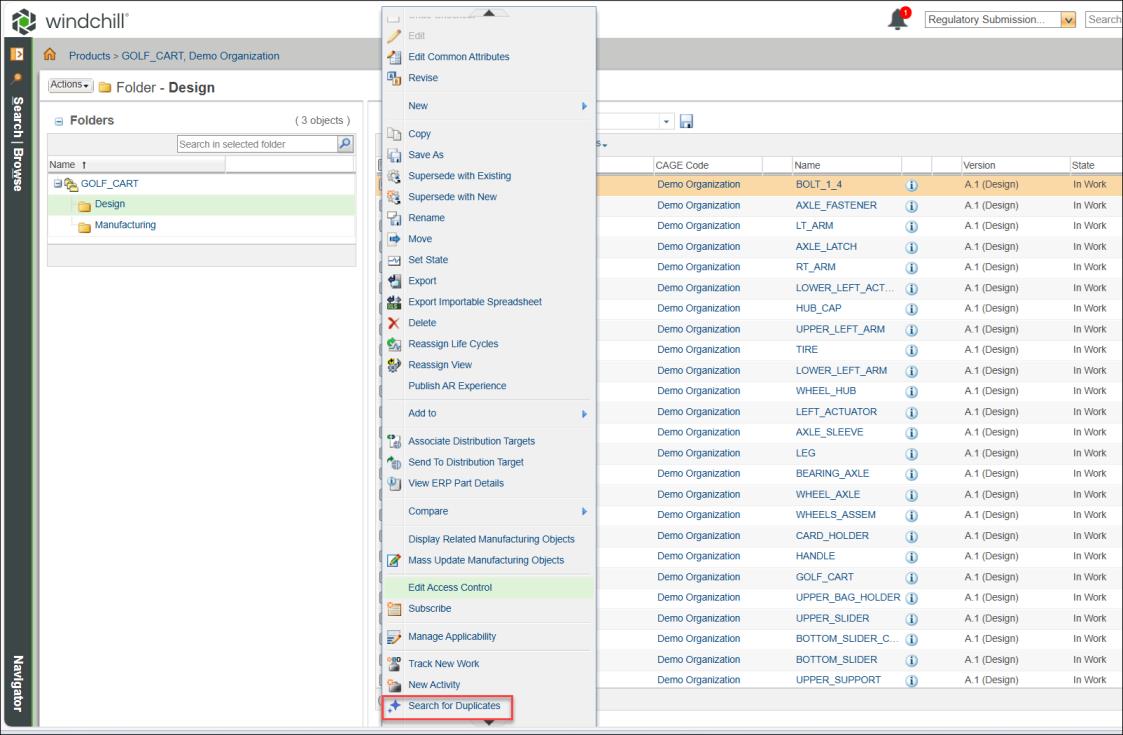
• Part Structure Browser: Select a single part, right-click, and then click Search for Duplicates. For more information see Part Structure Information.
• Part Information Page: Click Actions, and then click Search for Duplicates. For more information see Part Information Page.
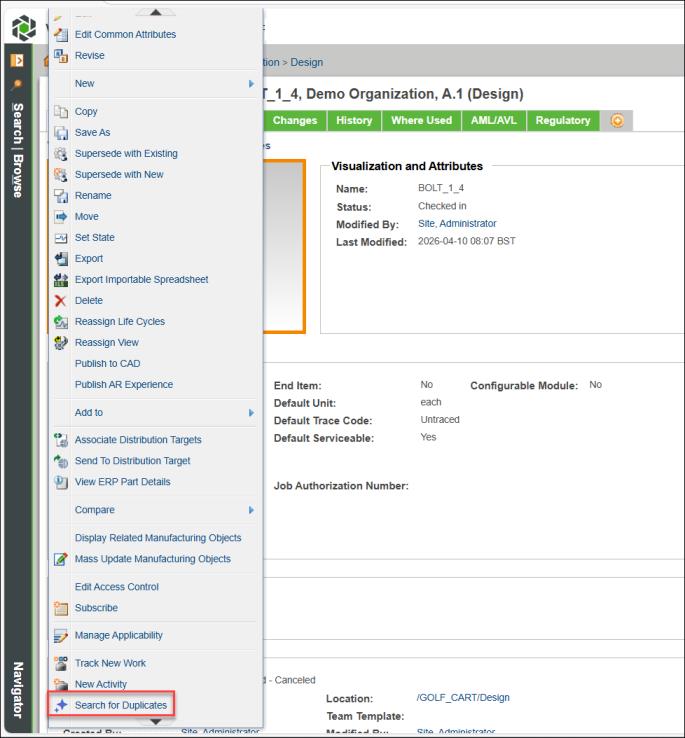
The action is not listed alphabetically; you must scroll down the Actions menu to locate it.
For more information, see Introduction of the AI Parts Rationalization Plugin.
Availability and Prerequisites
The Search for Duplicates action is available only when all the following conditions are met:
• The Windchill AI Parts Rationalization plugin (1.1) is installed.
• The user has a valid Windchill AI license.
• Exactly one part (WTPart) is selected.
The action launches the Compare Parts in Group page in a new browser window.
| | All the information page launch points for parts and change object information pages open in a new tab in the parent browser. For subsequent launches, the same tab is updated. |
Compare Page Behavior and Search Results
When the Search for Duplicates action is launched from any supported access point, the Compare Parts in Group page opens in a new window and directly displays the similar parts. The reference part is preset to the part from which the action was launched and cannot be changed. This ensures that similarity percentages are calculated only with respect to the originally selected reference part.
By default, the similarity search is executed using the maximum similarity threshold (98–100 %) and does not depend on administrator‑driven search. The Compare Parts in Group page displays a maximum of 100 similar or duplicate parts, selected based on the best similarity matches to the reference part. Each result represents a part with a high similarity percentage relative to the reference part.