Duplicate Part Search by a Non-Administrator User
Depending on the role of the user, the Search for Duplicate Parts interface differs for administrator and non-administrator user. When logged in as a non-administrator user, the UI appears as shown in the image below:
As an administrator, if you want to view the interface of a non-administrator user, click Search for Duplicate Parts.
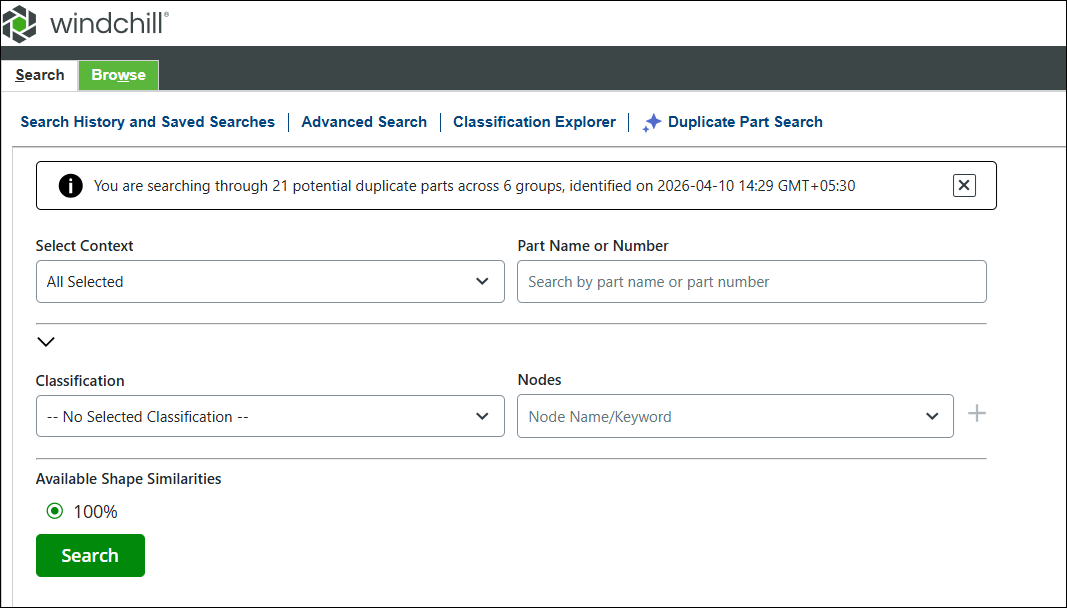
Before you can start to use the AI Parts Rationalization plugin for duplicate part search, ensure that the Windchill System Administrator has completed the Windchill server configuration and initiated indexing.
 | The options under the Search for Duplicate Parts page for a user are available only after your Windchill administrator has completed indexing and performed at least one search. If no duplicate parts have been indexed, the page is not available. In such cases, you should contact your administrator to initiate a duplicate part search. |
To search the duplicate parts:
1. In the Select Context list, select the required product.
2. Select a value in the Classification and Nodes lists to categorize the objects based on attributes and properties.
3. In the Available Shape Similarities section, specify the percentage for search.
4. Click Search.
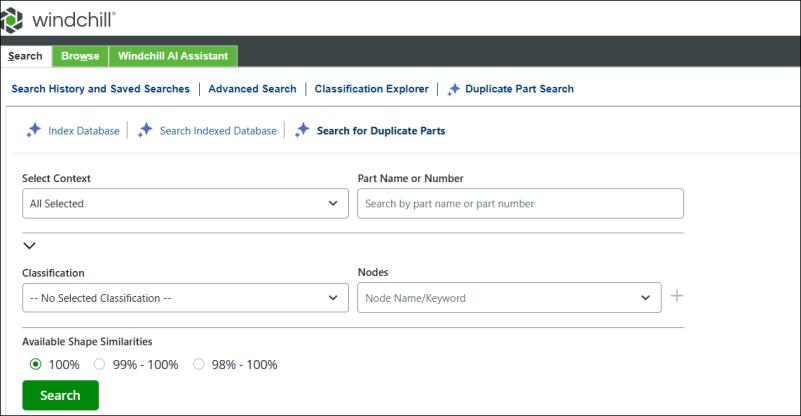
The table below describes the fields on the Search for Duplicate Parts page for both administrator and non-administrator users.
Fields | Description | ||||
|---|---|---|---|---|---|
Select Context | Allows users to select contexts from a list. Only the contexts to which the user has access are listed. 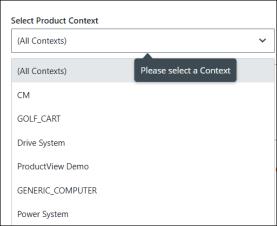 | ||||
Part Name or Number | Enables users to search for duplicate or similar parts by part name or number, supporting exact and wildcard matches while applying the selected context and classification filters.  | ||||
Classification Nodes | Displays binding attributes of the classification. The same classification search is available on the Advanced Search page of Windchill. It is a fundamental part of the classification structure, allowing objects to be categorized based on specific attributes and properties. Click  to add a single attribute field. to add a single attribute field.
| ||||
Available Shape Similarities | Displays the range of percentages of shape and similarity. These percentages are triggered by an administrator on the Search for Duplicate Parts page. Users can further filter and explore the search results based on these similarities. If an administrator or user selects the percentage and clicks Search, the Duplicate Search Result page opens. 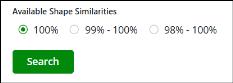
|
For example, an administrator has already initiated a search and identified 24017 potential duplicate parts. Now, on the Search for Duplicate Parts page, a user has selected the parts that are 100 % similar in shape. The user will then review 24017 potential duplicates across 5871 groups by entering the following details:
• Select Context: All Context
• Classification: Classification2
• Nodes: CHIPSET(14)