Shared Step Checks
Step Checks can now be shared and reused between steps within the same procedure. Shared Step Checks are useful when you want to apply the same check to multiple locations without retraining each step. For example, use a shared Step Check to verify the presence of multiple bolts on a vehicle chassis.
To use shared Step Checks:
1. Navigate to a procedure with two or more steps that have Step Check enabled.
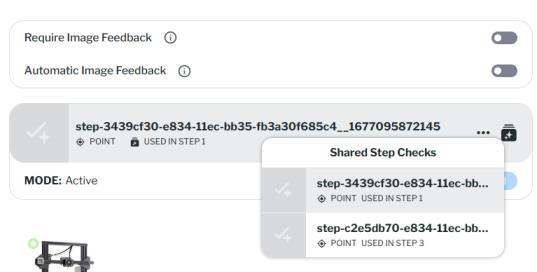
2. On a step with Step Check enabled, you will see a shared Step Checks icon next to the current Step Check name.

3. Click on the icon to display a list of available shared Step Checks. Select the Step Check you want to use for that step.
 |
Only Step Checks with the same marker type appear in the list. For example, if the step contains a point marker, only shared Step Checks that also contain point markers will appear.
|
Unlink a Shared Step Check
If you choose to replace a Step Check that already contains training data, you can unlink it from the step and either retain or discard the existing data.

When unlinking a shared Step Check with training data, you will see the following options:
• Keep: Keeps the training data with the shared Step Check.
• Move: Transfers the training data to a new, stand-alone Step Check.