Logging in to Zinc on a RealWear Device
Install and sign in to the Zinc app on your RealWear device to access calls and conversation timelines hands-free.
|
Prerequisite
|
|---|
|
Your RealWear device must be powered on and connected to the internet. You need a valid Zinc account with an accessible work email address.
|
To install and log in to the Zinc app on a RealWear device:
1. On your RealWear device, open the app store, search for Zinc, and install the app.
2. Launch the Zinc app.
 |
A ServiceMax hyperlink is available on the login screen and opens in an external browser.
|
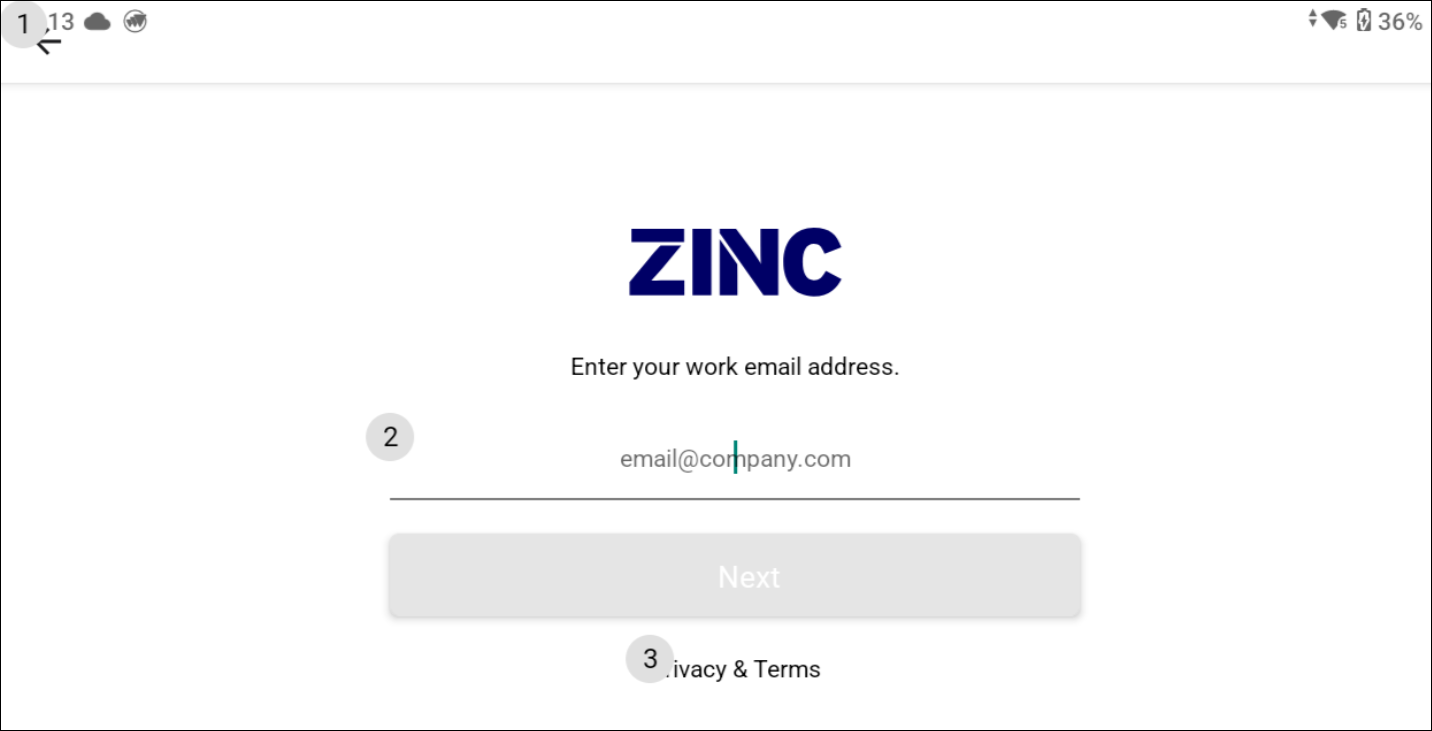
3. Say Sign in with email.
|
|
The Next button remains disabled until you enter a valid email address.
|
4. Enter your work email address and say Next.
5. Enter the 4-digit verification code from your email and say Start using Zinc.
You are logged in to Zinc and the call list landing screen appears, showing any active calls you can join. To log out, say Sign Out on the landing screen.