Joining and Managing Calls on RealWear
Join an active call on your RealWear device to receive hands-free remote assistance or collaborate with participants using voice commands and in-call controls.
|
Prerequisite
|
|---|
|
At least one active call must be available in a conversation you participate in.
|
To join and manage a call on a RealWear device:
1. Open the Zinc app on your RealWear device.
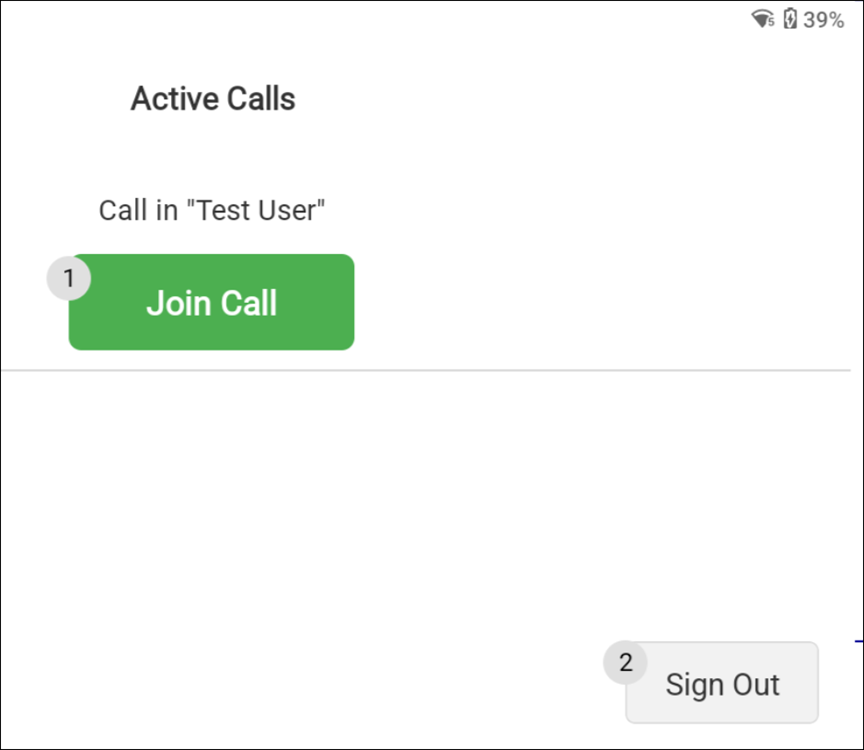
2. On the call list landing screen, say Join Call.
 |
For multiple active calls, say Join Call [Conversation Name] to join a specific call.
|
3. Use the in-call controls as needed:
◦ Say Toggle Video to toggle your device camera on or off. The app defaults to the front-facing camera.
◦ Say Toggle Audio to mute or unmute your audio.
◦ Say Capture to take a still frame from the video feed when the video feed is active.
◦ Say Send to share the image in the conversation or say Cancel to discard it. A download button is also available on the preview screen.
|
|
Live annotations drawn by other participants appear on your screen in real time.
|
4. To view the conversation timeline, say Open Conversation.
5. Say Return to Call to go back to the in-call screen.
6. Say Leave Call to exit the call.