Configuring Email Notifications for Data Clean Results
You can configure email notifications to be sent to users who trigger Data Cleans, and also to other users.
 |
Email notifications cannot be sent when you invoke the Dry Run option or for data cleans triggered by System Jobs.
|
To configure email notifications for Data Clean results:
1. In Max Admin, click System Management ( ) > , and then in the list view, open the currently active System Setting record.
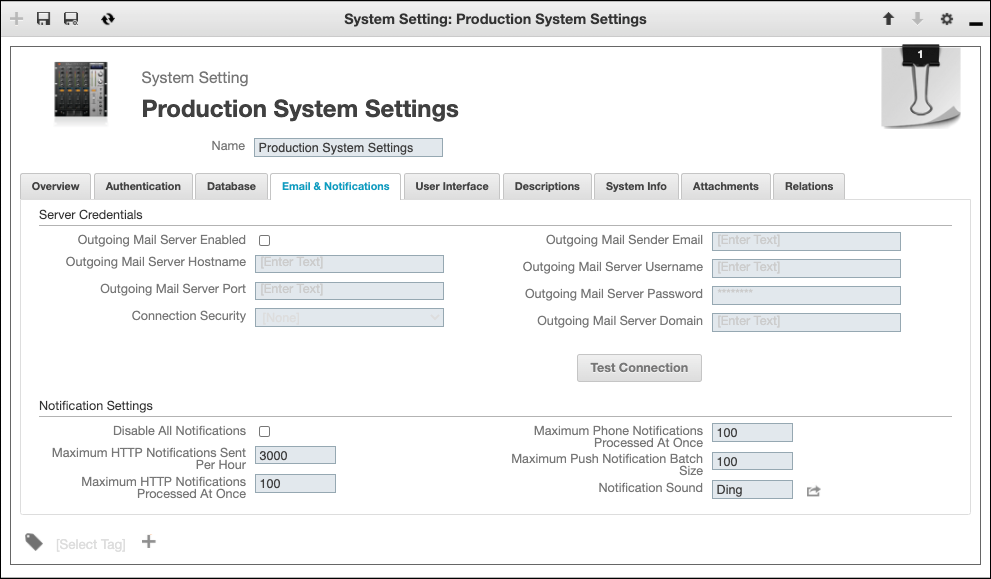
) > , and then in the list view, open the currently active System Setting record.2. On the record page, on the Email & Notifications tab, complete the fields as follows, and then click Test Connection.
|
Field
|
Value
|
||
|---|---|---|---|
|
Outgoing Mail Server Hostname
|
The hostname or IP address used to connect to the SMTP server for outgoing email.
|
||
|
Outgoing Mail Server Port
|
The port used to connect to the SMTP server for outgoing email.
|
||
|
Connection Security
|
The security protocol used for mail server connection. Available options are None, SSL/TLS, and STARTTLS.
|
||
|
Outgoing Mail Server Email
|
The sender email address used in email sent from the system.
|
||
|
Outgoing Mail Server Username
|
The username used for SMTP authentication when outgoing email is sent.
|
||
|
Outgoing Mail Server Password
|
The password used for SMTP authentication when sending outgoing email is sent.
|
||
|
Outgoing Mail Server Domain
|
The domain name used to connect to the SMTP server when emails are sent, for example, servicemax.com.
|
||
|
Outgoing Mail Server Enabled
|
Select this check box to enable Max Platform to send outgoing email.
|
3. After you test the connection, if needed, adjust configuration values and re-test until successful, and then in the top left corner, click Save and Close ( ).
).
).4. In Max Designer, click Developer Tools ( ) > , and then in the left pane, search for and click Email Notification Requests.
) > , and then in the left pane, search for and click Email Notification Requests.5. In the left pane, click Records, and then in the list view, click Data Clean Completed.
6. On the record page, on the Sender and Recipients tab, enter valid email addresses in the applicable fields, and then on the System Info tab, select the Active check box and save and close the record.