Adding Replacement Parts
Replacement Parts allows you to define alternate relationships between parts, indicating that one part can be used in place of another. This functionality is essential for maintaining flexibility and efficiency in managing parts within any structure.
You can define replacement part at a Part level in following ways:
• Independent of the Product
• Within the context of a Product (Service BOM)
To add a replacement part:
1. Navigate to Product Replacements tab.
2. Click New. A New Product Replacement window is displayed.
3. Provide the details for the fields as described in the following table.
|
Fields
|
Description
|
|---|---|
|
Replacement Type
|
A Picklist to choose a replacement type.
|
|
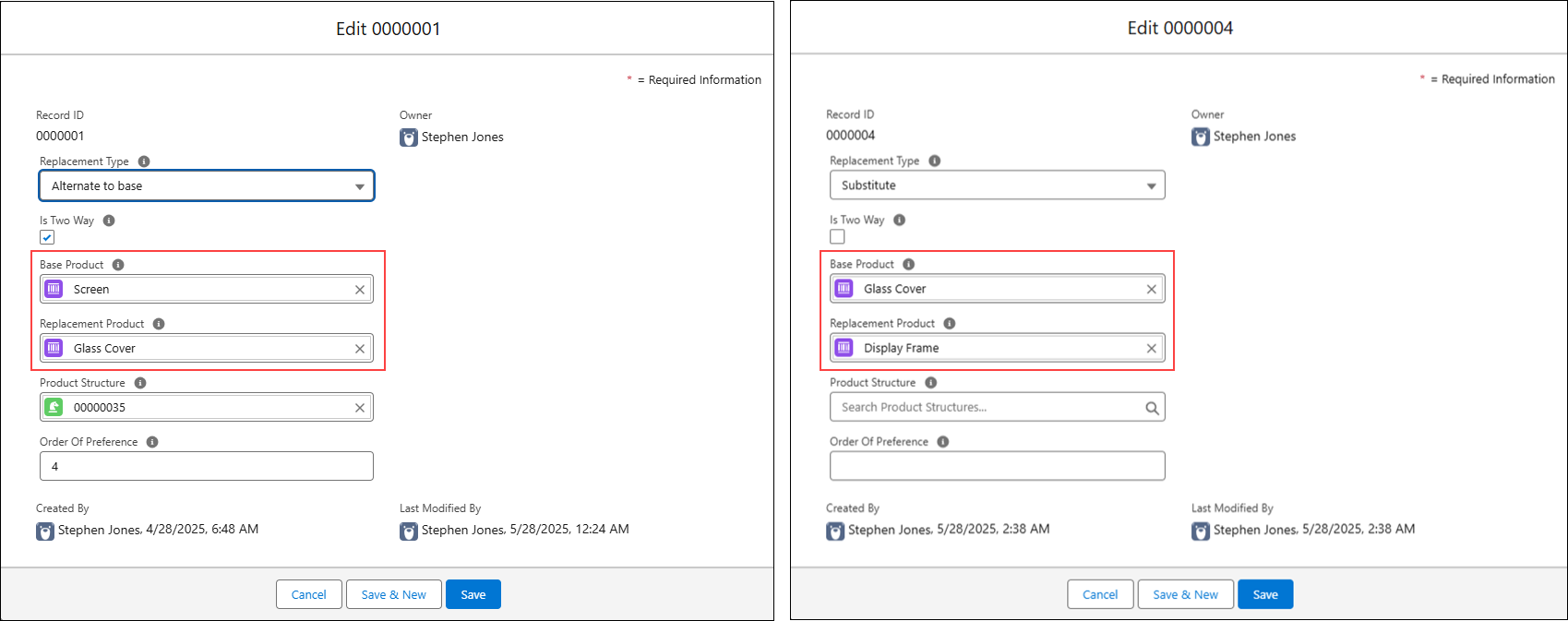
Is Two Way
|
Checkbox to indicate if the replacement is a two-way. This indicates that the Base Product can also be a Replacement Product.
For example, if Screen is a Base Product and Glass Cover is a Replacement Product, and the Is Two Way is checked, then,
• Glass Cover is a Replacement Product for Screen.
• Screen is a Replacement Product for Glass Cover.
|
|
Base Product
|
Displays the main Product that needs replacement.
|
|
Replacement Product
|
Displays the replacement product.
|
|
Product Structure
|
Displays the Record Number of the Product Structure. This field defines the replacement part specific to the selected Product Structure.
|
 |
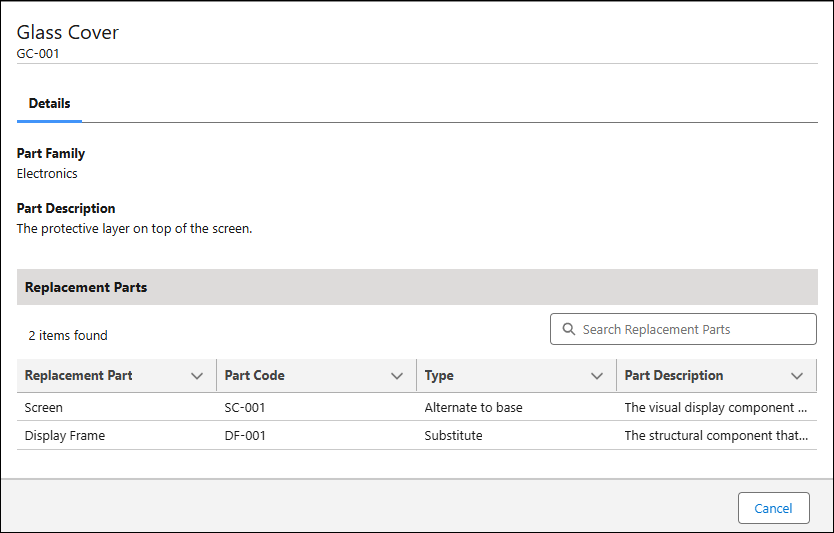
There can be a scenario where a replacement part is a base product of another part. For example, If Glass Cover is a Replacement Product for Screen and Display Frame is a Replacement Product for Glass Cover, then the Glass Cover displays both Screen, and Display Frame as the Replacement Product.