Reviewing Import Settings and Starting the Import for Observations
This step follows the field mapping process. For more information, see Mapping CSV Columns to Salesforce Fields.
Before starting the import, verify all configurations to avoid errors.
To review and start the import:
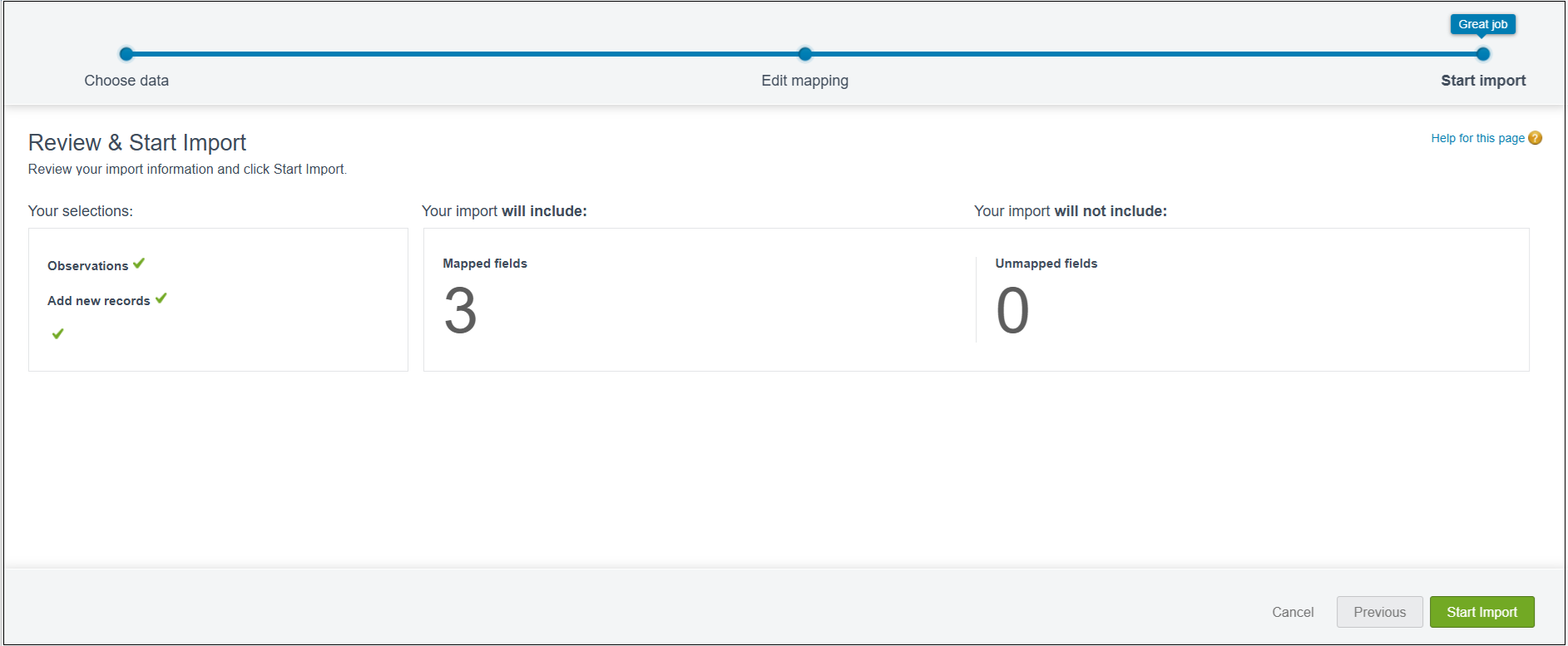
1. On the Review & Start Import page, verify these details:
a. Object: Confirm it is set to Observations.
b. Action: Confirm your selected import action (e.g., Add new records).
c. CSV file name: Ensure the correct file is selected.
d. Number of mapped and unmapped fields: Confirm all required fields are mapped.
2. If any details are incorrect, click Previous to make changes.
3. Confirm that no mandatory fields remain unmapped.
4. Click Start Import to begin importing observation records.
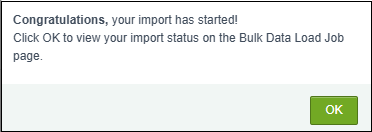
5. Click OK to navigate to the Bulk Data Load Jobs page, where you can monitor the progress and status of your import.
6. Monitor the import progress and review any error messages after completion.
If the import completes successfully, the new or updated observations are displayed on the Manage Observations page.
If the import process fails, you must troubleshoot the errors and reattempt the import. For more information, see Troubleshooting Import Failures.
When the import completes successfully, a system-generated email is sent to confirm completion. If the import completes with failed records, the email includes an Excel report of the failed entries for review and correction.