Timesheets Screen Overview
The following are the key aspects of the Timesheets screen:
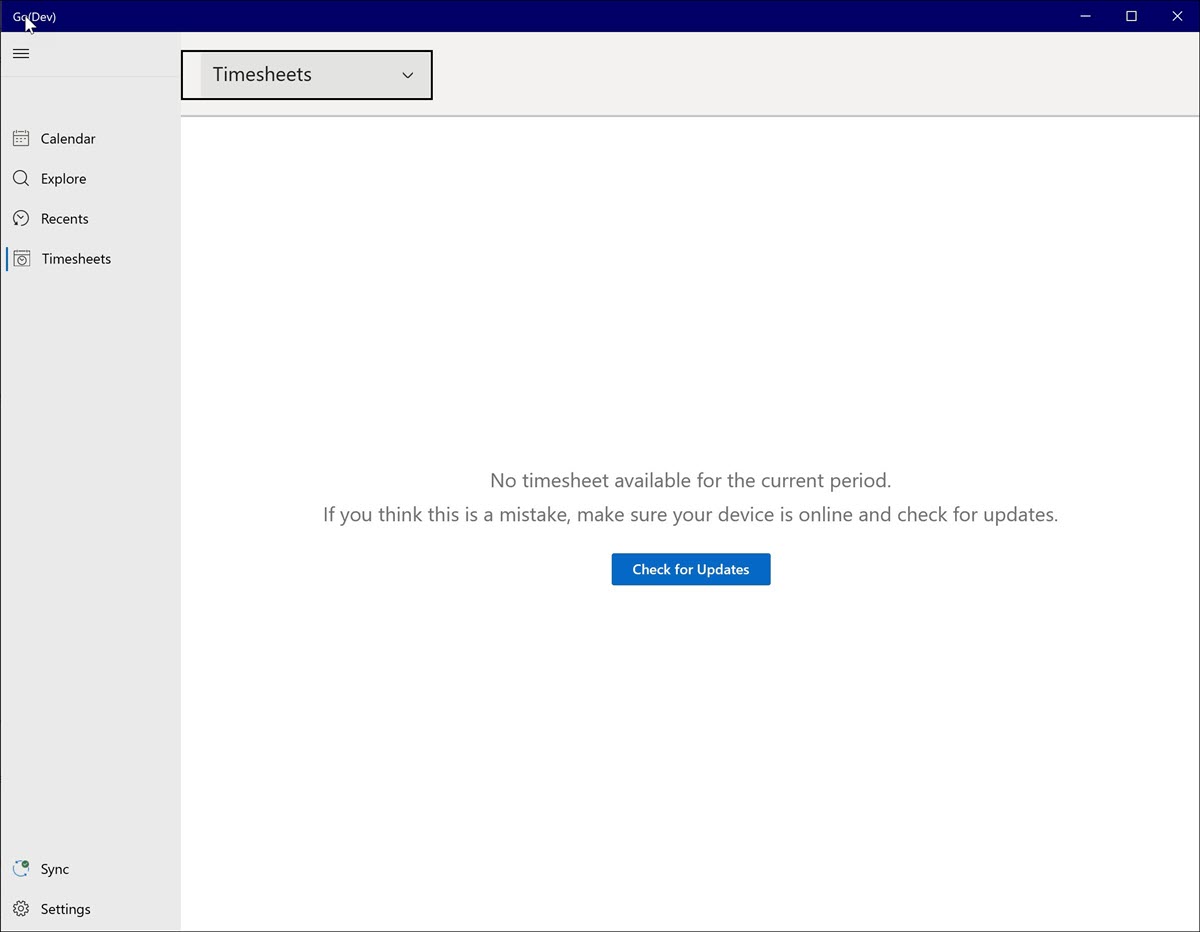
• By default, the current week's timesheet is displayed when you click the Timesheets tab. If there are no timesheet entries for the current week, the following screen with the error message is displayed.
• Both non-work order and work order time entries are displayed in different colors.
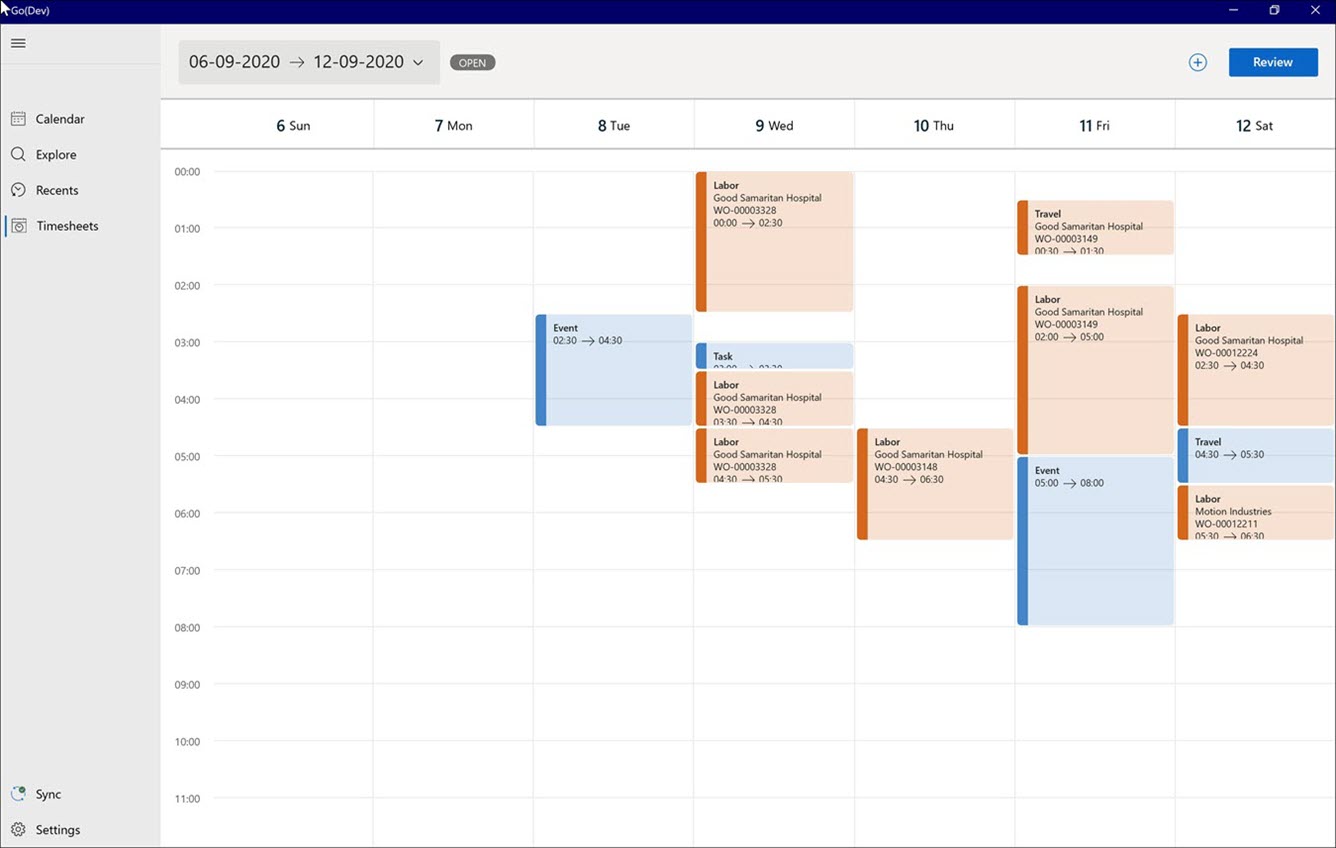
• For work order time entries, the following details are displayed:
◦ Activity Type
◦ Account Name of the related Work Order
◦ Work Order Number
◦ Start time and End time
• For non-work order time entries, the following details are displayed:
◦ Activity Type
◦ Start time and End time
• Overlapping time entries are displayed in separate columns.
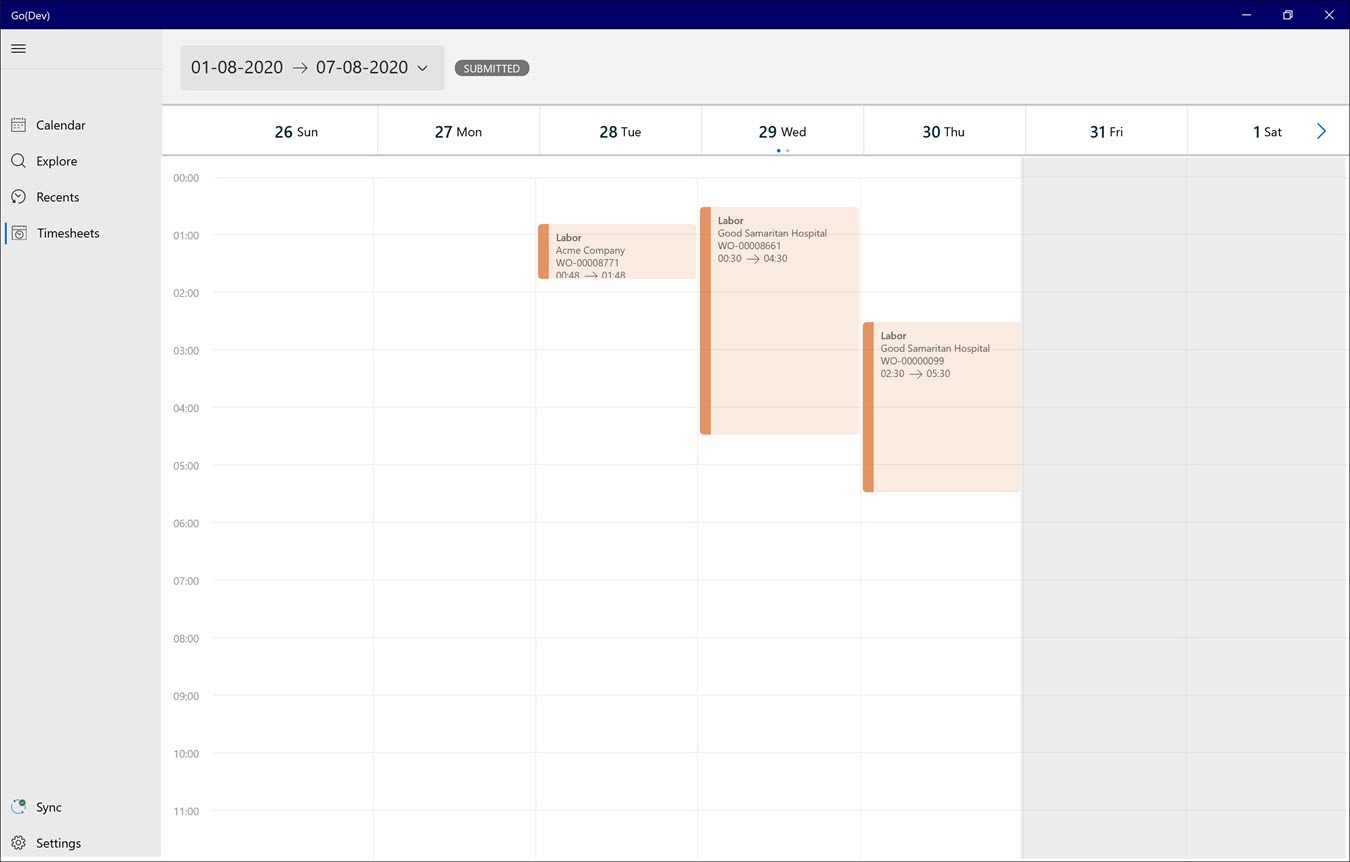
• When the timesheet entry is spread across two weeks, it is indicated with two dots on the top of the timesheet, as displayed in the following screen. Navigate from one week to another using the arrow button at the top of the date grid.