Managing Login Settings
You can control how users access the ServiceMax mobile app by configuring login restrictions and enforcing minimum supported app versions across platforms.
To manage Login Settings perform the following steps:
1. Log in to the org using your valid credentials.
2. Navigate to ServiceMax Setup > Mobile > Mobile Console. The Mobile Console screen is displayed.
3. Click Global Settings Manager.
4. In the left navigation pane, under Application Settings, click Login Settings.
The Login Settings page is displayed.
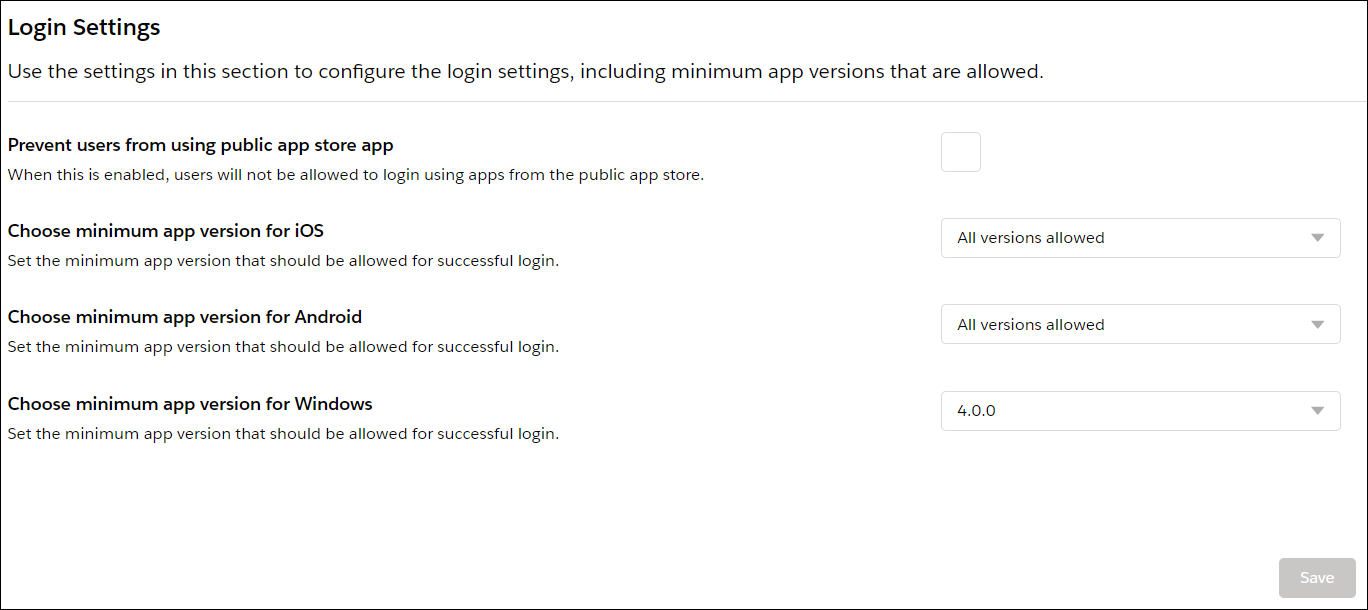
5. Provide the details for the fields as described in the following table:
|
Field
|
Description
|
|---|---|
|
Prevent users from using public app store app
|
When enabled, users cannot sign in using mobile apps downloaded from public app stores. Users must use only approved app distributions like MDM or EMM solution..
|
|
Choose minimum app version for iOS
|
Specifies the minimum iOS app version required for successful login.
|
|
Choose minimum app version for Android
|
Specifies the minimum Android app version required for successful login.
|
|
Choose minimum app version for Windows
|
Specifies the minimum Windows app version required for successful login.
|
6. Click Save.
The configured login settings are enforced the next time users attempt to sign in to the ServiceMax mobile App.
 |
• The technician must log out from the current version and log in again to get the configured changes.
• A non-compliance alert is displayed to the technician if the technician uses an older version of the app from that of the configuration. The technician can dismiss the alert and continue working with the older version of the app. In such a case, if the session expires, the technician cannot log in again. The technician must upgrade the app to at least the minimum version as configured in the Mobile Console.
• Only the fresh logins are completely blocked from any versions of the application that does not meet the version configured in the Mobile Console. However, if any technician is already logged in to an older version of the app, a non-compliance alert is displayed.
|