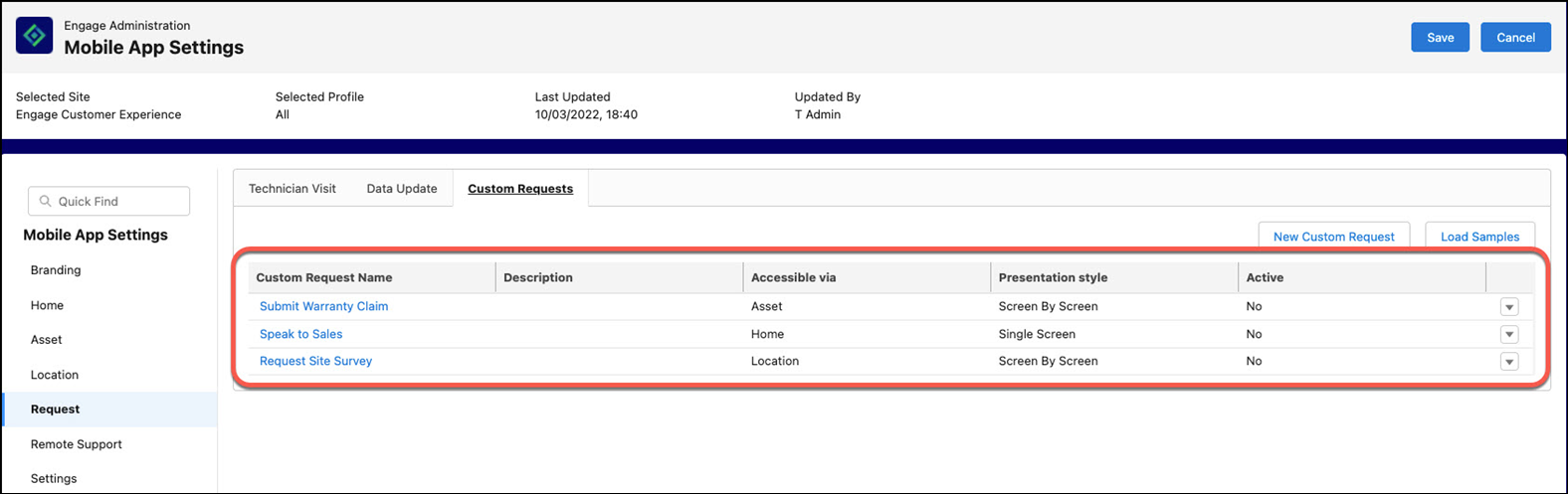
Loading Samples
The Loading Samples allows you to generate preconfigured custom requests that serve as templates for common business scenarios. These samples provide default values for fields such as access location and presentation style, reducing setup time and ensuring consistency. You can load a sample, then edit its fields and add questions to tailor the request to specific requirements.
You can load the following samples.
Speak to Sales
This sample allows users to initiate a request for direct communication with a sales representative. You can customize this template to collect additional user details.
The default field values are:
Field | Default values |
|---|---|
Accessible via | Home |
Presentation style | Single Screen |
Submit Warranty Claim
This sample allows users to request service or replacement under product warranty. You can customize this template to collect additional user details.
The default field values are:
Field | Default values |
|---|---|
Accessible via | Asset |
Presentation style | Screen By Screen |
Request Site Survey
This sample supports users in scheduling a survey or assessment at a specific location. It can be tailored to include details such as site conditions, preferred date, or access instructions, helping teams prepare effectively for the survey visit.
The default field values are:
Field | Default values |
|---|---|
Accessible via | Location |
Presentation style | Screen By Screen |
To edit the samples,
1. Click the action menu for the sample and select Edit or click on the sample name.
2. Click Edit.
3. Provide the following details.
Field | Description |
|---|---|
Fields marked with * are mandatory. | |
Request Title* | Enter a descriptive title for the request. This name helps users easily identify the purpose of the request when viewed in the Engage mobile app. |
Request Icon* | Select an icon that visually represents the request. This icon is displayed alongside the request name in the Engage mobile app, enhancing visual recognition. |
Description | Provide a short summary or explanation about the request. This field gives users additional context on what the request is about. |
Accessible via* | Choose one or more entry points where the request can be accessed in the mobile app. The available options are: • Home: Displays the request on the home screen. • Location: Displays the request for a specific location. • Asset: Displays the request for a specific asset. |
Presentation style | Define how the request will be presented to the user in the app. The available options are: • Screen By Screen: Displays each question one at a time. • Single Screen: Displays all questions on a single page for quicker input. |
To add questions:
1. Navigate to > > > .
2. Click Add Question.
3. Select a Presentation style. You can select from the following options:
◦ Screen By Screen (Default)
◦ Single Screen
4. Select a question type from the Choose a question type window. The options are:
◦ Date
◦ Multiple Choice
◦ Text
◦ File Upload
◦ Number
◦ Yes/No
5. Click Next.
6. Provide the details for each question type.
7. Click Add.
8. Click Save to apply the changes.