Selecting Match Fields to Find Coverage
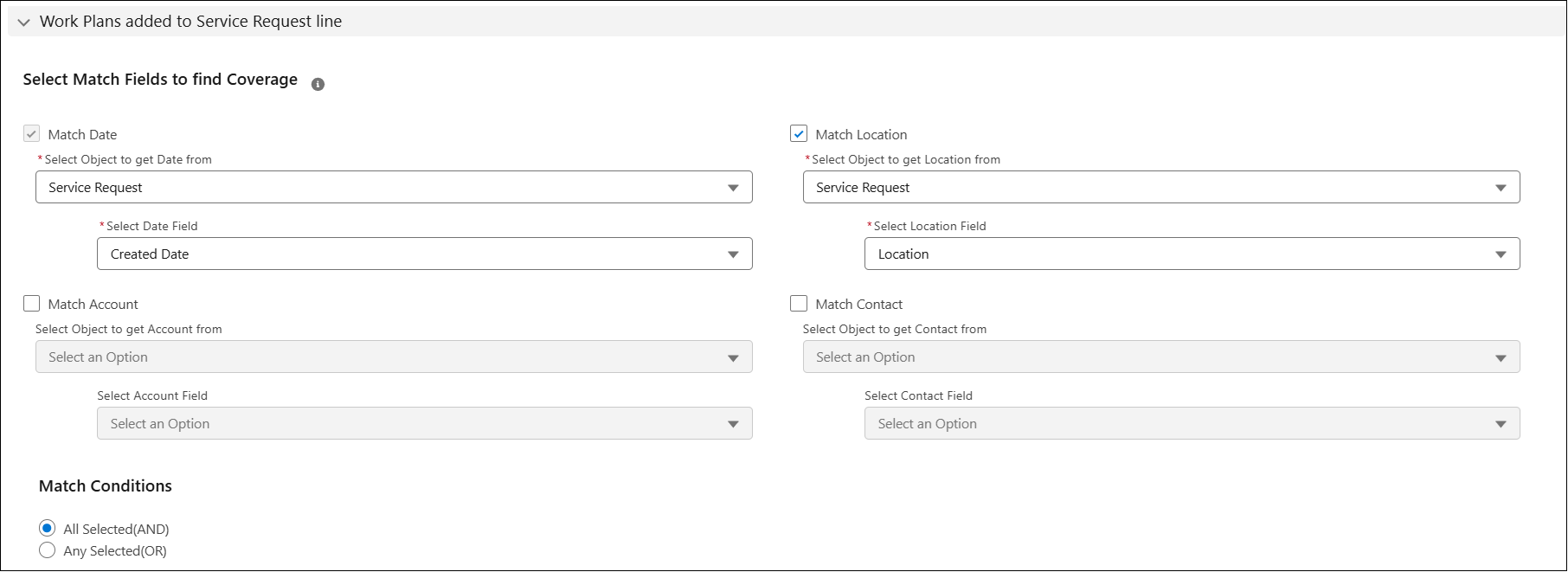
Use the Work Plan Added to Service Request Line section to configure the match fields that determine how the entitlement rule identifies Service Contract coverage for Work Plans associated with a Service Request line. These match fields compare Date, Location, Account, and Contact details from the Service Request or Installed Product with the corresponding fields on the Service Contract.
After completing the General and Rule Settings sections in the Creating an Entitlement Rule for Service Request to Identify Service Contract Coverage topic, configure the match fields in the Work Plan added to Service Request line section to define how the system identifies Service Contract coverage.
To configure match fields for a Service Request line:
1. On the Entitlement Rules page, scroll to the Work Plan added to Service Request Line section.
The following table describes the fields evaluated by the entitlement engine to match Service Contracts when verifying coverage.
|
Field
|
Description
|
||
|---|---|---|---|
|
Match Date
Select the required Date field of the Service Request or Installed Product to check coverage. Based on the selection, the Date field’s value is compared with the Start Date and End Date of the Covered Work Plan or Service Contract.
|
|||
|
Select Object to get Date from
|
Select the object from where you want to fetch the Date field to find matching service contract coverage. Available options are:
• Service Request: The Service Request’s Date field is compared with Covered Work Plan’s or Service Contract’s Start Date and End Date.
• Installed Product: The Installed Product’s Date field is compared with Covered Work Plan’s or Service Contract’s Start Date and End Date.
|
||
|
Select Date Field
|
Select the required date field from the selected object to find valid Service Contract records for the Service Request. For example, if the selected object is Installed Product, then the date fields from the Installed Product will be listed for selection. If Created Date is selected, the system considers Service Contract records whose Start Date and End Date include the Installed Product’s Created Date for entitlement assignment.
|
||
|
Match Account
Select the required Account field of the Service Request or Installed Product to match with the Service Contract’s Account.
|
|||
|
Select Object to get Account from
|
Select the required object. The Account field from the Service Request or Installed Product is matched with the Account on the Service Contract.
|
||
|
Select Account Field
|
Select the required Account field to match with Service Contract’s Account. For example, if the Installed product’s and Service Contract’s Account is Global Hospital, and if the configured date falls within Covered Work Plan’s or Service Contract’s Start Date and End Date, the engine displays the coverage during entitlement check.
|
||
|
Match Location
Select the required Location field of the Service Request or Installed Product to match with the Covered Work Plan’s Location.
|
|||
|
Select Object to get Location from
|
Select the required object. The Location field from the Service Request or Installed Product is matched with the Covered Work Plan’s Location.
|
||
|
Select Location Field
|
Select the required Location field to match with Service Contract’s Covered Location. For example, if the Installed product’s and Covered Work Plan’s location is Bangalore, and if the configured date falls within Covered Work Plan’s or Service Contract’s Start Date and End Date, the engine displays the coverage during entitlement check.
|
||
|
Match Contact
Select the required Contact field of the Service Request or Installed Product to match with the Covered Work Plan’s Contact.
|
|||
|
Select Object to get Contact from
|
Select the required object. The Contact field from the Service Request or Installed Product is matched with the Covered Work Plan’s Contact.
|
||
|
Select Contact Field
|
Select the required Contact field to match with Service Contract’s Covered Contact. For example, if the Installed product’s and Covered Work Plan’s contact is John Smith, and if the configured date falls within Covered Work Plan’s or Service Contract’s Start Date and End Date, the engine displays the coverage during entitlement check.
|
||
|
Match Conditions
Use the Match Conditions settings to define how entitlement coverage is evaluated based on selected fields from a Service Request or Installed Product. The system checks for matches against the Service Contract or Covered Product using the following criteria:
• All Selected(AND): All configured match conditions (Date, Location, Account, Contact) must be satisfied for entitlement to be granted.
• Any Selected(OR): Entitlement is granted if at least one of the configured match conditions is satisfied.
|
|||
2. Scroll to the Ranking Contracts And Warranties section.
The following table describes the fields that determine how the entitlement engine selects the appropriate Service Contract when multiple matches are found.
|
Field
|
Description
|
||
|---|---|---|---|
|
Ranking Contracts And Warranties
Displays options to define how multiple matching Service Contracts and Warranties are handled during entitlement checks.
|
|||
|
If multiple matches found
|
Select any of the following:
• Skip auto assignment: Select this option to skip the entitlement If multiple matches are found after the entitlement rule execution.
• Select this option to apply first match based on the configured sort field. If you select this option then Select Field to Sort Service Contracts and Sort Order fields are listed on the user interface to select the sort field and sorting order. If the Select Field to Sort Service Contracts field is Start Date and the Sort Order is Ascending, the engine evaluates all matching Service Contracts and selects the one with the earliest Start Date as the eligible match.
|
||

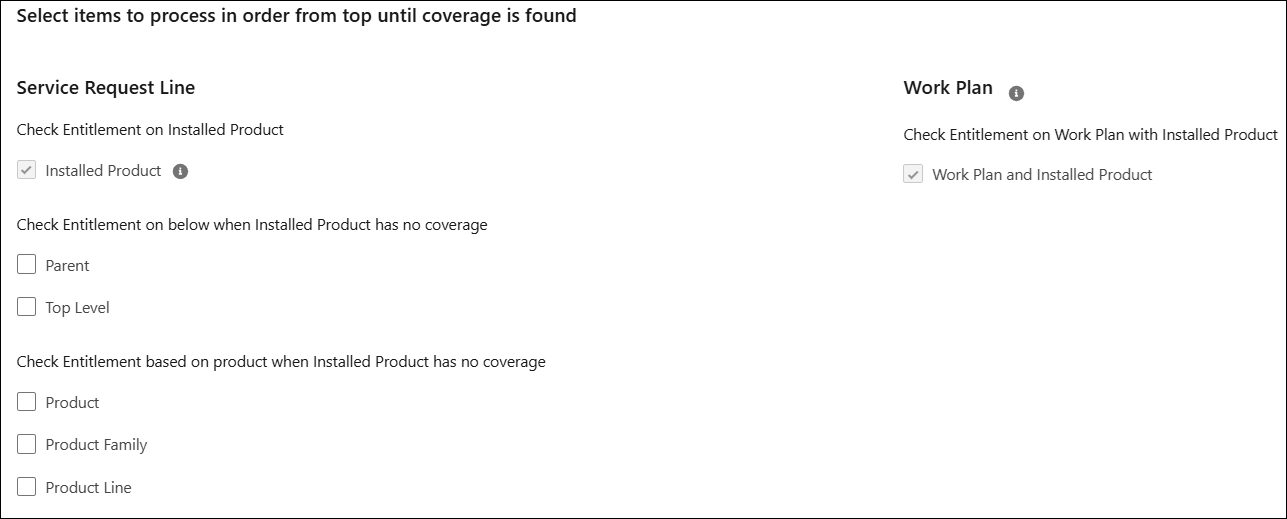
3. Scroll to the Select items to process in order from top until coverage is found section.
The following table describes the fields that define how the system evaluates Service Request Line and Work Plan levels in sequence to determine valid coverage.
|
Field
|
Description
|
||
|---|---|---|---|
|
Select items to process in order from top until coverage is found
Use this section to configure how the entitlement engine evaluates coverage across different levels of the Installed Product and associated Work Plan. The system checks the selected levels in order and stops when valid coverage is found. This helps ensure that the entitlement check runs efficiently, starting from the most specific level and moving downwards only as needed. If coverage is not found at one level, the system continues to the next until a valid service contract is identified.
For example, if you select Installed Product, Parent, and Product Line, the system checks the Installed Product first. If no coverage is found, it proceeds to the Parent and then to the Product Line, stopping when valid coverage is found.
|
|||
|
Service Request Line
|
|||
|
Check Entitlement on Installed Product
|
This option is always selected and read-only. The system checks entitlement on the Installed Product linked to the Service Request Line. Coverage on this Installed Product is evaluated first.
• If coverage is not found at this level, the system checks the selected additional levels (such as Parent, Top-Level Component, Product, Product Family, and Product Line) in order.
• The system stops when it finds valid coverage.
|
||
|
Check Entitlement on below when Installed Product has no coverage
|
Select one or both of the following assembly levels to evaluate when coverage is not found at the Installed Product level: Parent and Top-Level Component. The system checks the selected levels in order and stops when coverage is found.
|
||
|
Check Entitlement based on product when Installed Product has no coverage
|
Select one or more product hierarchy levels to evaluate when coverage is not found at the Installed Product or its assembly levels. Available options include Product, Product Family, and Product Line. The system checks the selected levels in order and stops when valid coverage is found.
|
||
|
Work Plan
|
|||
|
Check Entitlement on Work Plan with Installed Product
|
This option evaluates Work Plan coverage associated with the Installed Product.
The system evaluates coverage for the Work Plan in the following fixed sequence until coverage is found. This is system default and cannot be modified:
• Installed Product and Work Plan
• Product and Work Plan
• Work Plan only
|
||
4. Click Save.
 |
• The Skip auto assignment option is not applicable for Depot Service Request.
|
Related Topics