Managing Coverages
The coverages are retrieved based on the source record, the PM Plan Template’s applicable products, and the Template criteria. You can add additional products that need to be covered under PM Plans.
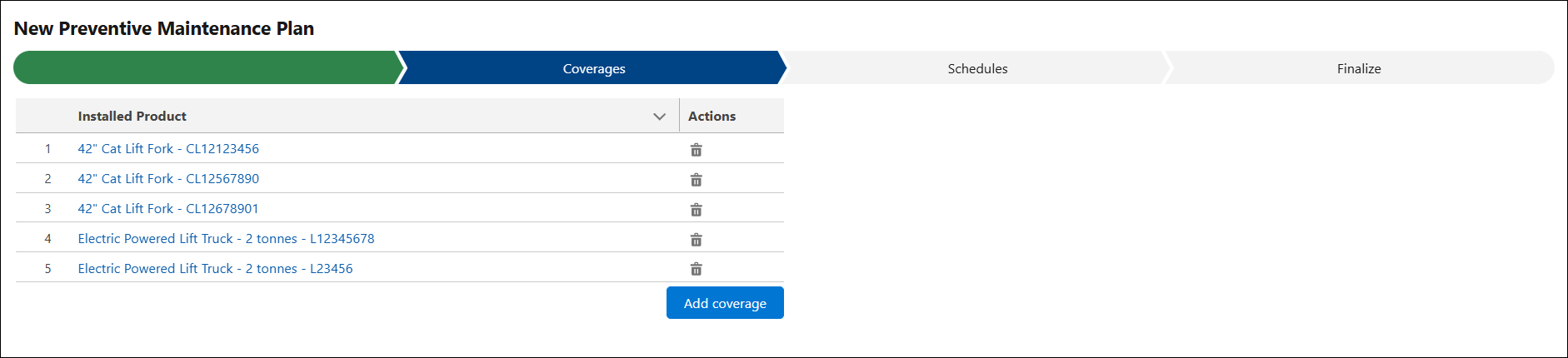
To add an applicable product:
1. In the New Preventive Maintenance Plan Wizard, go to the Coverage tab. For more information, see Time-Based or Condition-Based PM Plans.
2. Click Add coverage.
The Add Coverage pop-up window is displayed.
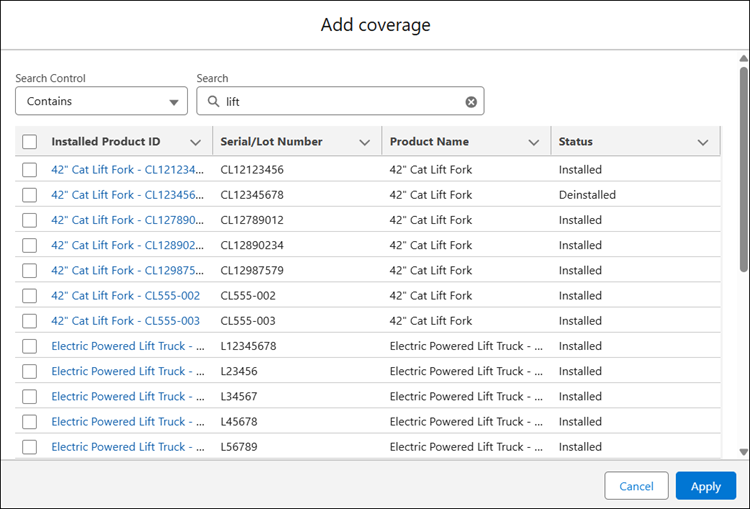
3. In the Search Control, Select any of the following:
◦ Starts With: Searches for products whose names begin with the entered keyword.
◦ Ends With: Searches for products whose names end with the entered keyword.
◦ Contains: Searches for products that include the entered keyword in the name.
◦ Exact Match: Searches for products with names that exactly match the entered keyword
4. In the Search, enter a keyword and click Search.
The list of products that match the keyword is displayed.
5. Select the required products from the results and click Apply. The selected products are displayed in the Coverage tab.