Adding PM Offering
You can define the preventive maintenance (PM) templates that are part of a service plan and that will be generated as offerings on any Service Contract created using the plan, by defining PM offerings. PM Offerings help standardize how preventive maintenance plans are created, delivered, and billed under service contracts derived from the service plan.
To add PM offering:
1. Go to ServiceMax Setup > Warranties & Service Contracts > Service Plans.
The Service Plans page is displayed. By default, the Service Plans page displays only recently viewed service plans.
 |
Alternatively, access the Service Plans page by clicking the App Launcher, typing Service Plans in the search bar, and selecting it from the results.
|
2. To view all service plans, click All Service Plans from the list view dropdown.
3. In the Service Plan Name column, select the required service plan name.
The selected Service Plan record page is displayed.
4. In the Service Flow Wizard, under the Service Plan Pricing section, select PM Offering.
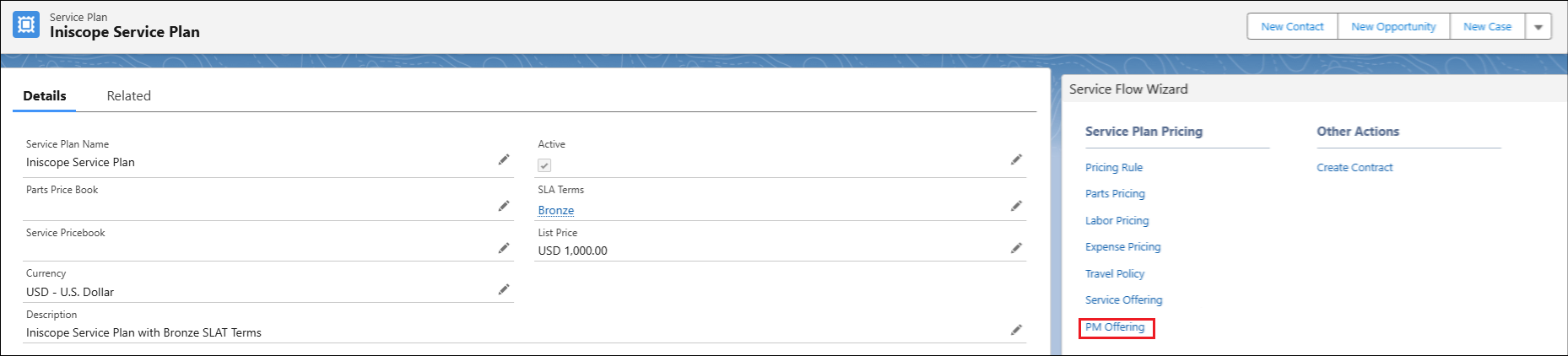
The Edit PM Offering wizard is displayed.
In the Service Plan section, by default the name of the selected service plan is displayed in the Service Plan Name field.
5. In the Lines section, click Add PM Offerings.
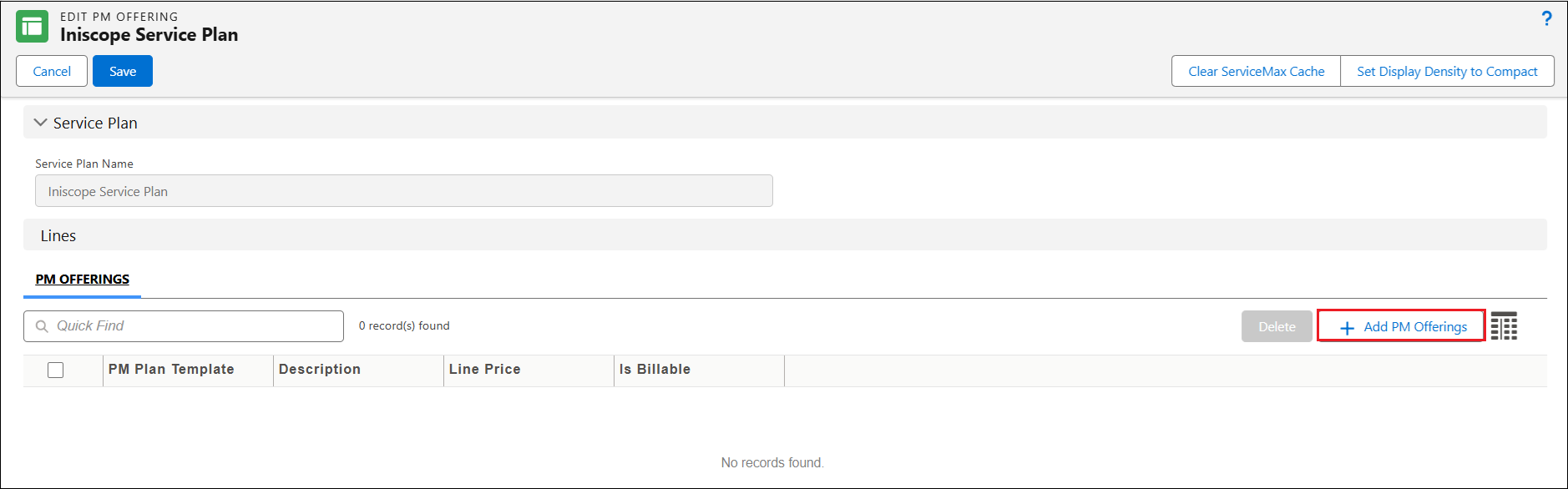
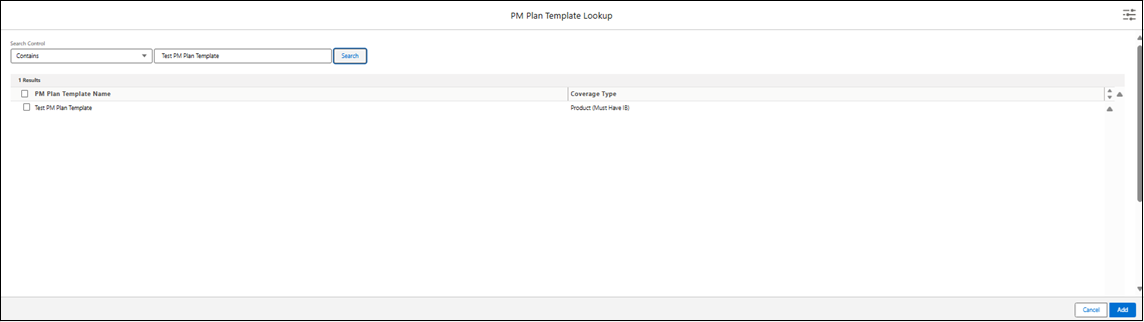
The PM Plan Template Lookup window is opened.
|
|
You can only view the recently viewed PM Plan template names in the Results section.
|
6. In the Quick Find text box, search for the required PM Plan template name, and then click Search.
|
|
Ensure that PM Plan templates are available. For more information, see Preventive Maintenance.
|
7. Select the required PM Plan Template, and then click Add.
In the PM Plan Template Lookup window, the Coverage Type column displays the configuration of the PM plan, such as whether it applies to covered installed products, locations, or accounts. This helps ensure that the correct PM plan template is selected based on the coverage defined in the service plan.
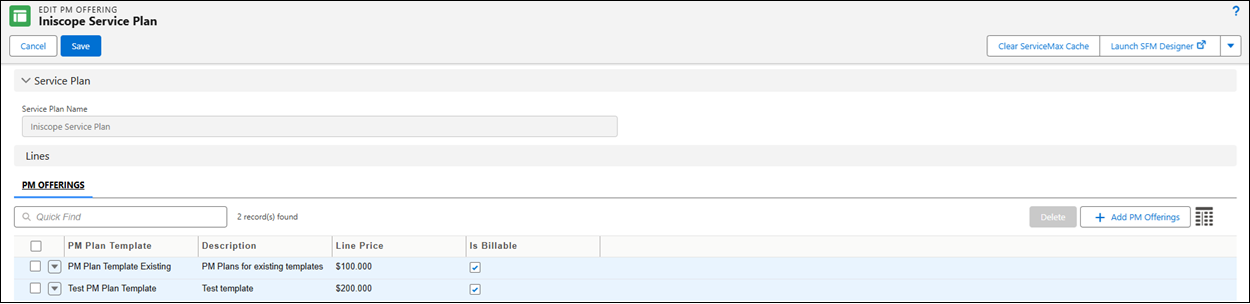
A new row is created in the PM Offerings tab.
8. Provide the details for the fields as described in the following table.
|
Field
|
Description
|
|---|---|
|
PM Plan Template
|
Displays the name of the preventive maintenance (PM) plan template associated with the service plan. Select the required PM plan template from the lookup. The lookup window lists available PM plan templates along with their coverage types (for example, Product, Location, or Account).
|
|
Description
|
Displays the purpose or summary of the selected PM plan template. Enter the description to provide more context about the PM Offering included in the Service Plan.
|
|
Line Price
|
Displays the price associated with the PM plan Template. Enter the cost for the preventive maintenance service defined in the PM plan template. This value determines how the PM activity is billed under the service contract.
|
|
Is Billable
|
Indicates whether PM plans created from this PM Plan Template are billable. Select the checkbox if the preventive maintenance activity should be billed to the customer as part of the service contract. Clear the checkbox for non-billable maintenance activities.
|
|
|
To add a new row for PM Offering, select the Add PM Offerings button and add a PM Plan Template. Alternatively, in the PM Offerings tab, select the down arrow icon next to an existing PM Offering record, and then select Clone. A new row is created, and you can modify the details as needed.
|
9. To save the changes, click Save.
The system returns to the Details tab of the Service Plan record page.
In the Related tab of the Service Plan record page, under Service Offerings related list, you can view all PM Offerings for the selected service plan.