Labor Lines Generation upon Service Tasks Completion
After technicians complete their assigned tasks, the system can automatically generate labor lines for each completed tasks to capture specific information of each tasks and time consumed by technicians.
To automatically generate labor lines upon service task completion:
• Ensure that the admin has configured Labor Lines Creation by setting the Create Labor Line When Status Changes To option to Service Task Completion. For more information, see Configuring Labor Line Creation.
• Enable the Create labor line on Work Order when status is changed to complete checkbox while creating or revising service tasks in a Work Plan Template or Work Order.
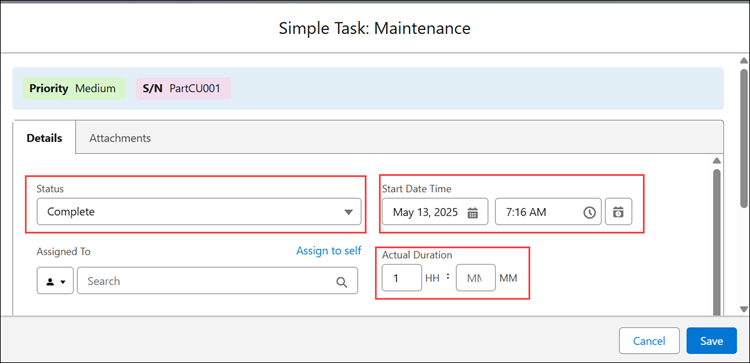
From a Work Order, when a service engineer sets a service task's status to Complete, specifies either the Start Date or Actual Duration, and saves the task, the system automatically generates a Work Detail Line of type Labor.
 |
It is mandatory to specify either the Start Date or Actual Duration when the Create labor line on Work order when status is changed to complete option is enabled for a task.
|
Based on the Labor Line Creation configuration, the fields such as Assignee, Time Stamp, Actual duration and other details from the Service Task or Work Order is mapped to the labor line.
In the Work Plan History object, a new record is logged indicating the success or failure of labor line creation status and relevant message. For the record, you can view the associated Work Order and Work Detail.

|
|
If multiple tasks are marked for labor line creation, a labor-type work detail line is generated for each task upon completion. If the labor pricing configuration is set to Flat Rate or Minimum Minutes pricing, the rate applies to each line. Based on your pricing configuration, either mark specific tasks for labor line creation or mark all tasks if pricing should apply to each task.
|