Adding the Work Order Dependency Manager LWC Component to a Work Order
To view and manage task dependencies from the Work Order record, you must add the Work Order Dependency Manager custom LWC component to the Work Order.
To add the component to the Work Order:
1. Open a Work Order record.
2. Go to > .
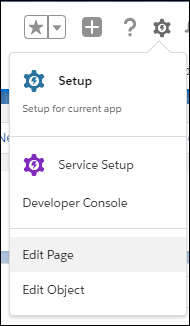
The Lightning App Builder page is displayed.
3. Create a new tab named Dependency Manager (or a name of your own choice) on the main page area to add the component.
4. In the Components section of the App Builder page, search for and select the Work Order Dependency Manager component.
5. Drag and drop the component into the page area.
6. Ensure that the Allow to manage dependencies option is enabled to manage dependency details.
If this option is disabled, the user is allowed to only view and cannot make updates to the dependencies even if the user has appropriate permissions to create or edit dependencies.
7. Click Save.
8. Exit Lightning App Builder and navigate back to the Work Order record.
The tab is added to the Work Order record to view and manage task dependencies.