Viewing Record Names and Knowledge Sources in Go Mobile App
To use an AI action in Go mobile app to view record links and Knowledge Source documents links, perform the following steps.
1. Open the record where you want to use an AI action.
2. Tap the menu button.
The Actions screen is displayed.
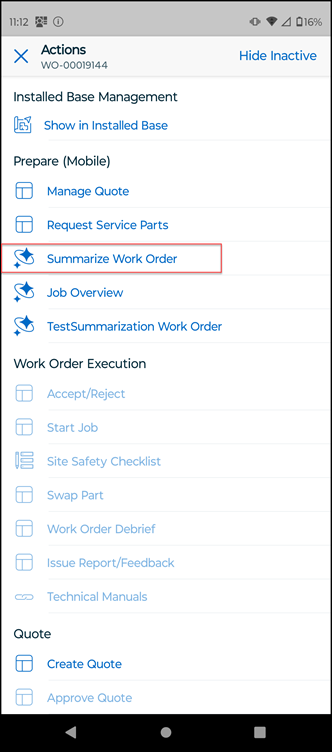
3. Tap the AI action you want to use. For example, Summarize Work Order.
 |
You can use other apps while the AI Action runs. When the response is ready, an in-app notification appears with the action name, record, and preview. Tap the notification to view the full response. The notification includes an AI-action generated timestamp and can be dismissed. If AI Chat is enabled, you can follow up with ServiceMax AI.
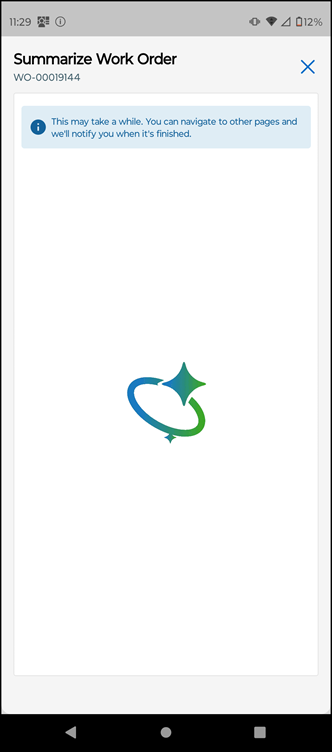 |
The AI chat displays a summary of the work order.
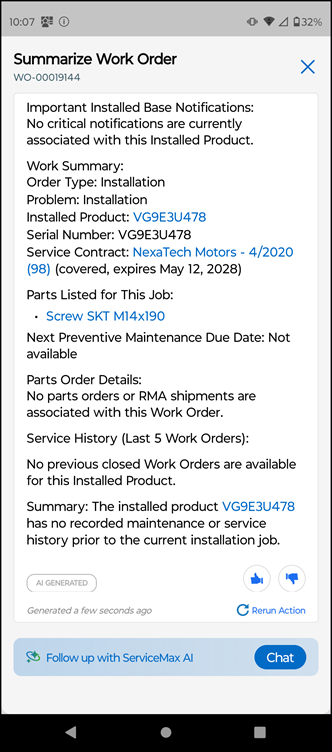
4. Review the AI-generated summary, which combines data from all agents.
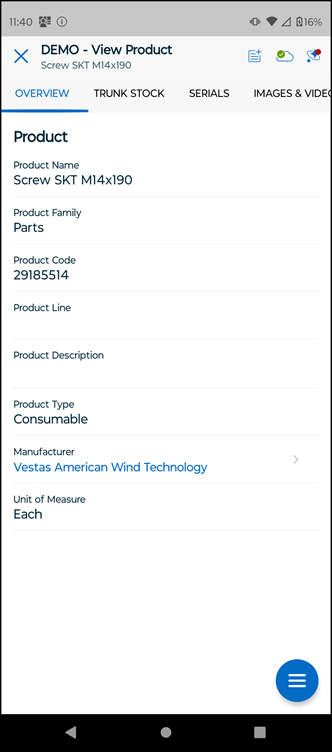
5. Tap the hyperlink to navigate to the particular record. For example, tap Screw SKT M14X190. The record details are displayed on a new screen.
|
|
You can directly navigate to a record page from the AI-generated summary response by clicking on the hyperlink. All record names like Work Order, Location, Installed Product, etc. are displayed as clickable links, only if you have required permission to access these objects. Otherwise, these are displayed as plain text.
|
6. Close the record page.
7. Tap Show Source. This lists a linked document under theSources section.
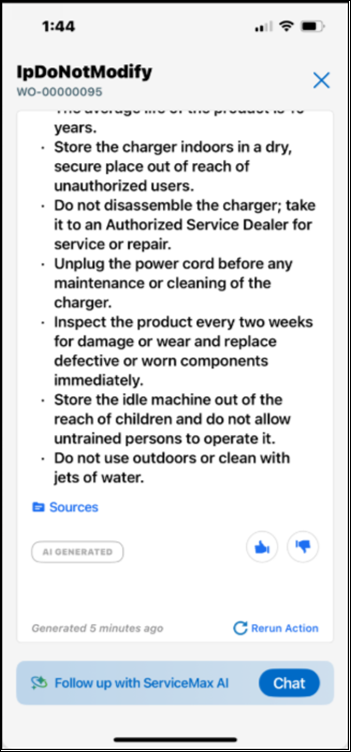
8. Tap the source link to open the file in a new screen.
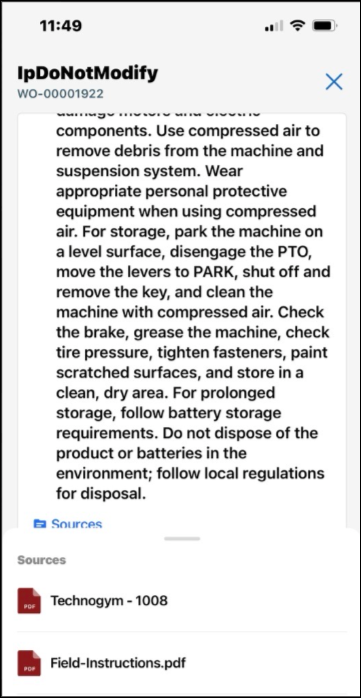
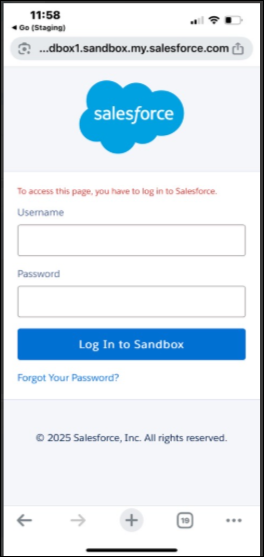
9. Tap the document source that you want to view. This opens the Salesforce login screen.
10. Login to your Salesforce org by entering your credentials.
11. Check if the document is downloaded in your org. The document name is displayed at the bottom of the app.
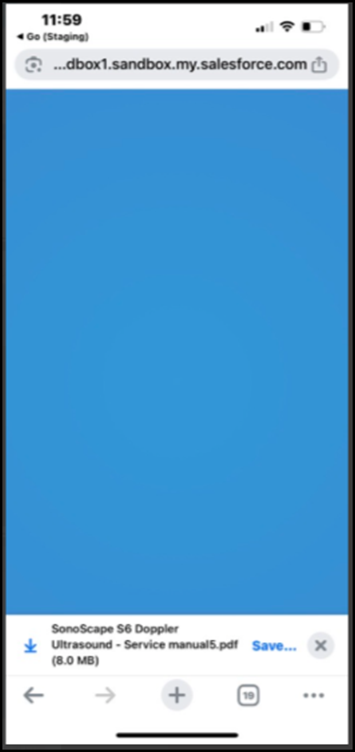
12. Select the location where you want to save the document.
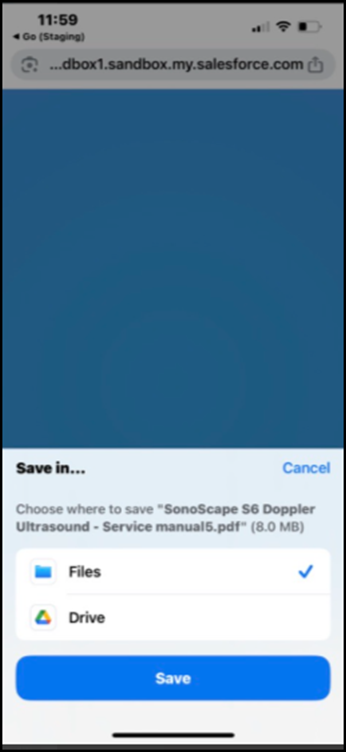
13. Tap Save to save the document in the selected location.