Defining Data Analysis Settings
You can define data analysis settings to control how the Troubleshooting Agent analyzes service data and generates Problem Overview and Solution Overview summaries. This configuration is used both when the agent analyses past work orders to learn from them and when it actively troubleshoots new work orders.
To define data analysis settings, perform the following steps.
1. Go to > > .
The Troubleshooting Agent page is displayed.
2. Click Manage Configurations under Troubleshooting Configuration.The Troubleshooting Configuration Settings page is displayed.
3. Select the Data Analysis tab.
4. Configure the following sections:
Configuring Problem Overview Settings
In the Problem Overview section, you can define the Data Source Fields of the Work Order object to specify where the agent retrieves relevant information about the problem to be addressed during service execution. You can also provide Instructions to guide how the agent interprets and summarizes the problem.
To define Problem Overview:
1. In the Problem Overview section, click Add Source Field under Data Source Fields.
2. Select a field from the Work Order object drop-down. You can select direct fields, lookup fields, or fields from a referenced object.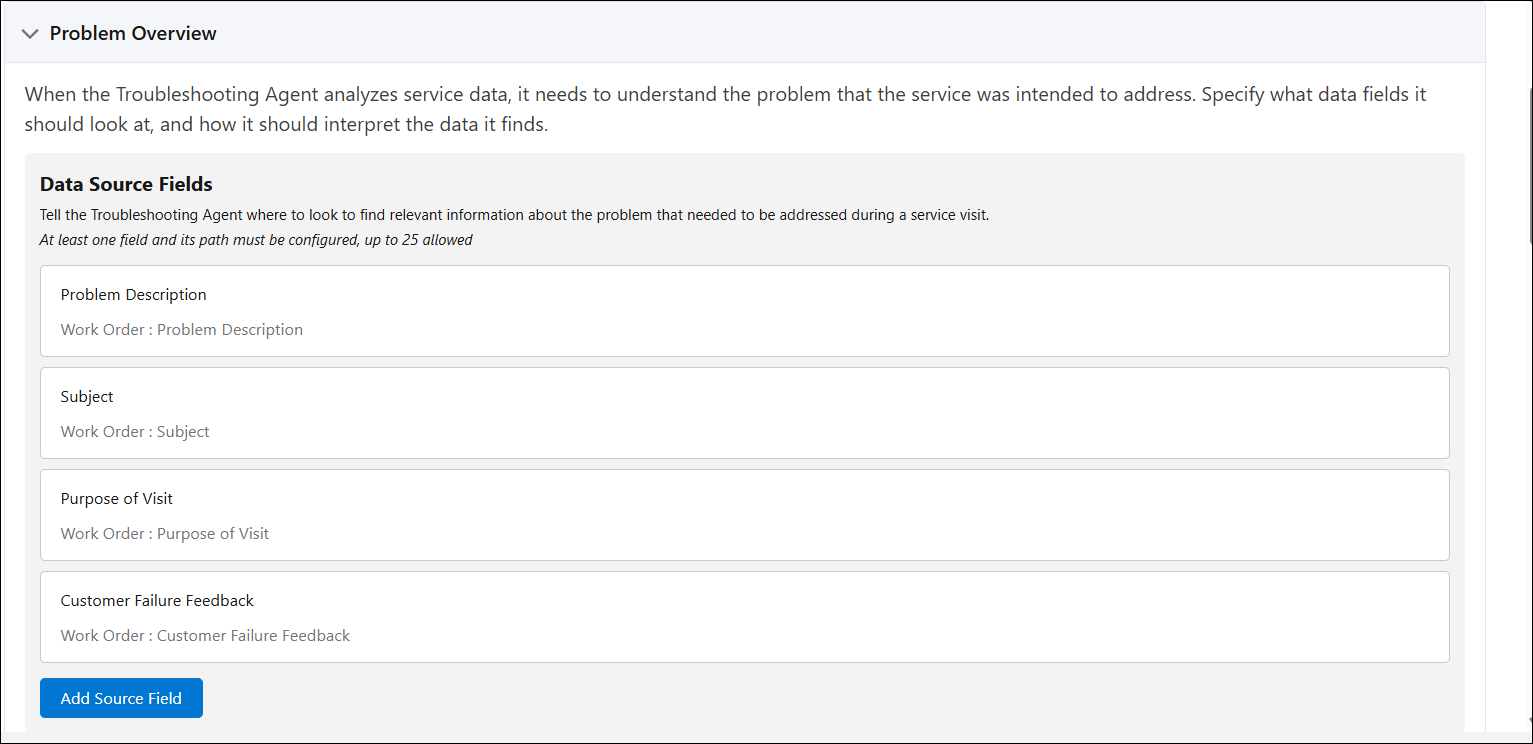
 |
• You can add up to 25 fields.
• You can edit or delete fields based on your requirements.
|
3. Click Apply.
4. In the Instructions, add instructions that explain how the agent should interpret the selected data fields when summarizing the problem.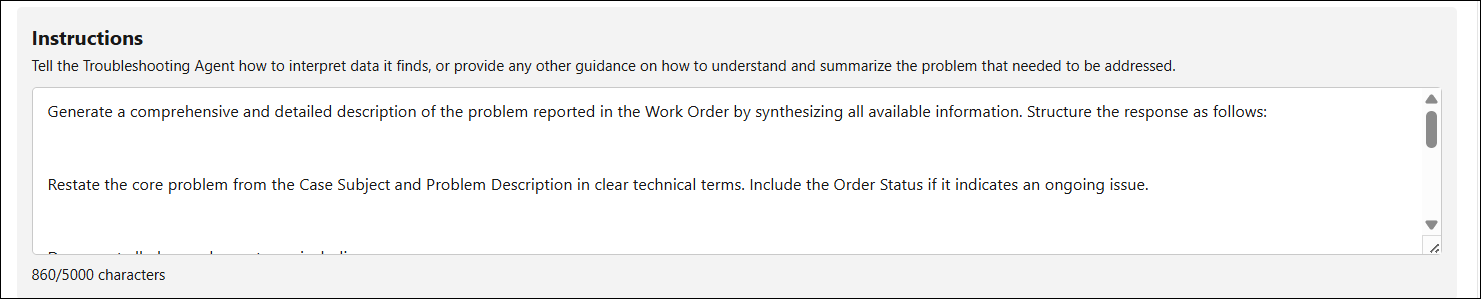
|
|
At least one data source field is required to save the Troubleshooting Agent configuration.
|
Configuring Solution Overview Settings
In the Solution section, you can define the Data Source Fields of the Work Order object to specify where the agent retrieves relevant information to determine the appropriate resolution during service execution. You can also provide Instructions to guide how the agent interprets the data and generates the solution.
1. In the Solution Overview section, click Add Source Field under Data Source Fields.
2. Select a field from the Work Order object drop-down. You can select direct fields, lookup fields, or fields from a referenced object.
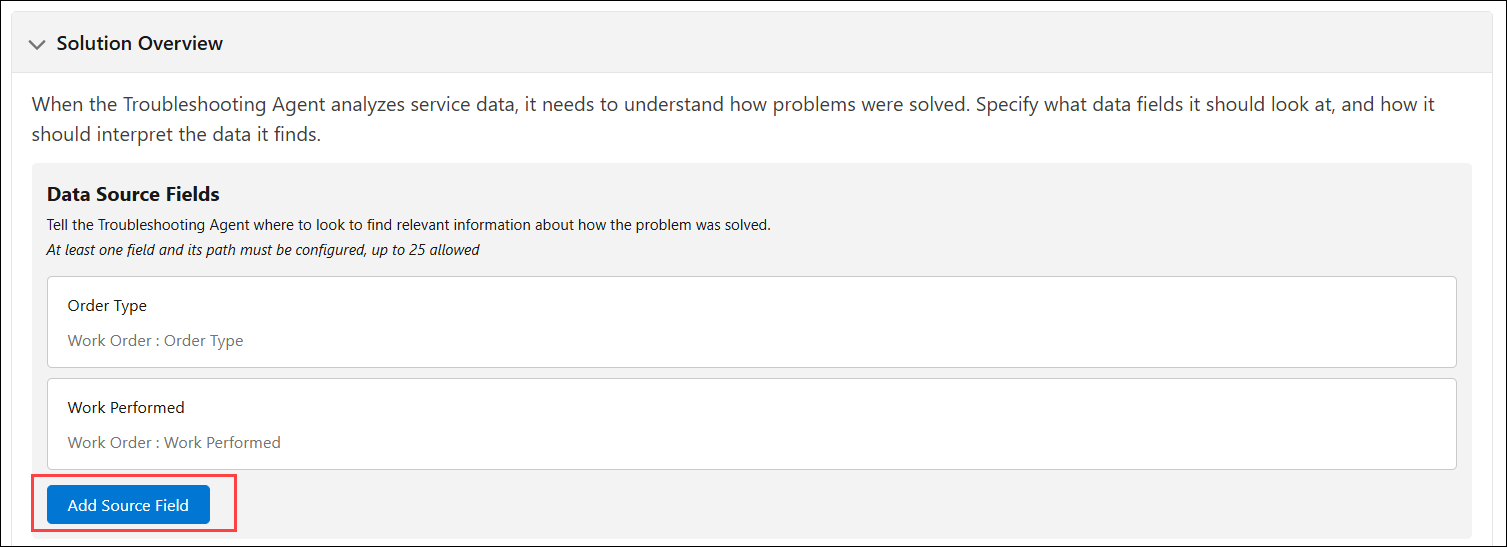
3. Click Apply.
4. In the Instructions, add instructions that describe how the agent should summarize the solution.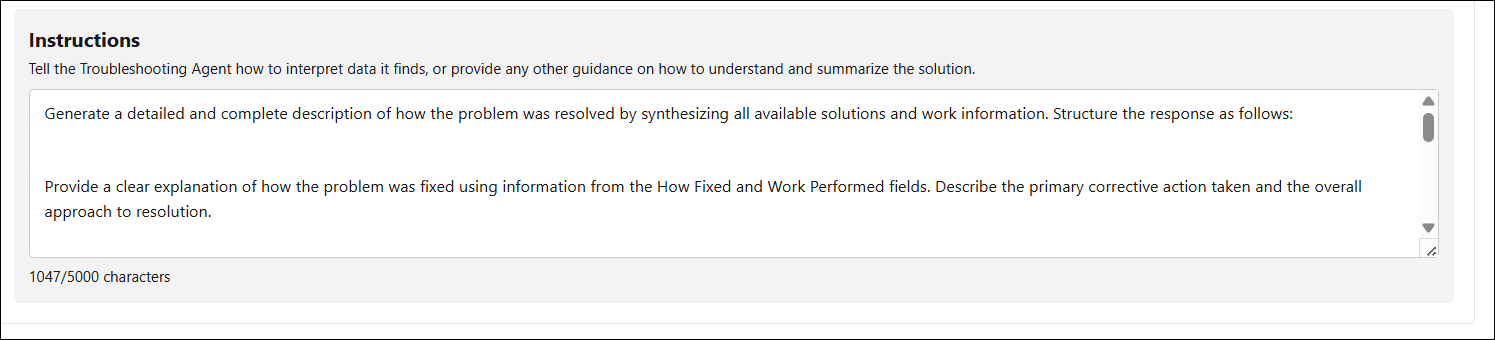
|
|
The Solution Overview cannot be configured until the Problem Overview is complete.
|
Configuring Context Data
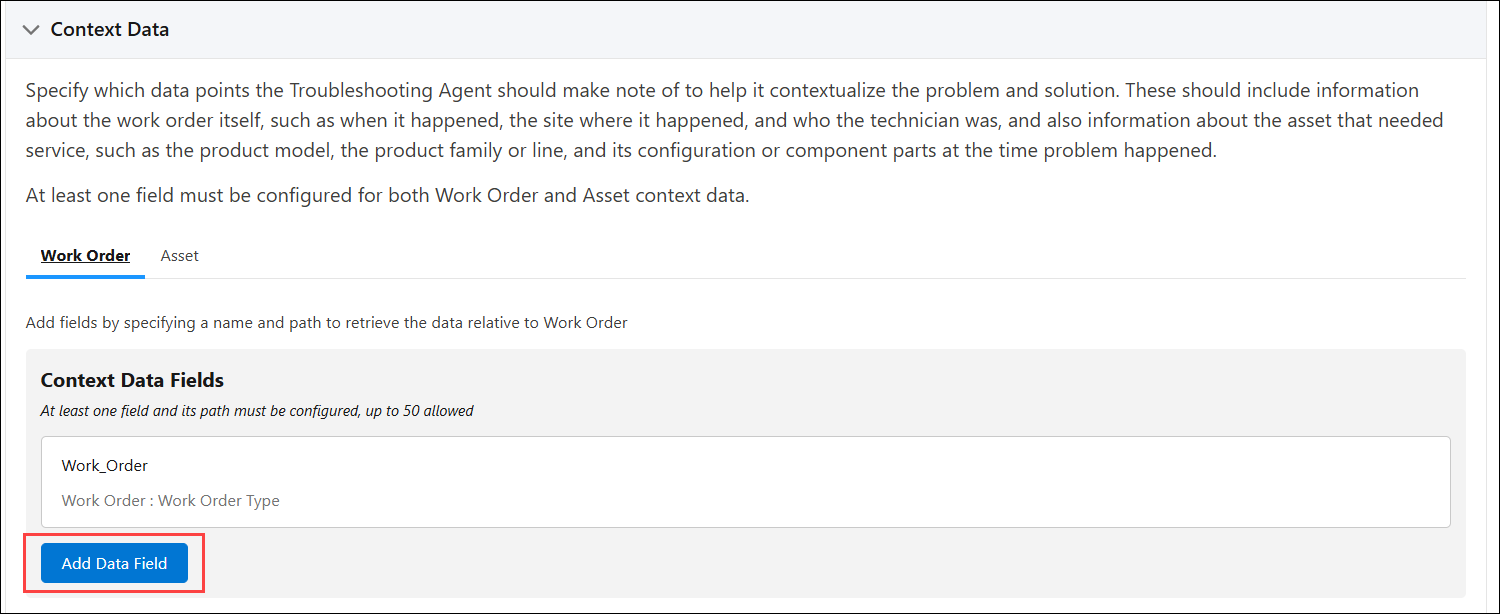
In the Context Data section, specify the fields the Troubleshooting Agent must use to understand the problem and solution, such as work order details (Time, Site, or Technician) and asset details (Model or Product Family). Context data helps the Troubleshooting Agent determine how relevant past work orders are to the current issue and improves how it interprets the problem and solution. For example, the same issue may require different resolutions depending on factors such as asset age or configuration.
To add context data fields:
1. In the Context Data section, click Add Data Field under Context Data Fields.
2. Enter a Name and select a field for the Work Order object under the Field Path. For example, Work Order Type.
3. Click Apply.
4. Similarly, go to Asset and add fields. For example, Product Family.
|
|
You can add up to 50 fields.
|
5. Click Apply.
|
|
You must add at least one Work Order field and one Asset field under Context Data to save the Troubleshooting Agent configuration.
|