Configuring Data Scope for Troubleshooting Agent
You can configure the Data Scope to control which Work Orders the Troubleshooting Agent analyzes and uses as references when resolving current issues. You can define filter criteria by using SFM expressions to include only relevant Work Orders.
The Troubleshooting Agent analyzes recently closed work orders on a scheduled basis. This ensures that the agent references appropriate historical data and provides more accurate troubleshooting recommendations. The agent analyzes only the records that meet the defined expressions and ignores all others. For example, select an SFM expression to filter Work Orders where the Work Order Type is Repair and the Product Category is Electrical Equipment.
 |
• You can add only one SFM expression to the Troubleshooting Agent.
• You must add an SFM Expression to save the Troubleshooting Agent configuration.
|
To configure Data Scope:
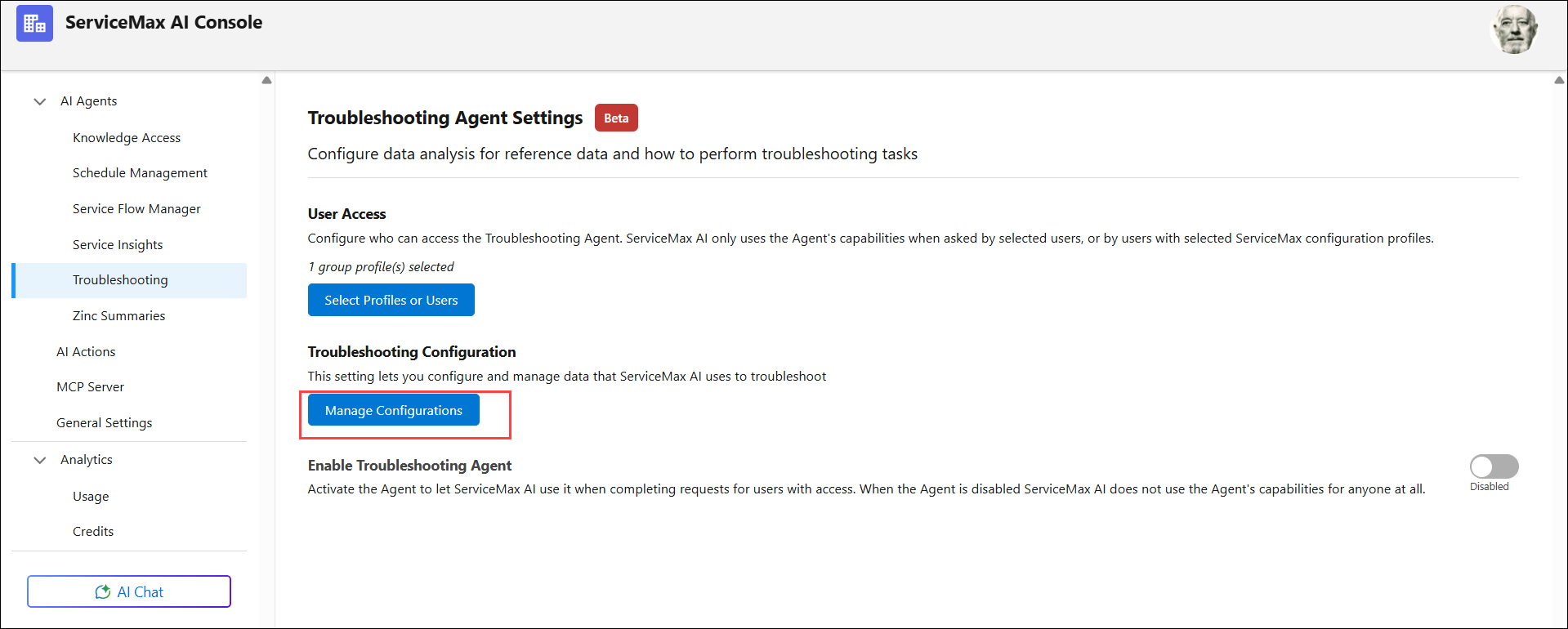
1. Go to > > .
The Troubleshooting Agent page is displayed.
2. Click Manage Configurations under Troubleshooting Configuration. The Troubleshooting Configuration Settings page is displayed
3. Click the Data Scope tab.
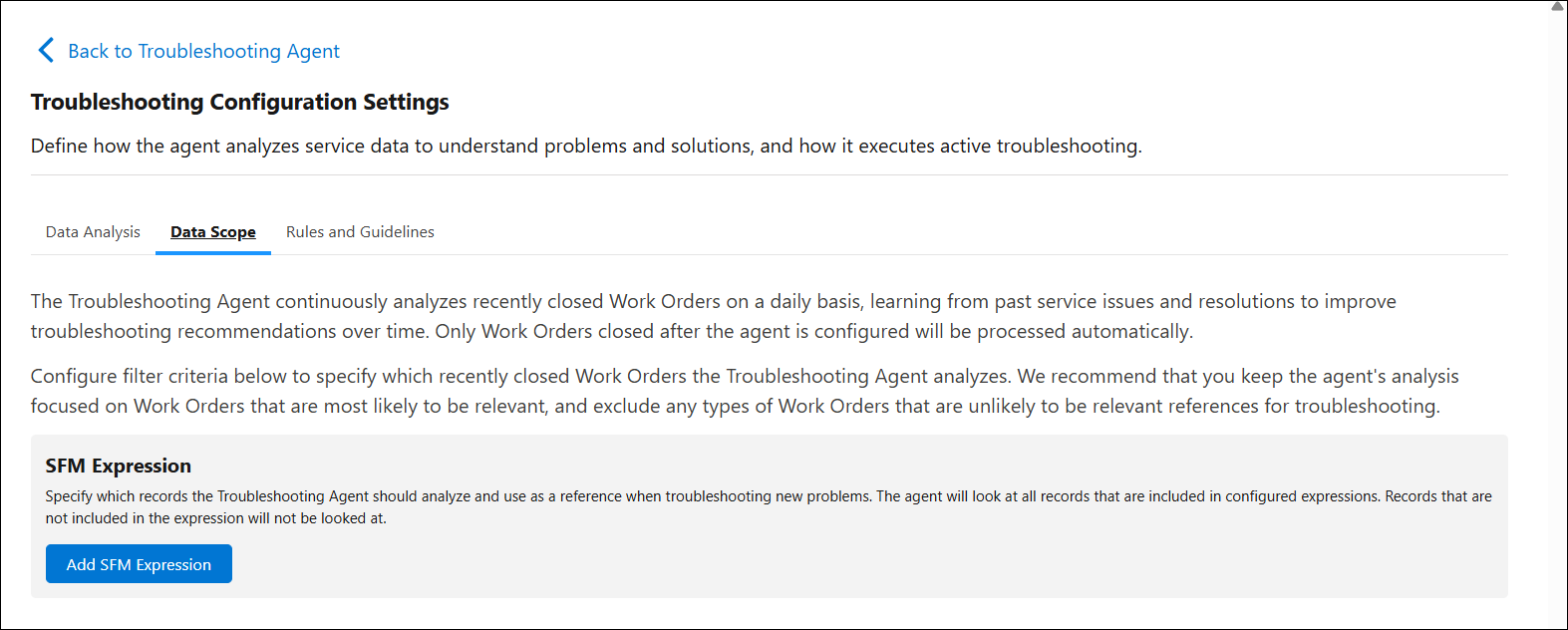
4. In the SFM Expression section, click Add SFM Expression.
The Select Expression window is displayed.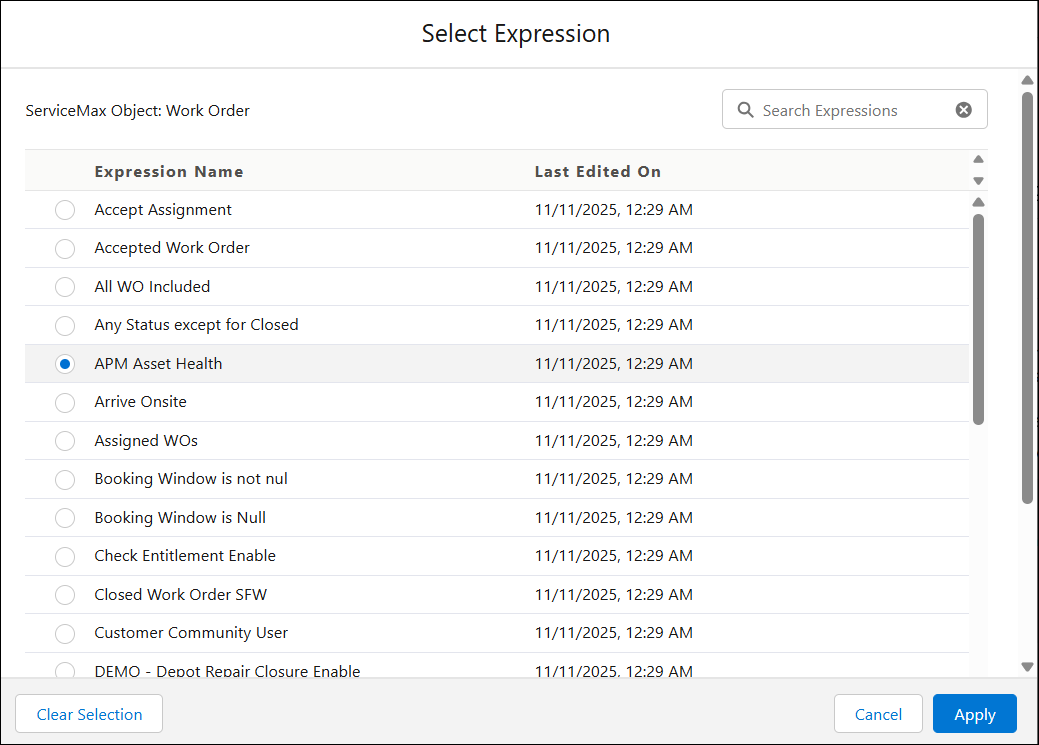
5. Search and select an SFM Expression that defines which work orders to include.
6. Click Apply.
|
|
• You can modify or delete the SFM Expression based on your requirements.
• Only work orders that match the selected SFM expression are analyzed. Work orders outside this scope are excluded.
|
7. Proceed with the Rules and Guidelines tab. For more information, see Defining Rules and Guidelines for Troubleshooting.