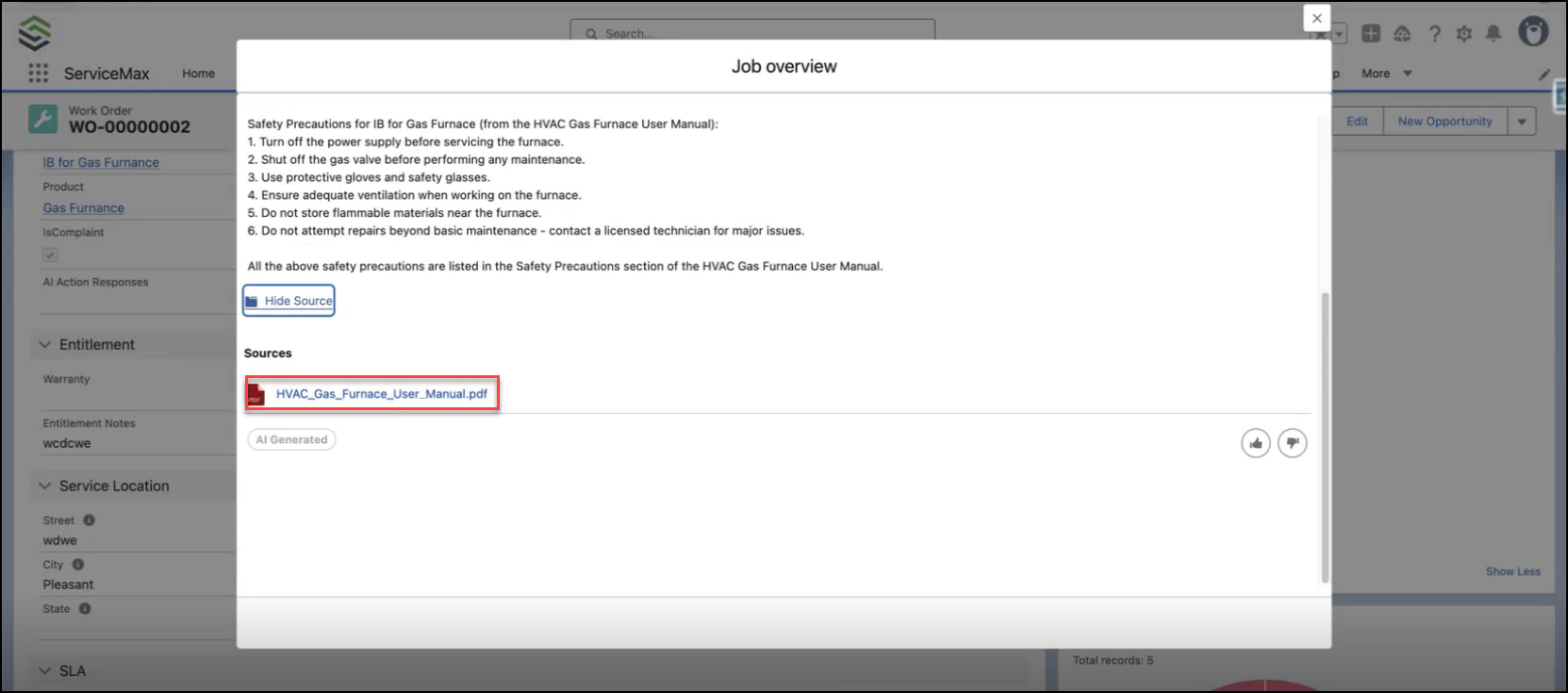
Using AI Actions in SFM Wizard
You can use AI actions within the Service Flow Manager (SFM) Wizard to assist back-office personnel who primarily work with the web application rather than the Go mobile app. These AI actions streamline tasks such as summarizing work orders, identifying missing information, and generating recommendations—helping users save time, reduce manual effort, and maintain consistency across records. Since they are embedded directly in the web interface, they integrate seamlessly into existing workflows.
 |
An administrator must first configure AI actions in the AI Console before you can use them in SFM Wizard. For more information, see Configuring AI Actions.
|
Use Cases
This feature supports common real‑world scenarios. For more information, see Use Cases for AI Actions to understand when and why to use it.
|
Prerequisites
|
|---|
|
To enable this feature, ensure the following:
• A ServiceMax AI license is assigned to the user.
• AI Actions are authored and published in the AI Console with clear instructions and agent assignments.
• AI Action Wizard Steps are configured and mapped to the Service Flow Manager (SFM) Wizard.
• The required agents, such as ServiceMax, Knowledge Access, and SFM, are enabled and accessible
• At least one AI Action is added and associated with the relevant SFM Wizard step.
• You have access to the record and the SFM Wizard where the AI Action is invoked.
|
To use AI actions in SFM Wizard, perform the following steps.
1. Open the record where you want to use an AI action. For example, search for a work order WO-0000002.
2. Navigate to the Service Flow Wizard section.
The wizard lists the available actions for the record.
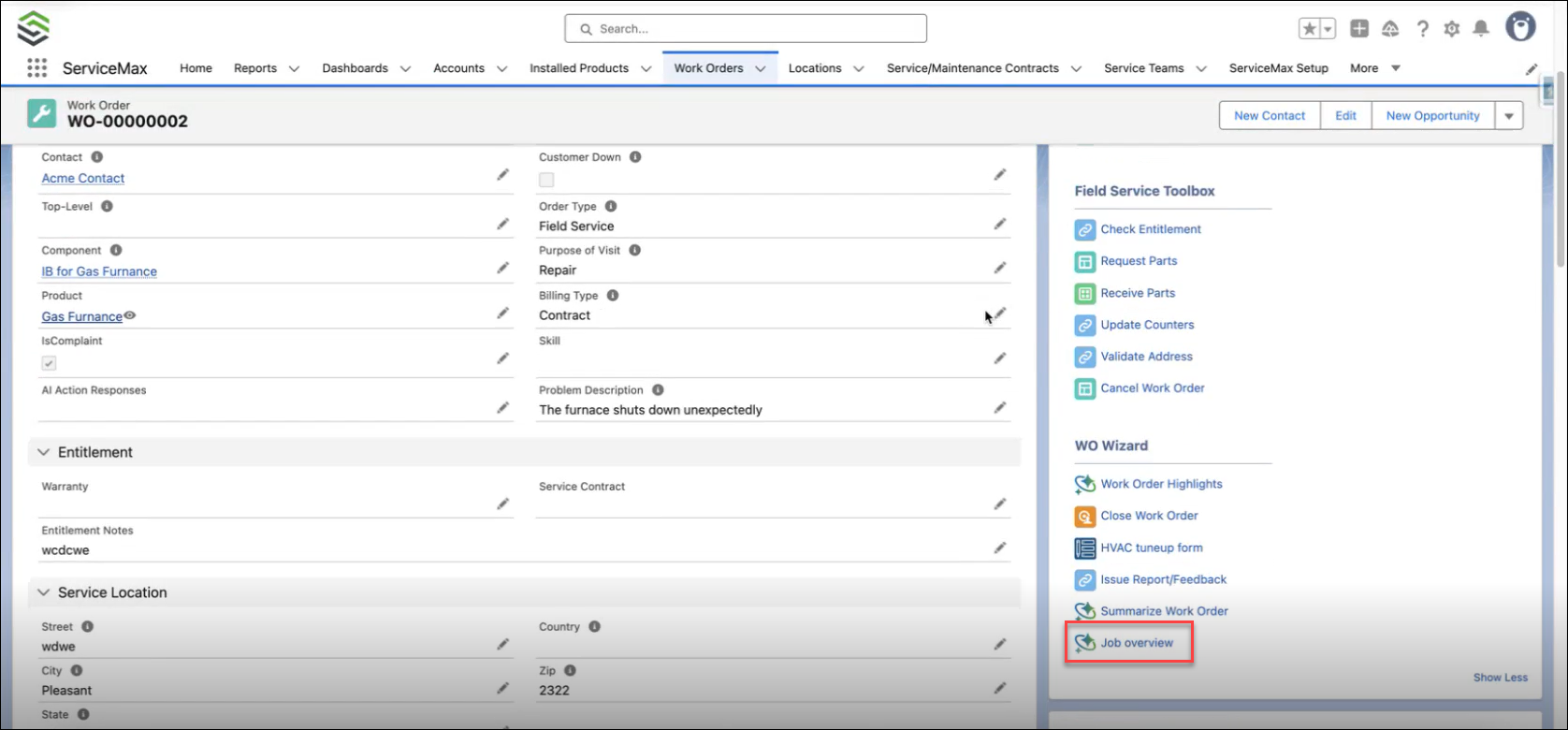
3. Click the AI action you want to use. For example, Job overview.
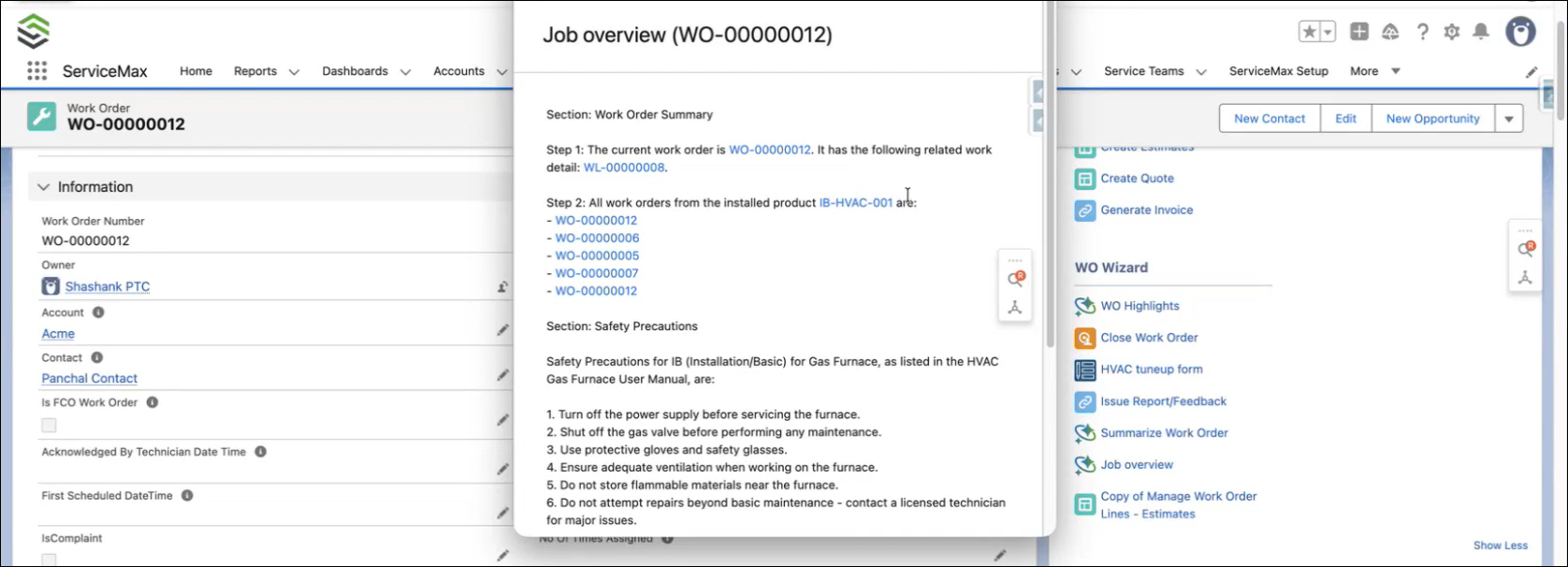
The Job overview window displays an overview of the work order in a new window.
|
|
The AI action opens in a pop-up window, allowing you to continue working in the web app. The existing pop-up window must be closed first to re-run the AI action.
|
◦ The AI summary has hyperlinks for easy navigation to record pages. Record names like Work Order, Location, Installed Product are displayed as clickable links only if you have permission. Otherwise, they are displayed as plain text.
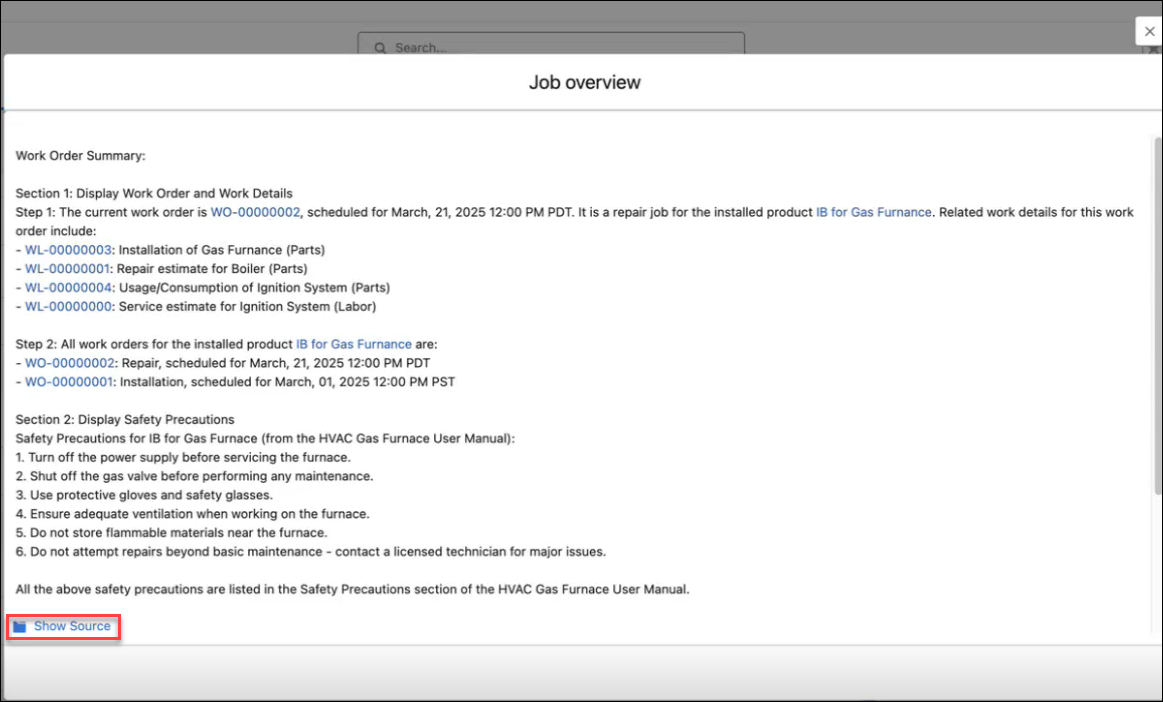
◦ The document uploaded in the Knowledge Access Agent and the Product record page is displayed as a clickable link as Sources and can either be in .text or .pdf format.