Reviewing Matching Data
Review flagged records in the Data Review stage, correct errors, and approve data before syncing to production.
Reviewing data in PTC Orbit is the process of validating, correcting, and approving records that fail matching rules before they are synced into production. You can access flagged records in the Data Review stage, where you can analyze why the records did not pass validation and take corrective actions such as updating missing details, reassigning ownership, or removing duplicates. This ensures that only clean, accurate, and standardized records are promoted.
Perform the following steps to review data.
1. Log in to PTC Orbit and click the  icon to launch the navigation pane.
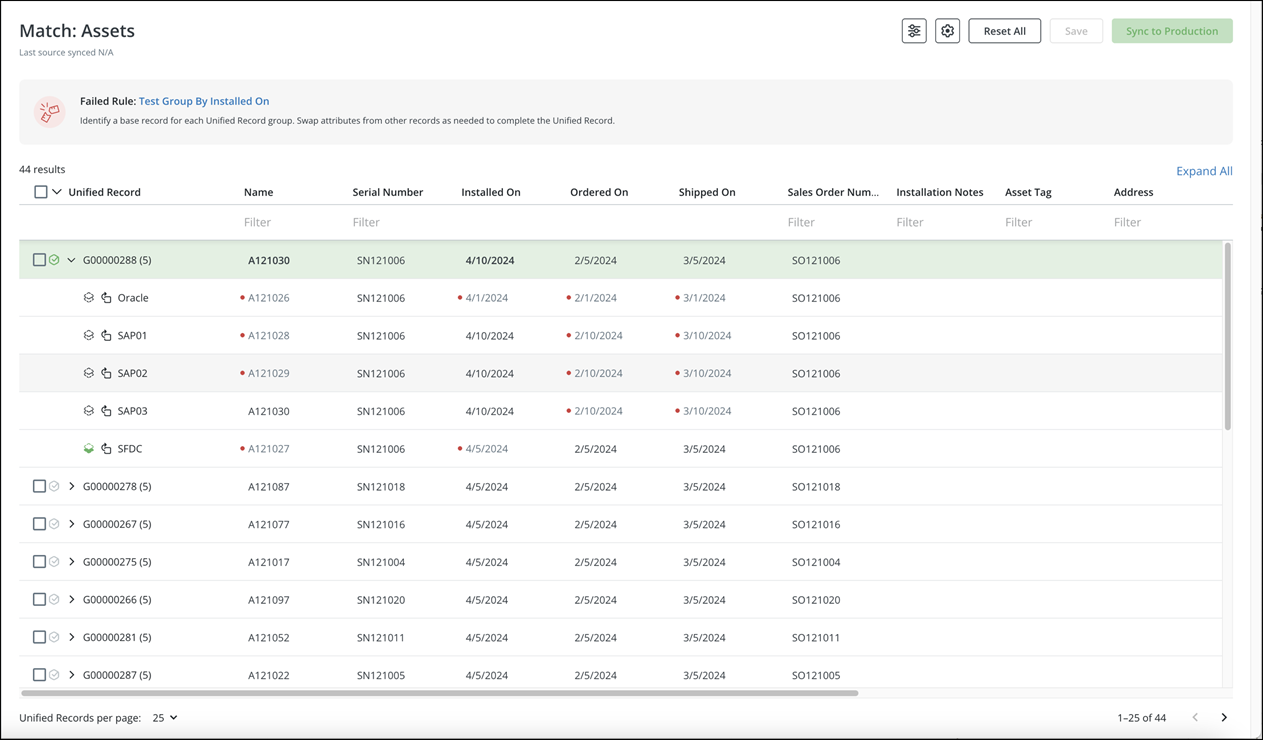
icon to launch the navigation pane.2. Click Data Foundry to expand it, and then click Data Review. The Match Record page is displayed with the list of duplicate records.
 |
• The child record marked with the
 icon is the primary record, referred to as the Base Record. icon is the primary record, referred to as the Base Record.• The values displayed in bold on the parent record are used to indicate that they differ from the corresponding values on the Base Record.
• A red dot displayed before a value indicates that the value can be assigned to the corresponding field in the Unified Record.
|
3. Hover over the red dot and then click the  icon to assign that value to the corresponding field in the Unified Record.
icon to assign that value to the corresponding field in the Unified Record.4. To choose another record in the group as the unified record, click the  icon preceding it.
icon preceding it.After switching the Base Record, the values on the Unified Record is updated automatically to reflect the corresponding field values from the new Base Record.
5. To move an unreasonable Stage Record within a group, click the  icon. You have the following options to move it:
icon. You have the following options to move it:◦ Move to Existing Group: In the pop-up, select the required group and click Move Record.
◦ Remove and Create New Group: Click the option to create a new group. By default, newly created groups appears below the original group and are initially named with a NEW- prefix followed by a sequence of characters to avoid name conflicts. For example, NEW-000001.
6. Click Save to submit only the changes made in the PTC Orbit application, without altering the record’s status or syncing the record to PTC Orbit.
7. Click Sync to Production to submit the changes that update the record’s status to Reviewed and triggers a sync to push the records to PTC Orbit.
What To Do Next