Creating Matching Rule
Create a matching rule to define how PTC Orbit identifies and groups duplicate records from external data sources.
Creating a matching rule in PTC Orbit is vital for ensuring data accuracy, consistency, and reliability. Without these rules, duplicate or incomplete records from different sources can flow into production, leading to errors, inefficiencies, and poor decision-making.
Perform the following steps to create matching rules.
1. Log in to PTC Orbit and click the  icon to launch the navigation pane.
icon to launch the navigation pane.2. Click Data Foundry to expand it, and then click Rules. The Rules page is displayed with the list of configured matching rules.
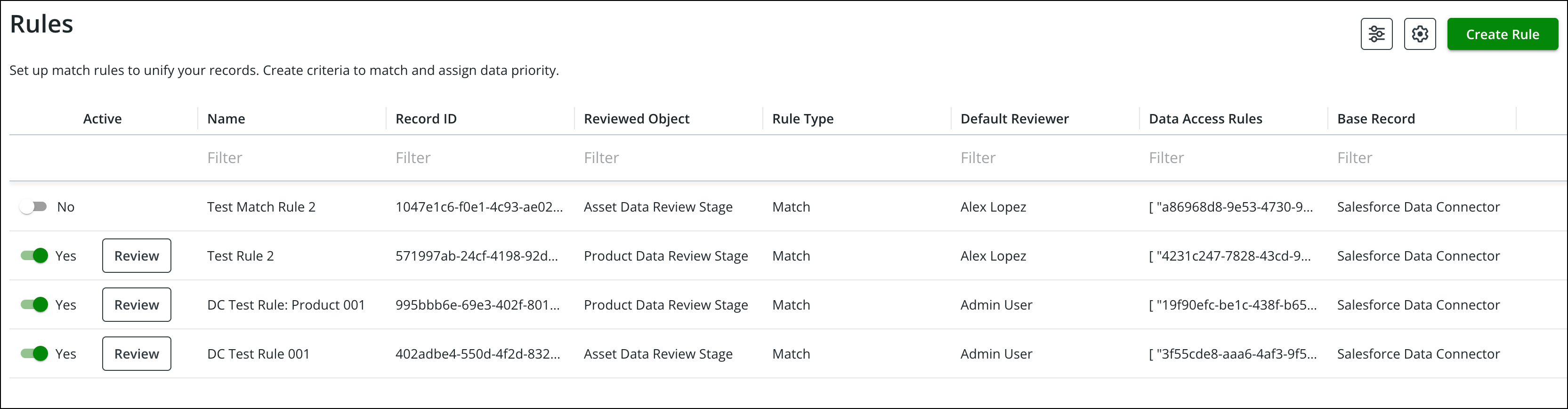
3. Click Create Rule. The Rule Details page is displayed to provide the basic details about the rule.

4. Provide the details as explained in the following table.
|
Field Name
|
Field Description
|
|---|---|
|
Fields marked with * are mandatory.
|
|
|
Rule Name*
|
Enter a unique name for the rule.
The Rule Name uniquely identifies the matching rule. It provides context for administrators and business users when managing multiple rules. A clear and descriptive name ensures that users understand the purpose of the rule at a glance.
|
|
Rule Type*
|
Select Match from the list.
By explicitly marking it as a matching rule, the system ensures that records are grouped and deduplicated before they flow into production, reducing the risk of duplicate or unreliable data.
|
|
Select Object*
|
Select an object from the list where the rule is applied. The selected object determines the dataset that the rule evaluates during processing.
Applying the rule to the right object ensures that data validation is targeted and effective, preventing duplication or inconsistency within critical business entities such as assets or products.
|
|
Description
|
Enter additional context about the rule, such as its purpose, scope, or specific matching logic.
Adding a clear description improves transparency and collaboration between teams, reduces misinterpretation of rules, and supports smoother onboarding of new administrators.
|
5. Click Next. The Criteria page is displayed to define criteria for grouping records.
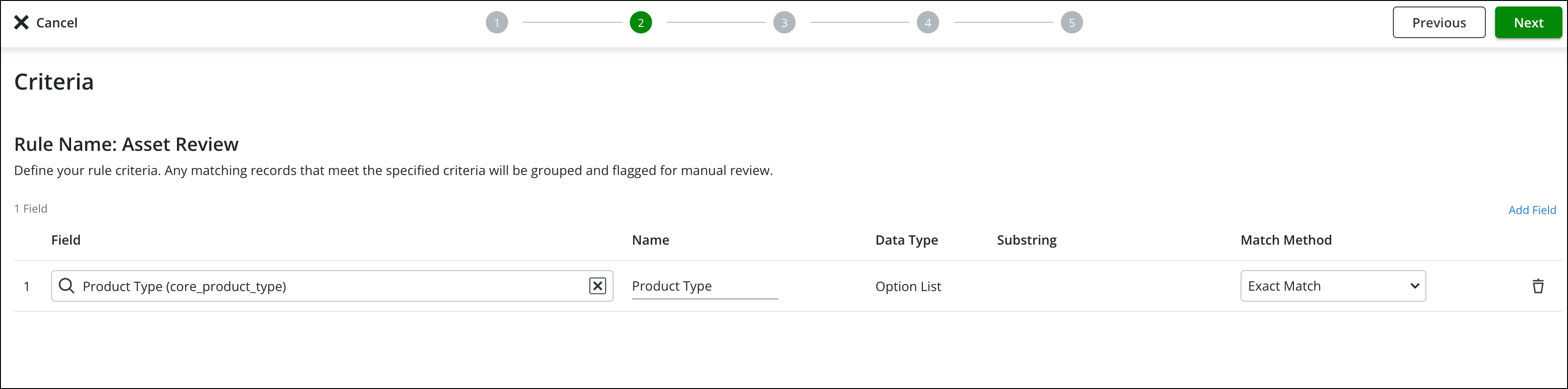
6. Click Add Field, and then select the required field from the Field list.
The related fields are populated with details.
 |
• Fields with string data type support the Substring method. Currently, the Match Method only supports Exact Match.
• You can use Add Field to add multiple fields for configuring criteria.
• You can click the delete icon in a row to remove a field.
• Multi criteria are AND relationships.
|
7. Click Next. The Survivorship page is displayed to define the source rules for the field values and the selection rules for the base record.
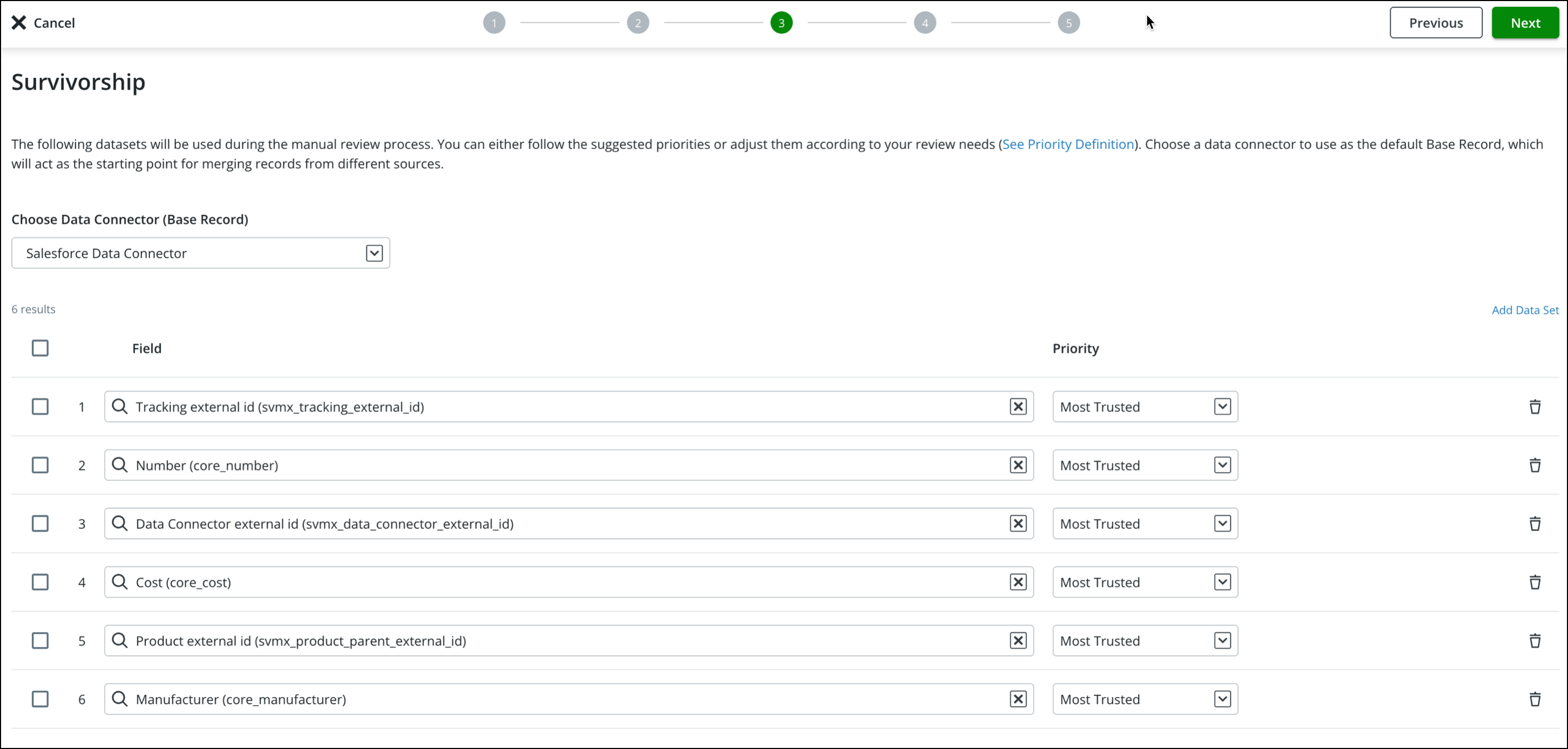
8. Click Choose Data Connector (Base Record) to select the default base record. The available options are the records from the Data Connector object.
9. In the survivorship list view, define the rules to determine values of each field. The following methods are supported:
◦ First Valid (Not Null): Looks for the first non-null value of this field within the same group to use as the initial value.
◦ Most Trusted: Uses the value of this field from the record with the highest score within the same group as the initial value.
◦ Most Recent: Uses the value of this field from the most recently updated record within the same group as the initial value.
◦ Most Common: Uses the value of this field that appears most frequently within the same group as the initial value.
10. Click Next. The Pass Rule page is displayed to define criteria for records that can bypass the manual review process and directly sync to PTC Orbit.
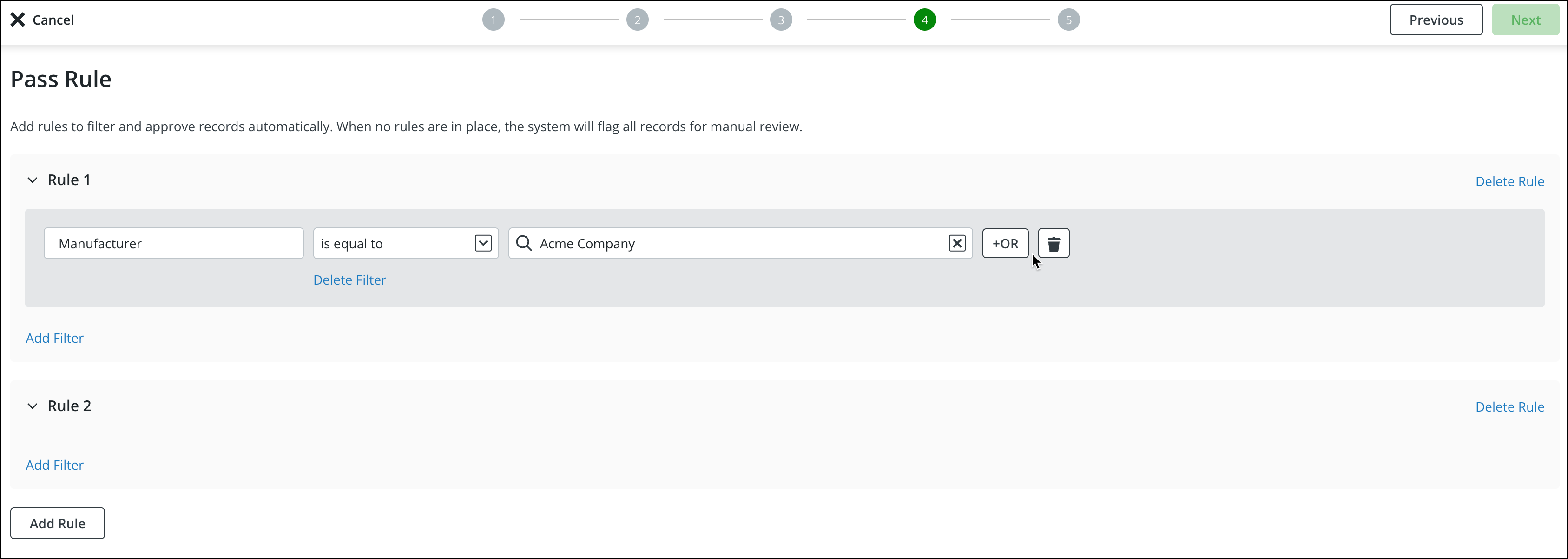
11. Click Add Rule, and then click Add Filter.
12. Select a field, parameter, and the value of the field.
|
|
• You can click the OR button to add multiple field values for a single field criteria.
• You can click the delete icon to remove a field criteria.
|
13. Click Add Filter multiple times for a single rule to add multiple filters and criteria.
|
|
All the filters are configured with the AND condition when you add them in a single rule.
|
14. Click Next. The Reviewer page is displayed to define who can review the records that meet certain criteria.
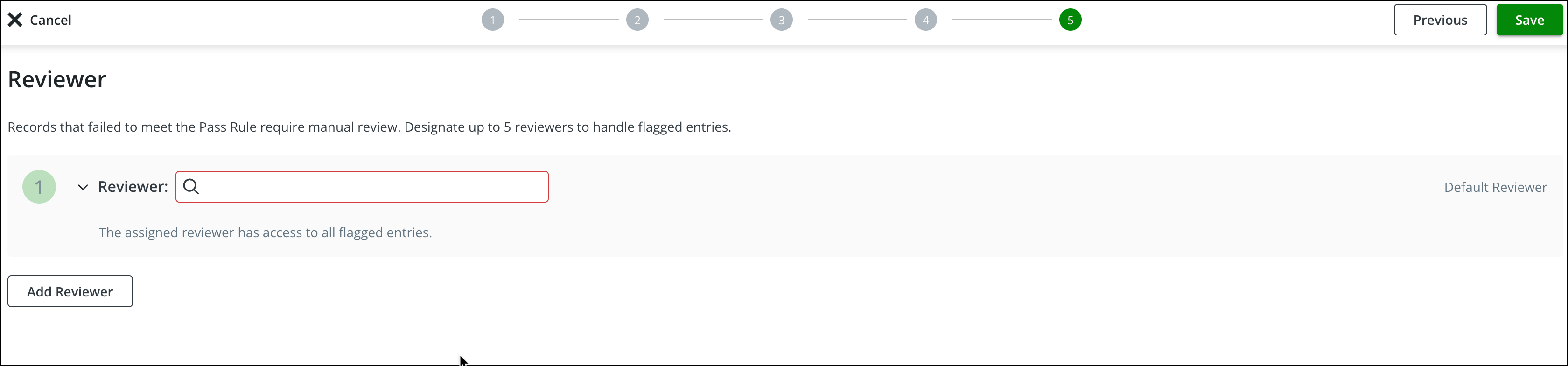
15. Select the default reviewer that can have access to all records.
16. Click Add Reviewer to add up to four more reviewers.
17. Click Save. The Active Rule pop-up is displayed to confirm the rule activation.
18. Click Activate. The rule is saved and activated, and you are navigates to the Rules List view.
What To Do Next