Creating Score
Define a custom scoring formula using weighted factors and conditions to evaluate assets quantitatively.
The Create Score page in Asset Hub is designed to help you define customized scoring formulas based on weighted factors and conditions. This functionality enables organizations to evaluate assets quantitatively, prioritize their importance, and make data-driven decisions. For example, a company can create a score to assess asset age, expected lifespan, or failure risk in a specific location, such as San Jose. By combining conditions, factors, and weights, you can tailor scoring systems to align with organizational objectives, ensuring assets are effectively monitored and maintained.
1. Log in to PTC Orbit and click the  icon to launch the navigation pane.
icon to launch the navigation pane.2. Click Scores. The Score List View page is displayed.
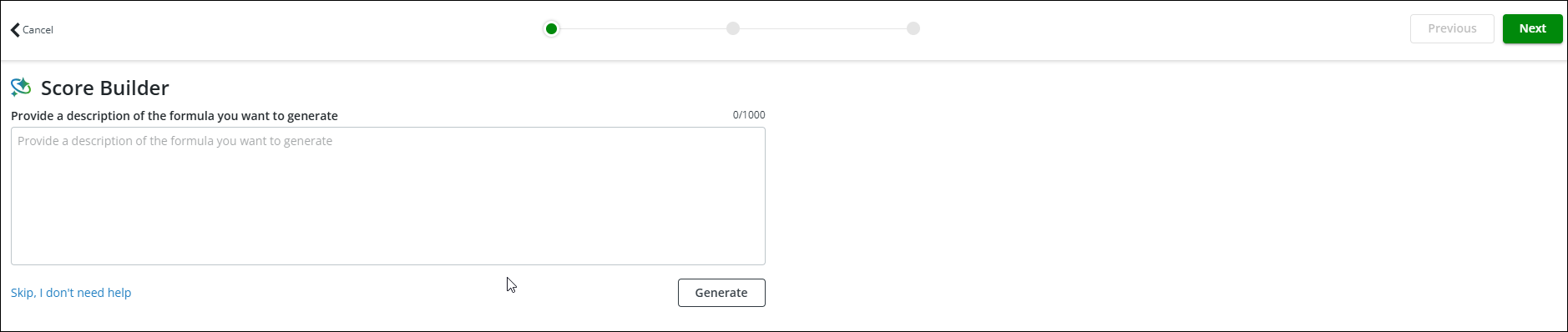
3. Click Create Score. The Score Builder page is displayed.
 |
You can click Skip, I don’t need help to go directly to the Formula and Weights page.
|
4. Enter the description of the formula and click Generate. The AI-powered Score Builder responds with the required formula on the right side panel.
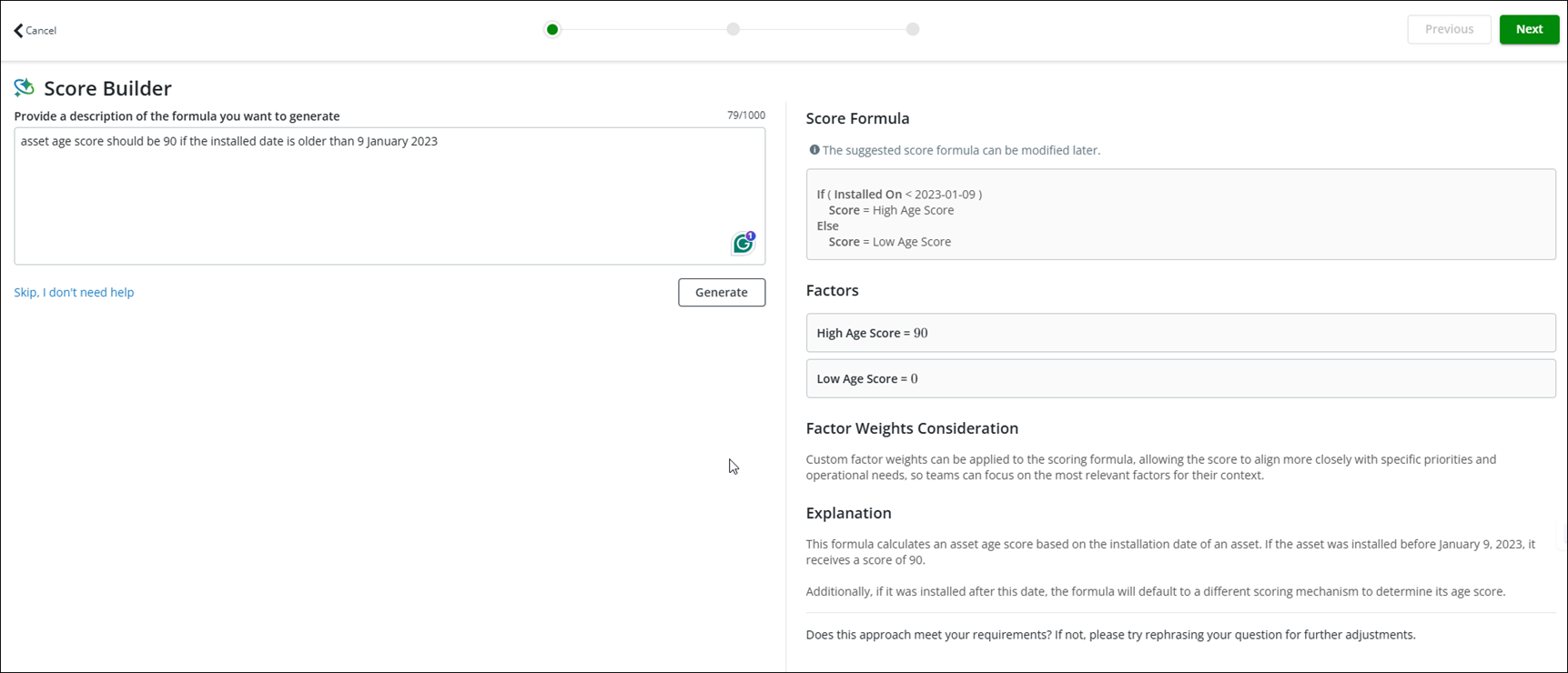
5. Click Next if you are happy with the generated formula. Otherwise, you can skip the Score Builder to go to the next screen.

6. If required, click Create Factor to create a new factor.
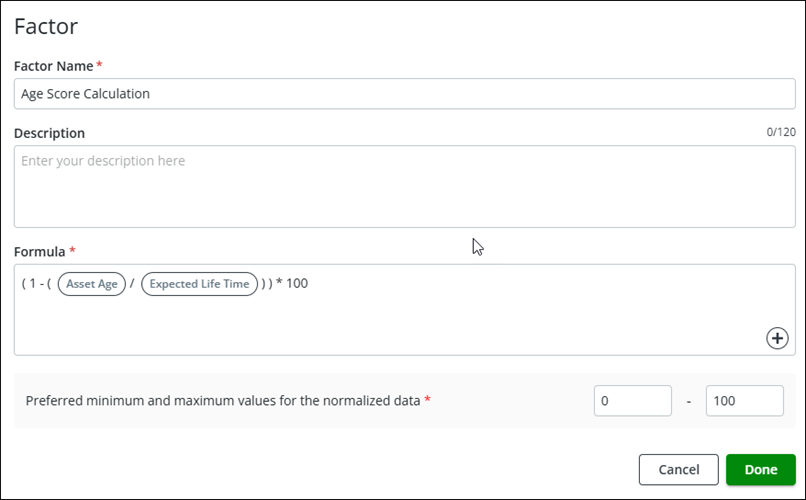
7. Add a name and description for the new factor.
8. Click the + icon in the Formula field to select an existing factor, field, or a real-time value. You can create the required formula using multiple fields and expressions.
9. Click Done.
10. To add a condition, click Add Condition next to the Score Formula section.
11. Select the condition criteria and the factor for the score calculation.
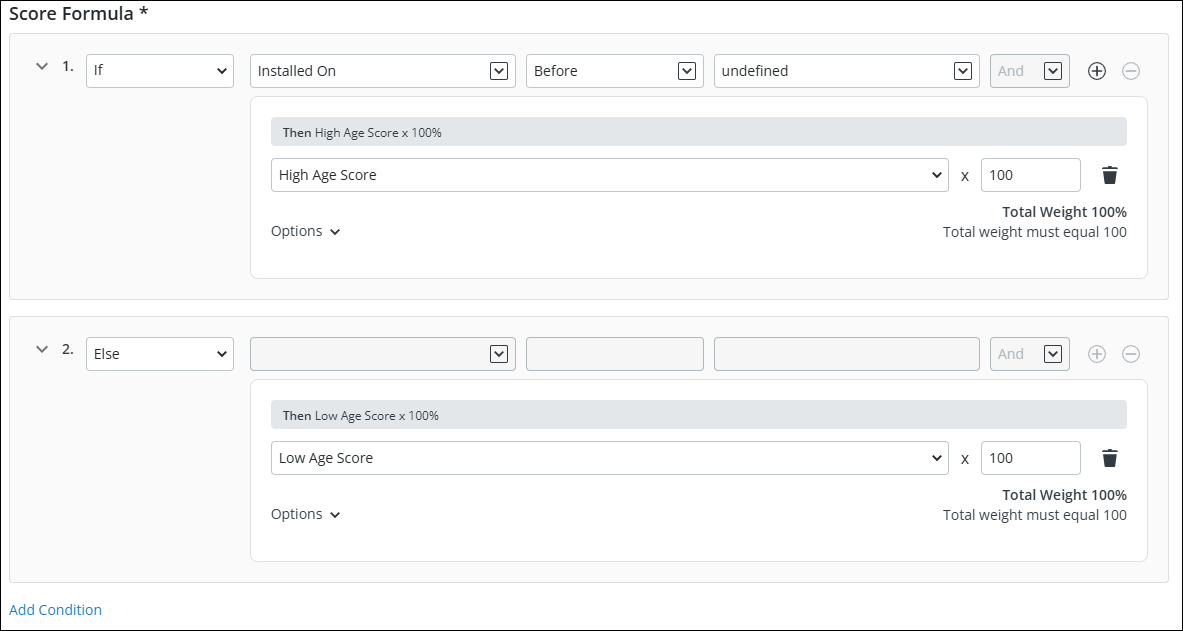
12. To insert multiple factors for a condition, click Options and then select Insert Factor to use an existing factor or Create Factor to create a factor.
|
|
The total weight of all the factors in a condition must be 100.
|
13. Click the bin icon to remove a condition or factor from the score configuration.
|
|
• You cannot delete a factor if it is used in another factor.
• After you delete a factor, an error occurs in the conditions where the deleted factor was used. You must update the condition with another factor or delete it to proceed further.
|
14. Click Next. The Score Details page is displayed to configure the range with color legends.
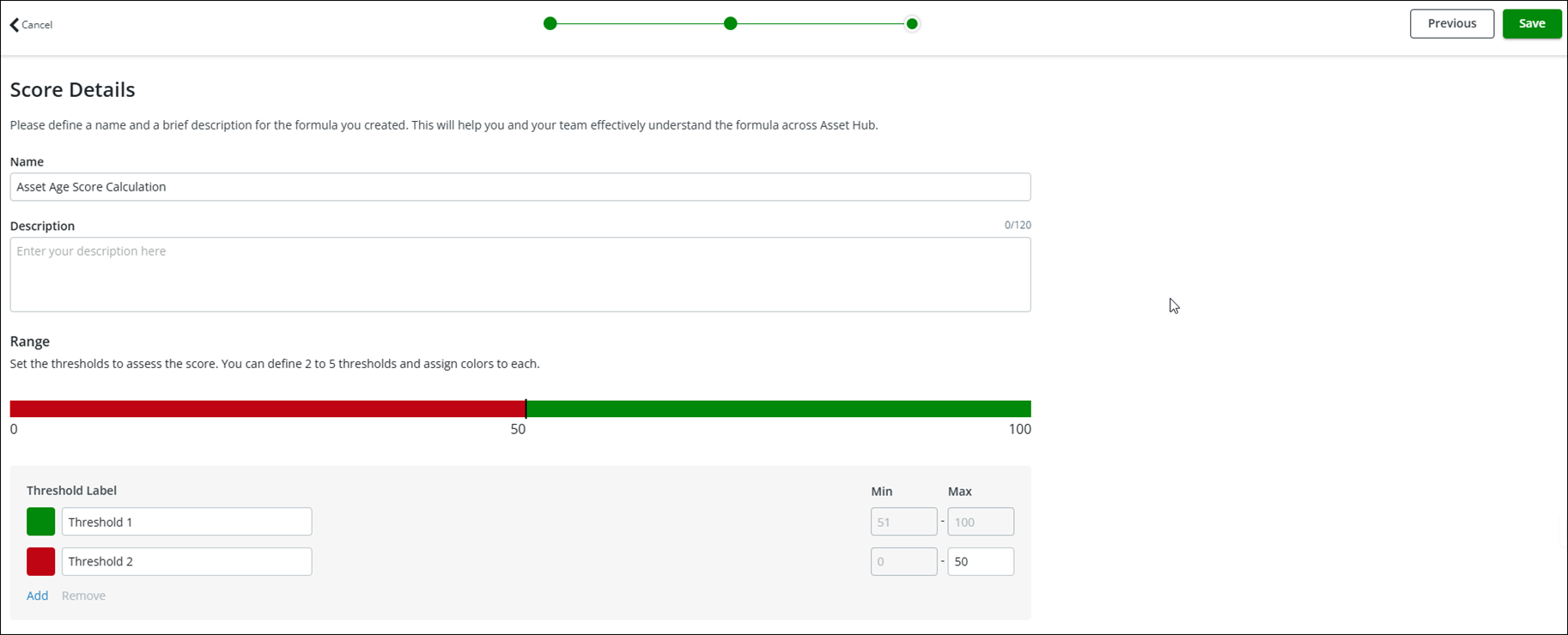
15. Click Add and set the range for each threshold.
16. Review and update the colors and the labels of the thresholds.
17. Click Save to finalize the score configuration and apply it to relevant assets.
A confirmation message is displayed after successful validation. This feature allows users to create sophisticated and dynamic scoring models, providing actionable insights for asset prioritization and management.
What To Do Next