Broadband Source Model Simulation Exercise 3— Preparing the Mesh
Generating the Mesh
Mesh for the Fluid Domain
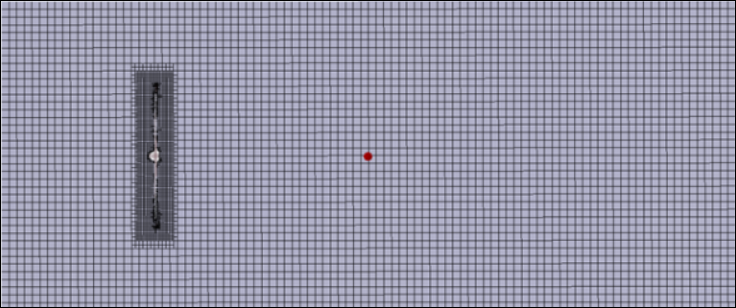
1. In the Flow Analysis Tree, select Domains.
2. In the Properties panel, Mesh tab, for Mesh Generation, select All Volumes for Mesh Location.
3. Select Nonuniform for Bounding Box Margins drop-down list and enter the values as follows:
a. Minimum Side Sizes: 0.5, 0.5, 6
b. Maximum Side Sizes: 0.5, 0.5, 24
4. Enter the values for the mesh generation list as follows:
a. Maximum Cell Size: 0.05
b. Minimum Cell Size: 0.00005
c. Cell Size on Surfaces— 0.025
5. Select Cylindrical Zone for Create a Refinement Zone and specify the following parameters for Cylindrical Zone Refinement:
◦ Cell Size: 0.0125
◦ Top Circle Center: 0, 0, -0.03 m
◦ Bottom Circle Center: 0, 0, 0.03 m
◦ Zone Radius: 0.14 m
6. Click  Generate Mesh to create the mesh for the fluid domain.
Generate Mesh to create the mesh for the fluid domain.7. Under > , right-click on PROPELLER_Body_1_1 and select Remove to delete the solid propeller mesh, which is not required for the simulation.
8. Right-click propeller_side1 under Interface in General Boundaries and select Separate and Connect. It creates the MGI01 under the Mismatched Grid Interface.
9. Right-click propeller_side2 under Interface in General Boundaries and select Separate and Connect. It creates the MGI02 under the Mismatched Grid Interface.
10. Right-click propeller_top under Interface in General Boundaries and select Separate and Connect. It creates the MGI03 under the Mismatched Grid Interface.
Viewing the Mesh
1. In the Post-processing group, click Section View. Section 01 Properties dialog box opens. Set values for the options as listed below.
◦ Type—Plane X
◦ Arbitrary Plane— 0
2. Click OK to close the dialogue box.
3. Section 01 is created under Derived Surfaces in Results in the Flow Analysis Tree.
4. Select Section 01. Click  Show to display the cross-section.
Show to display the cross-section.5. In the Properties panel, View tab, select Yes for Grid. The mesh appears as shown in the figure above.