Managing Collaboration Sessions
You can manage collaboration sessions from the Collaboration page on the Creo+ portal. The portal page can be accessed from any of the following locations:
• PTC Control Center—Open PTC Control Center and click > > .
• Creo+ application—In Folder Browser, click Portal under the Collaboration folder. The Collaboration Sessions page appears in the browser tab.
• Creo+ Portal—Click Collaboration on the Creo+ portal.
The Collaboration portal page lists the collaboration sessions created by the users of your organization. You can filter the list of sessions by selecting the tab options available under Collaboration Sessions:
• Recent—Displays a list of sessions recently accessed.
• All—Displays a list of all sessions created and modified to date. In this tab, the administrators can view a list of all the collaboration session in the organization. For other users a list of sessions created by them or shared with them is shown.
• My Sessions—Displays a list of sessions created by you.
• Shared with me—Displays a list of sessions shared with you by other users.
From the Collaboration portal page, you can perform the following:
•  Filter—Filters the collaboration session based on the name, author, or description.
Filter—Filters the collaboration session based on the name, author, or description.• Edit Mode—Modify the name or description of a chosen session.
To view the details of a session, select it and click on Expand Session. This action opens a details pane with two tabs:
• Properties—Provides detailed information of the collaboration session.
• Activities—Shows a detailed log of the collaboration session, which includes the name of the collaborator along with corresponding date, timestamps, activity performed, and any additional information (if available).
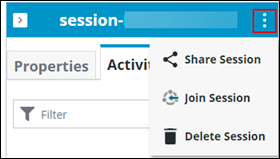
From the details pane, you can join, share, or delete the session. Click the three vertical dots on the details pane and choose the desired action.
By default, only the administrator or the session creator can delete a session. You can also update user permissions when sharing a session with other collaborators.