Installing the PTC Control Center on a Windows Server OS
When installing the PTC Control Center on machines running a Windows Server OS you need to edit the Turn off Windows Installer group policy . Perform the following steps:
1. From the Control Panel navigate to > to open the Local Group Policy Editor window.
2. Navigate to Local Computer Policy Computer Configuration Administrative Templates Windows Components Windows Installer.
3. Select the setting Turn off Windows Installer and click Edit policy setting.
4. Select the Enabled radio button.
5. In the Options box select Never from the list.
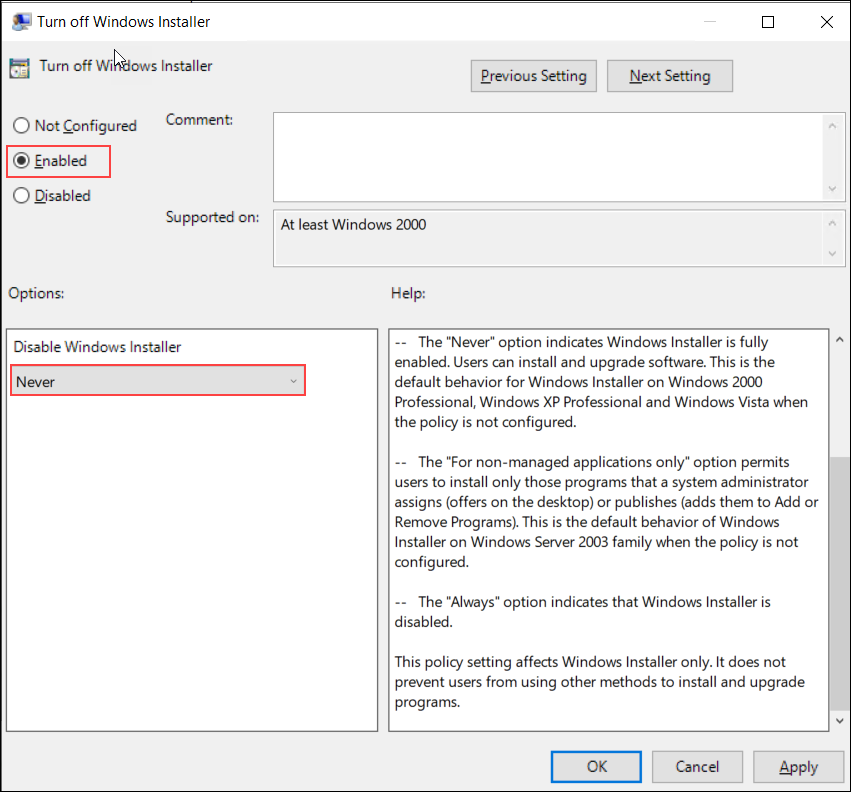
6. Click OK to save the changes to the policy setting.
7. You can now proceed with the installation of the PTC Control Center installer PTCControlCenter.msi.