|
|
Creating Fill Patterns
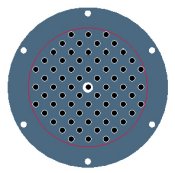
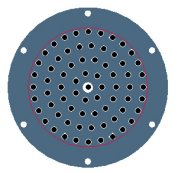
A Fill Pattern allows you to pattern a feature by 'filling' the area within a selected Sketch with multiple pattern members. There are several options for the fill pattern type, and various spacing options. The sketch selected for the Fill pattern can be any shape, and if redefined the pattern will update accordingly - members will be added/removed as necessary. |


 Previous


 from the main toolbar, select FLANGE_2.PRT, and click Open.
 to disable their display.
 from the main toolbar and select FRONT.
 to 6 in the dashboard. (Do not complete the pattern yet).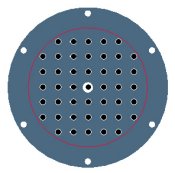
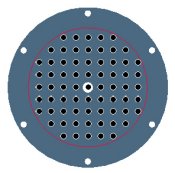
 to 7.
to 7.