 |
|
|
Feature Level Undo/Redo
You can Undo and Redo many common feature operations, such as Edit, Edit Definition, Suppress, and Delete. |
|
| Task 1-10. Open ENGINE_BLOCK.prt and select features. |
|
|
|
IMPORTANT- In the next step, you will be opening a second Pro/ENGINEER window. You must resize and reposition the window to the right of the tutorial. |
|
- Select ENGINE_BLOCK.prt from the assembly model.
- Right-click and hold, and notice the many options available, then select Open.
- Press CTRL, and select EXH_MOUNT, BORE, and the CARB_MOUNT group from the model tree.
- De-select the features by clicking in the graphics window.
- Cursor over the BORE feature and select it from the model as shown in the following figure.
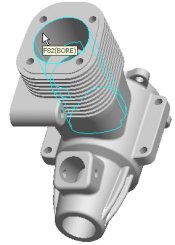 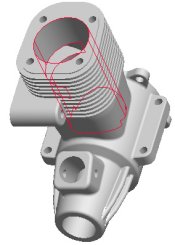
Highlight and select the BORE feature from the Model |
- Orient the model as shown in the following figure, then right-click and select Delete.
- Click OK to delete the child features.
- Click Undo
 from the main toolbar. from the main toolbar.
|
|
|
You can also press CTRL + Z for Undo . |
|
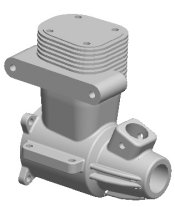 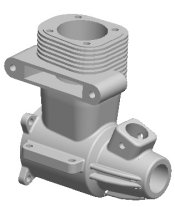
Deleting Features and Clicking Undo |
|
|
|
Query selection of features from a part works the same as previously demonstrated with components in an assembly. |
|
- Click File > Close Window
 from the main menu to return to the ENGINE.ASM from the main menu to return to the ENGINE.ASM |


 Previous


