 |
|
|
Using the Search Tool
The Search Tool provides an easy way to select items that are not visible, or multiple items based on a search rule. |
|
| Task 1-9. Use the Search Tool and Hide and Unhide components. |
- Start the Search Tool
 from the main toolbar. from the main toolbar.
- Select Component as the Look For option.
- Edit the Criteria Value to ENG* and click Find Now.
- Press CTRL + A to select all 3 items and click Add Item
 . .
- Click Close from the Search Tool dialog, and notice the components are selected.
- Right-click hold, then select Hide.
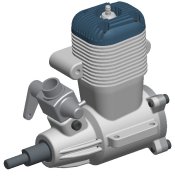 
Components Hidden |
- Press CTRL and select the ENGINE_BLOCK.PRT, ENGINE_HEAD.PRT, and ENGINE_COVER.PRT from the model tree.
- Right-click, and select Unhide.
- Click in the graphics window to de-select all components.
|
|
|
In order to save the current Hide/Unhide status when the model is saved, you must click View > Visibility > Save Status. |
| |


 Previous


