Installation
Before starting the PTC Requirements Connector installation on your workstation or server, close all running programs and ensure that you have local administrator rights.
1. Start the setup.exe on Windows:
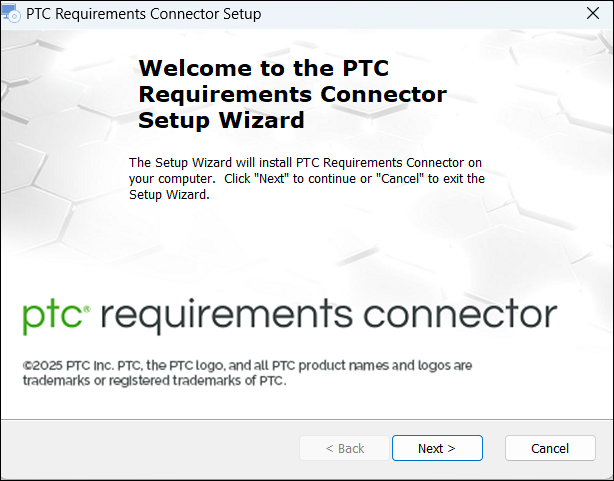
1. On Windows 10 (32 or 64 bit), double-click the setup file. The installation of PTC Requirements Connector starts.
PTCRC Installation
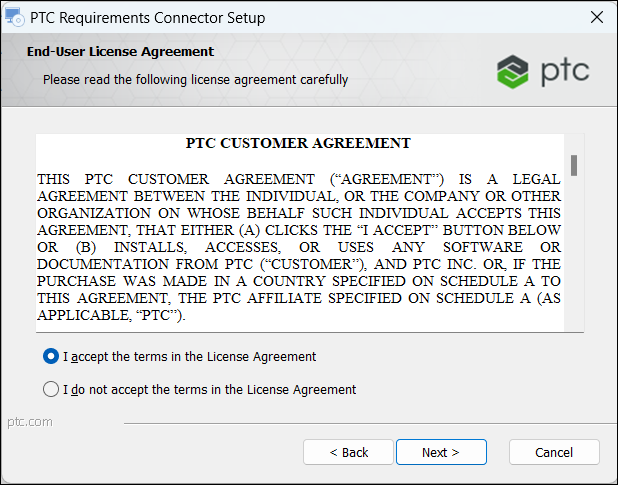
2. Accept the License Agreement and click Next.
End-User License Agreement
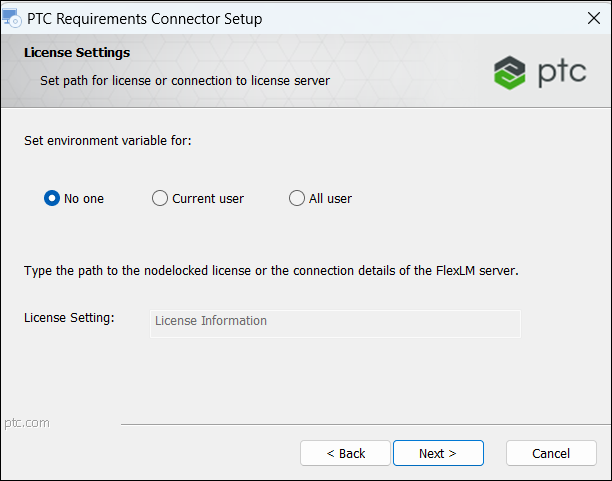
3. Select the license settings and click Next.
◦ To not set the environment variable at this time choose No one
◦ To set the environment variable enter the port-number followed by the “@”-symbol and the license-server-name pointing to the floating license server or the path to the nodelock-license into the License Setting edit-field. To add more than one path or more than one floating-license-information or a combination of both, simply separate the entries by “;”.
Select one of the radio buttons below the License Setting edit-field.
▪ No one will ignore the entry in the License Setting edit-field and won’t set the environment variable
▪ Current user will copy the value of the License Setting edit-field into the environment variable for the current user
▪ All user will copy the value of the License Setting edit-field into the environment variable for all user.
License Setting dialog — default
License Setting dialog — Nodelock set for current user

License Setting dialog — Floating license set for all user

4. Select the Installation folder and click Next.
Select installation folder

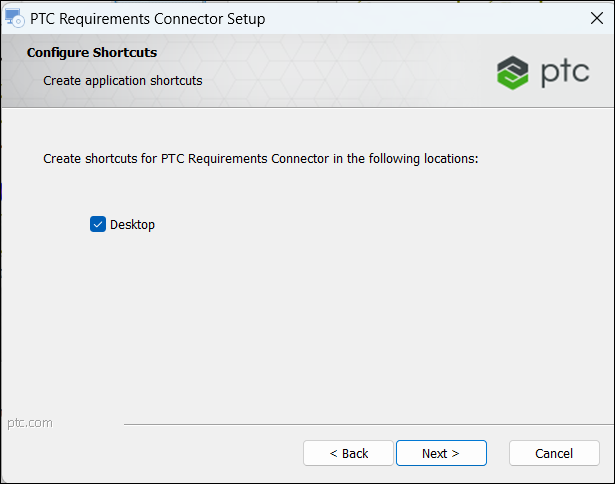
5. Select Desktop to create shortcuts icon for PTC Requirements Connector and click Next.
Define shortcuts
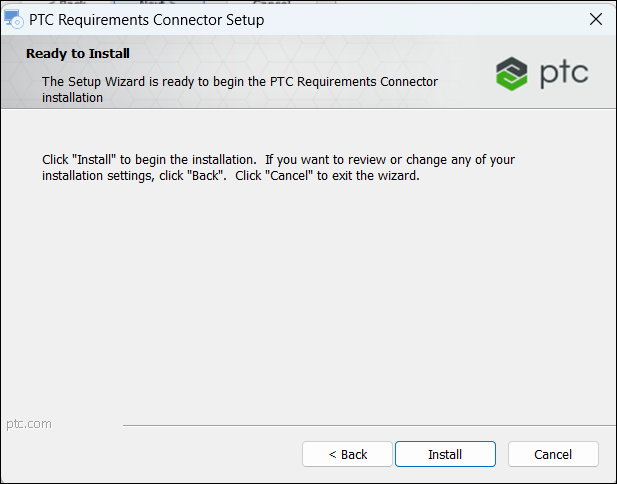
6. Click Install to start the installation.
Ready to install
7. PTC Requirements Connector is installing
Installing PTC Requirements Connector

8. If the installation is done you can click on Finish to exit the installation
You can tick the checkbox Request license from [email protected] to start up your email client with a license request.
Finish the PTC Requirements Connector setup

The PTC Requirements Connector has been installed and an install.log file has been placed at the position of the installer.
Related Topics
Parent topic