Key Points — Generated Process Plans
Consider the following points when using the Generate Process Plans action:
• The working of the Generate Process Plans action depends on the value set in the Method for Generating Process Plans preference. For more information, see Using the Method for Generating Process Plans Preference.
• After the process of generating the process plans is complete, click the Generated Process Plans tab in the process plan browser to view the generated process plans. Click the generated process plan to open it in the process plan browser. Select the Related tab to view information about the various associated objects.
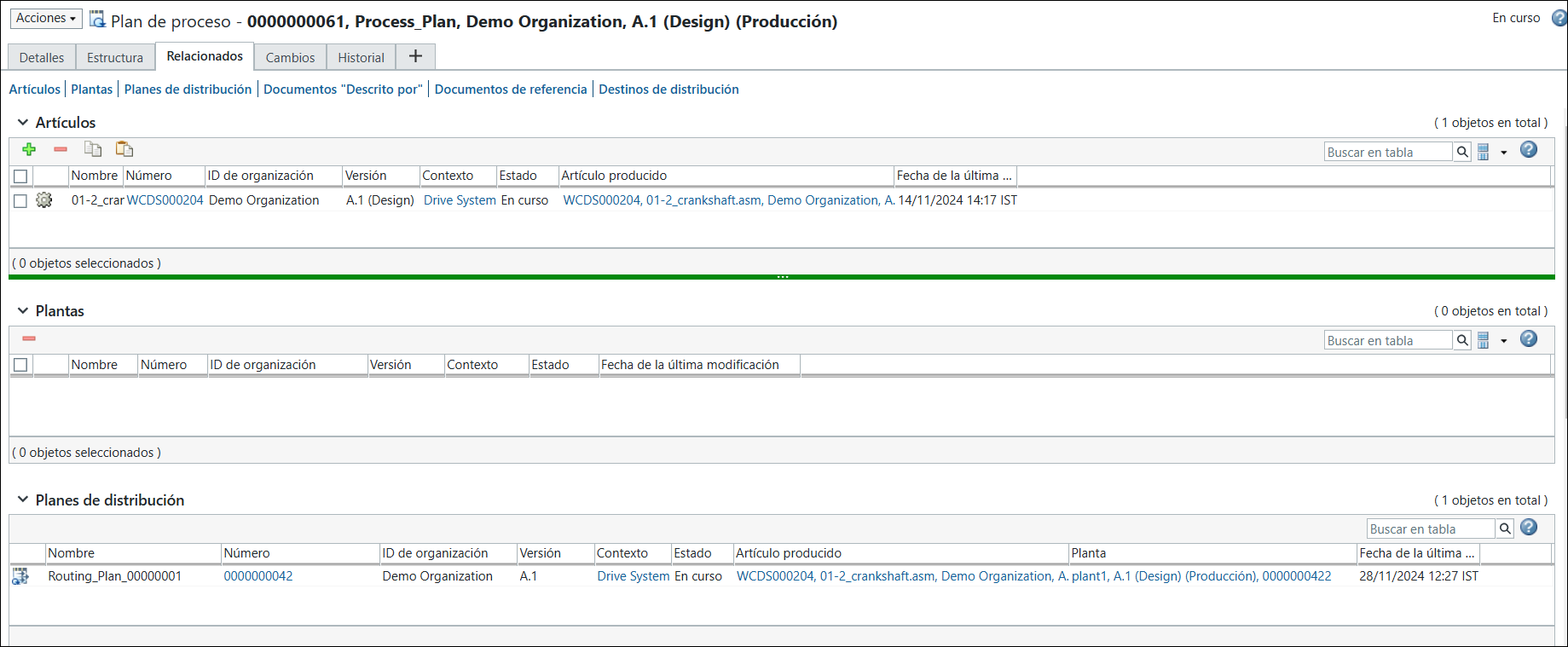
• The entities associated with the generic process plan are forwarded to or duplicated in the newly generated process plan. When the routing plan is duplicated, the name of the duplicated process plan changes. A number is appended at the end of the original name. Consider the following use case:
The name of the original routing plan associated with the generic process plan is Routing_Plan_1.
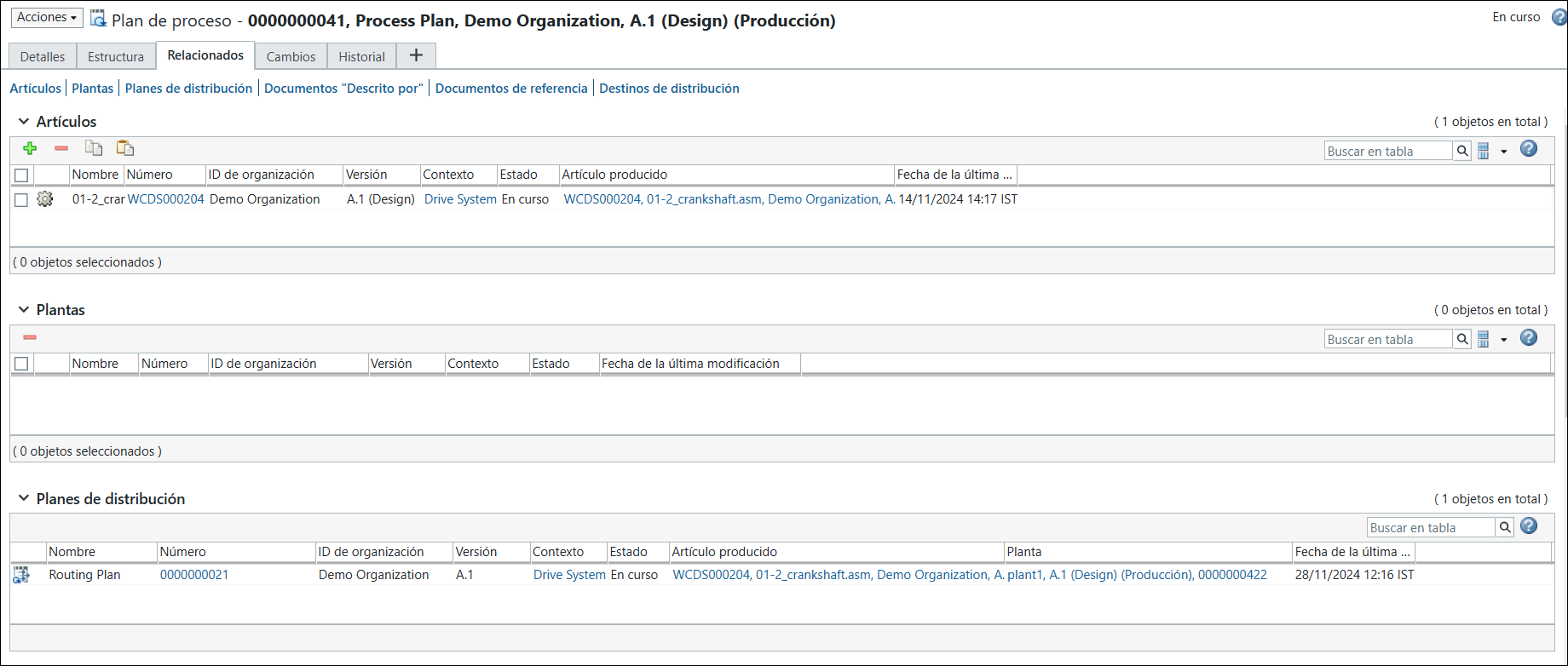
The name of the duplicated routing plan associated with the generated process plan is Routing_Plan_1_0000000001
• Using the  Synchronize Process Plans action, you can synchronize the generated process plan with the latest updates made in the generic process plan. This action compares the latest version of the generic process plan with the latest version of the generated process plan to detect discrepancies related to associations, part allocations, operations, sequences, routing plans, and attributes. The discrepancies are then resolved by updating the generated process plan with the latest changes.
Synchronize Process Plans action, you can synchronize the generated process plan with the latest updates made in the generic process plan. This action compares the latest version of the generic process plan with the latest version of the generated process plan to detect discrepancies related to associations, part allocations, operations, sequences, routing plans, and attributes. The discrepancies are then resolved by updating the generated process plan with the latest changes.For routing plans, you can resolve discrepancies related to localizing operations, resources, time, routing plan attributes, relocalizing, and resequencing operations. For more information, see Use Case: Resolving Discrepancies Related to Routing Plans.