Reports Action Set - Parts
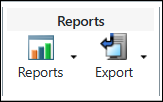
The following actions are provided in the Reports action set in the Structure tab toolbar on a part information page:
|
Action
|
Icon
|
Description
|
|---|---|---|
|
Reports
|
 |
Provides structured, summarized, or special purpose BOM reports generated from a filtered single or multi-level part structure.
|
|
Export
|
 |
Provides the ability to export the part structure to a file that can be accessed offline.
|
About Reports
Windchill provides a set of standard part structure reports. The reports are generated using the structure of a part selected in the structure pane. The following table describes the reports that are provided:
|
Report
|
Description
|
||
|---|---|---|---|
|
Multi-Level Components List
|
Displays a consolidated list of components and their quantities within an entire part structure. Unlike the Multi-Level BOM report, this report does not list the levels of the parts and does not illustrate the part-component relationships. Each component is only listed once with a consolidated total quantity.
|
||
|
Single-Level Consolidated BOM
|
Displays all parts and their quantities that are directly used by a selected assembly part. A component used multiple times is listed only once with a consolidated total quantity.
|
||
|
Single-Level BOM
|
Displays the parts directly used by a selected assembly part. Child parts used more than once are displayed individually. Information pertaining to the part and uses relationship is displayed.
The single level report output is similar to the Creo Parametric BOM report output. However, in Windchill PDMLink you can annotate a BOM, which can be useful when spinning off new product configurations or new products themselves.
For more information, see Filtering Gathering Parts.
|
||
|
Single-Level BOM with Notes
|
Displays the parts directly used by a selected assembly part. Also displays the bill of material notes associated with each part. Child parts used more than once are displayed individually.
|
||
|
Multi-Level BOM
|
Displays an indented bill of material for all levels of a selected assembly part. Child parts used more than once in an assembly are displayed individually. Information pertaining to the part and uses relationship is displayed.
|
||
|
Multi-Level BOM with Replacements
|
Displays an indented bill of material for all levels of a selected assembly part with the alternates and substitutes that can be used as replacement parts displayed beneath each part.
|
||
|
Multi-Level BOM with AML/AVL
|
Displays an indented bill of material for all levels of a selected assembly part structure with information about manufacturer and vendor.
|
||
|
Multi-Level BOM with AML
|
Displays an indented bill of material for all levels of a selected part structure with information about the manufacturer.
|
||
|
Multi-Level BOM Roll-up
|
Displays respective roll-up results upon calculations for one or more selected attributes identified as eligible for the roll-up calculations on the bill of materials (BOM).
For more information, see Multi-Level BOM Roll-up.
|
||
|
Multi-Level BOM with Engineering Materials
|
Displays an indented bill of material for all levels of a selected part structure with information about Engineering materials assigned to the parts.
|
||
|
Impact Analysis Report
|
Displays associated service objects that are impacted by change in a related part. For more information, see About Impact Analysis Report.
|
||
|
Single Source OEM Parts
|
Displays original equipment manufacturer parts that have only one manufacturer with an Approved and/or Preferred sourcing status.
|
||
|
Unique Manufacturer Parts
|
Displays a list of manufacturer parts associated with the current part structure, listing them only once even if the part has multiple occurrences.
|
||
|
Change Baseline
|
Shows change history and anticipated changes for a parts and associated documents in a part structure. For more information, see Creating the Change Baseline Report.
|
For information about classic BOM Reports, see BOM Reports.
The new BOM Reports is available from Reports. When you click Reports or select the BOM Reports option from the Reports dropdown list, the action directly launches BOM Reports in a new tab in your browser where the following BOM reports are available:
Reports. When you click Reports or select the BOM Reports option from the Reports dropdown list, the action directly launches BOM Reports in a new tab in your browser where the following BOM reports are available:• Multi-Level Components List
• Single-Level Consolidated BOM
• Single-Level BOM
• Single-Level BOM with Notes
• Multi-Level BOM
• Multi-Level BOM with Replacements
• Multi-Level BOM with AML/AVL
• Multi-Level BOM with AML
• Multi-Level BOM with Engineering Materials
 | The BOM Reports option is available for selection in the Reports list only when the deprecated.com.ptc.windchill.enterprise.part.reports.hideNextGenerationBOMReports property is not defined or is set to False. This property is deprecated from the Windchill 13.1.1.0 release and will be terminated in a future Windchill release. |
The full set of BOM reports is available for selection using the classic BOM Reports.
Exporting Structure Information to a File
You can export the part structure information displayed in the Structure tab directly to a file on your desktop using an Export List to file option in the Export menu.
Export menu.To export part structure information:
1. Expand the part structure to display the branches you want to be included in the exported file.
| | The exported file will contain only the part structure branches and attribute values that are displayed on the left pane. |
2. Select a file format from the Export menu.
Export menu.You will be prompted to open or save the exported file by your browser. The prompt you receive depends on the browser that you use.
| | The name of the exported file is derived from the top part in the part structure. |
 | Additionally, the Export list to file action is available in the toolbars of the Uses and Occurrences tabs within the Structure tab to export the corresponding part structure information displayed in these tabs to a file on your desktop. For more information, see Editing in the Uses Tab and Editing in the Occurrences Tab. |