About Rich Content
Rich content enhances long text fields by letting you format text using Rich Text Editor. You can set font and heading styles, and add hyperlinks, lists, and tables in your content.
By default, the rich text editor is displayed for the new fields given in the table:
|
Functional Area
|
Fields
|
|
|---|---|---|
|
Change Management
|
Promotion Request
|
Description
|
|
Problem Report
|
Description
|
|
|
Variance
|
Description
Reason
|
|
|
Change Request
|
Description
Proposed Solution
|
|
|
Change Notice
|
Description
|
|
|
Change Task
|
Description
|
|
|
Review
|
Description
|
|
|
Manufacturing Process Management
|
Process Plan
|
Long Description
|
|
Standard Control Characteristics
|
Description
|
|
|
Manufacturing Capability
|
Long Description
|
|
|
Operation
|
Long Description
|
|
|
Routing Plan
|
Long Description
|
|
|
Project Management
|
Discussion
|
Comment
|
|
Comment
|
Message
|
|
|
Document Management
|
Email Document
|
Additional text for the message
|
|
Quality Management System
|
Audit
|
Description
|
 |
If you do not wish to use the new rich text fields, you can revert to the original fields by editing the attribute layout using the Type and Attribute Management utility. For more information, see Editing Attribute Layouts.
|
Formatting and Editing Text
The rich text toolbar provides various fonts for your text, such as Arial, Comic Sans MS, Courier New, Tahoma, Times New Roman, and Verdana. You can also style your text using multiple options, such as bold, italics, strikethrough, underline, superscript, subscript, font size, font colors, background colors, style formats, and horizontal lines.
If you select a font that is not available in your system, it is displayed as plain text.
|
|
Do not use HTML markup tags, they are rendered as text. Use the toolbar buttons to perform any action on the text in the editor window.
|
Pasting Text
There are three options available to paste rich text:
• Paste: Pastes text while preserving the formatting. Keyboard shortcut: CTRL+V.
• Paste as plain text: Pastes text without preserving the formatting. Keyboard shortcut: CTRL+SHIFT+V.
• Paste from Word: Preserves basic formatting when pasting text from Microsoft Word. Keyboard shortcut: CTRL+V. On the Word Paste Detected dialog box, select Clean to remove the formatting or select Keep to retain the formatting.
|
|
• Not all formatting is cleaned or retained when pasting text from a Word document.
• If the source font or format is not available in the rich text toolbar, the copied content is displayed as plain text.
• Rich Text Editor does not support copy or paste of images.
|
Inserting a List
You can insert a numbered or bulleted list in a rich text field. The list can contain one or multiple levels.
Select Ordered List or Unordered List to select a different numbering style or bullet style.
Inserting a Hyperlink
In a rich text field, you can insert a hyperlink to:
• A website.
• An email address that triggers an email.
To insert a hyperlink, perform the following steps:
1. Select the text where you want to add the hyperlink, and then click Insert Link. Keyboard shortcut: CTRL+K
2. In the URL dialog box, provide the link address or email address.
3. Click OK.
To open, modify, or remove a hyperlink, perform the following steps:
• Click the hyperlink to open, modify, or remove the hyperlink.
Inserting a Table
You can insert tables in rich text fields. In a table, apart from text, you can add hyperlinks, lists, as well as tables.
To insert a table, perform the following steps:
1. Click Table.
2. Select the number of rows and columns for the table.
|
|
After creating the table, you can click it to modify its properties.
|
Inserting an Image
You can insert images into the rich text editor. To insert an image, perform the following steps:
|
|
• Image insertion is supported only for content holder objects such as all document types and change objects (change requests, change orders, and change activities). For more information on content holder objects, see About Content Holders.
• Image insertion is not supported for the Email Document functionality.
|
1. Click the Insert Image  icon on the editor toolbar.
icon on the editor toolbar.2. Upload an image using one of these methods:
◦ Select an image from your file system.
◦ Drag an image from your file system into the editor.
◦ Paste an image from the clipboard into the editor.
◦ Paste rich-text content or tables that include embedded images from the clipboard into the editor.
| | • Supported image formats are JPEG, PNG, GIF, WEBP, and JPG. • The maximum image upload size is 10 MB. |
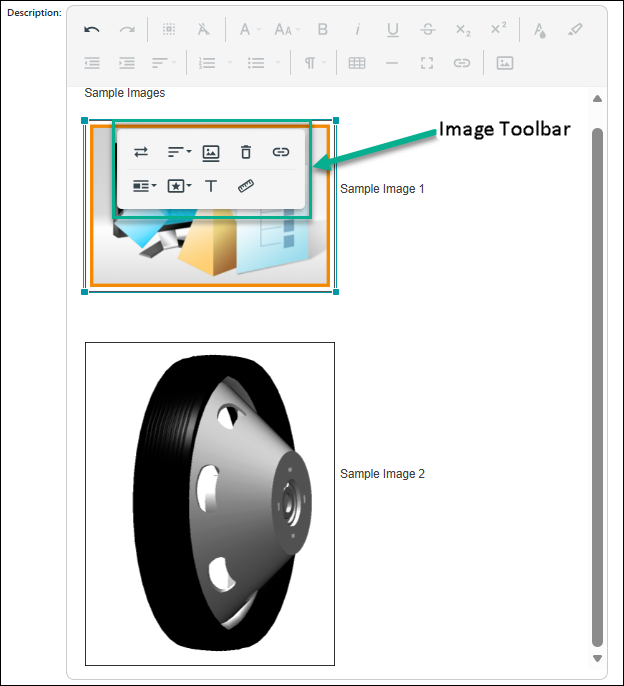
3. Use the toolbar on the image to adjust properties such as size, alignment, and positioning. The following options are available on the image toolbar:
Button | Description |
|---|---|
 | Replace the current image. |
 | Align image in the editor. For more information, see Aligning Images in the Rich Text Editor. |
 | Add a caption. |
 | Remove the image from the editor. |
 | Add a hyperlink to the image. |
 | Choose in-line display or text break. |
 | Apply a predefined image style, such as rounded corners, bordered, or a shadow. |
 | Provide alternate text for accessibility. |
 | Adjust the image dimensions. You can specify the image width and height using standard HTML units. For example, • Pixels (px) — such as 300px • Percentage(%) — such as 50% |
Additional Capabilities
Some of the additional features available in the rich text toolbar are described in the table given below.
Button | Description |
|---|---|
 | Selects all the text you entered. |
 | Removes the styles and displays the text in default font. |
 | Maximizes or minimizes the size of the rich text field. |
 | Inserts a horizontal line to divide the text into sections. |
Rich Text Column Customization on Table Views
For change objects, you can use the rich text column to customize table views for the following items:
• Search Results and Folder Browser
• Changes tab
• Associated Process Objects and Associated Reference Objects tables
• Associated Changes table
To view the rich text attributes in the specified tables, you can add the desired attributes such as Description, Reason, and Proposed Solution by customizing a new view or by editing an existing view. For more information on how to customize a new view or edit an existing view, see Creating and Editing New Table Views.
In the Search Results and Folder Browser tables, the Description (Summary) column is available for plain text, while the Description column is available for rich text.
In the Search Result table, when you select only one type of change object, it displays the respective view of that object type. This view provides the rich text column for customization. When you select multiple objects, the default view is displayed. This view does not provide the rich text column for customization.
| | JCA tables do not support the display of the values entered in rich text fields. They show a warning icon to indicate so. Report Builder, which uses JCA tables, also does not render rich text. |
| | The default character limit for rich text attributes is set at 20000. If you want to edit the character limits, you can update the Info*Engine tasks for summary reports. For more information, see Updating Character Limits for Change Summary Reports. |
Rich Text Component Limitations in Jasper Reports
The support for rich text component in Jasper reports is limited in the following ways:
• Does not support hyperlinks, tables, indentations, and text underlines when used along with the strikethrough feature in HTML and PDF reports.
• Does not support formatting styles like bold and italics in PDF formats.
• Only supports font styles that are available in your system.