Opening Manufacturing Structures Associated with Routing Plan
As a manufacturing engineer, you may want to quickly access and modify routing plans associated with a process plan, plant, and BOM structures. Using the following actions, you can open these structures in the context of a routing plan in Process Plan Workbench (PPW):
•  Open in Plant Layout displays the following information:
Open in Plant Layout displays the following information:◦ Process plan tree structure associated with the selected routing plan
◦ Parts associated with the process plan and routing plan
◦ Routing Plan tab displaying the plant layout
•  Open Related Upstream in Plant Layout or Open as Upstream in Plant Layout displays the following information:
Open Related Upstream in Plant Layout or Open as Upstream in Plant Layout displays the following information:◦ Selected routing plan or the routing plan associated with the selected part
◦ Parts in the upstream BOM structure in Tree Picker
◦ Visualization of the parts allocated to the process plan
Action Availability
Only those users who are members of the PTC Manufacturing License profile can access the actions Open in Plant Layout, Open Related Upstream in Plant Layout, and Open as Upstream in Plant Layout.
The actions are available for routing plans and parts. They are displayed as icons or listed in the Actions menu or right-click actions menu at the following locations:
• Right-click actions menu on the upstream or downstream structure and the Routing Plan table in the Process Plan tab of the BOM Transformer
• Routing Plans table in the Related or Related Objects tab on the information page of a process plan and part
• Information page of a part and routing plan
• Folder browser page
• Search results page
• Affected Objects table of a change task
• Change Summary table of a change notice
If multiple routing plans are associated with a part, the system displays the Routing Plans dialog box to select the routing plan you want to access.
Procedure
Consider a use case where a process plan EngineProcessPlan is associated with a downstream part Engine, which has an equivalent upstream part Engine. A routing plan EngineBostonPlant is associated with EngineProcessPlan on the downstream side.
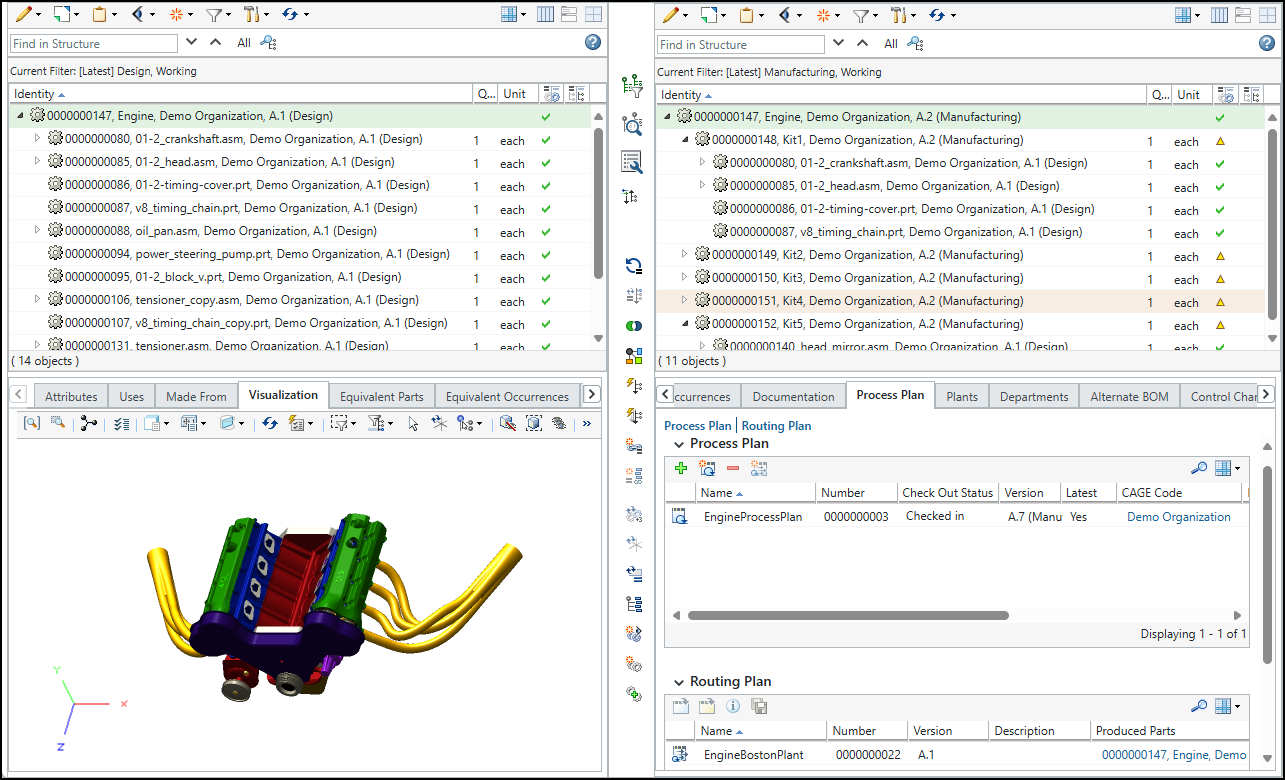
Opening Related Structures
To view the manufacturing structures associated with EngineBostonPlant in PPW, perform the following steps:
1. In the Process Plan tab of the BOM Transformer, select EngineBostonPlant in the Routing Plan table.
2. Click on the toolbar, or right-click EngineBostonPlant and select Open in Plant Layout.
on the toolbar, or right-click EngineBostonPlant and select Open in Plant Layout.The PPW opens in the Default Layout mode, displaying the structure for the downstream part Engine on the left, EngineProcessPlan in the center, and the links for the plant and line for EngineBostonPlant on the right.
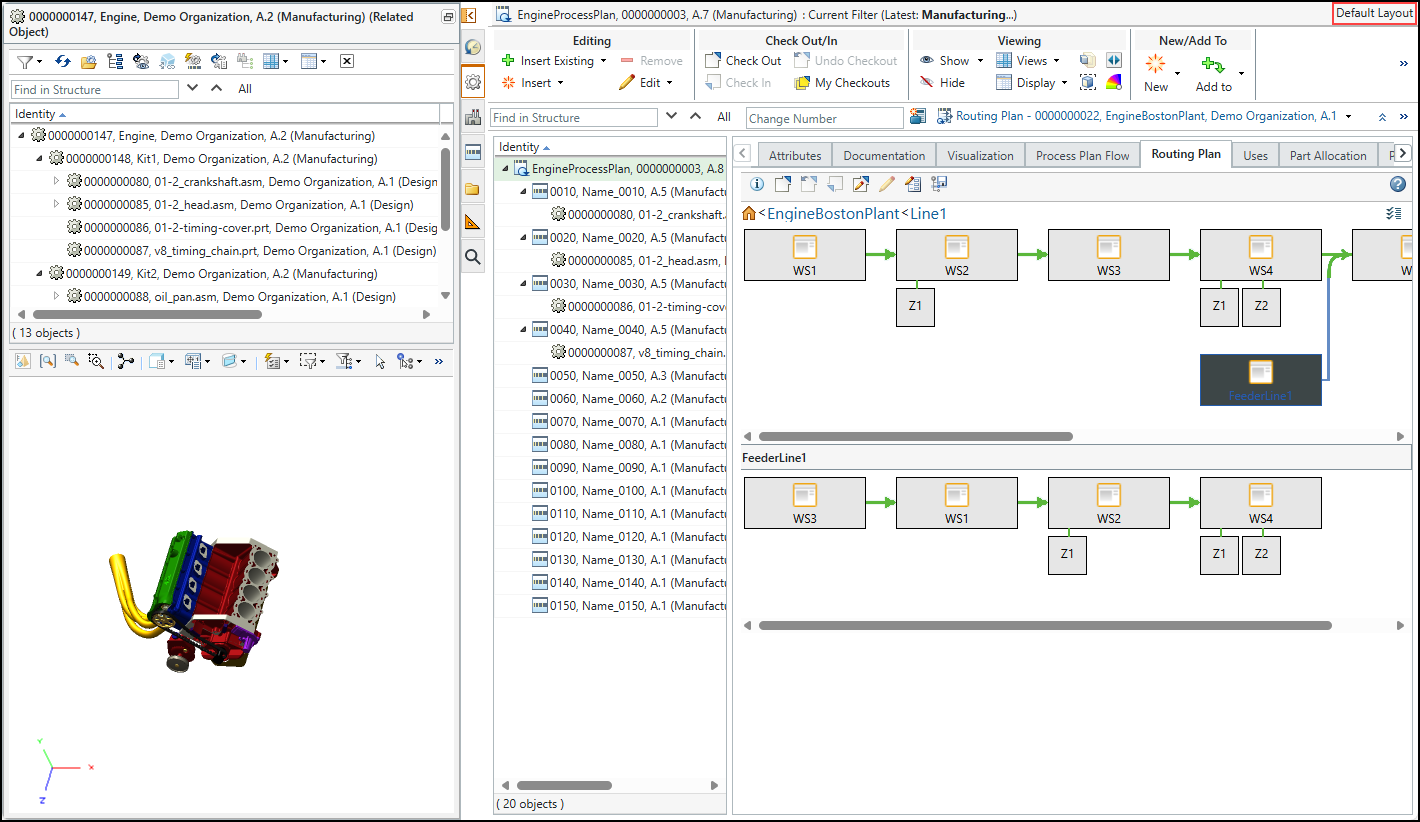
Opening Related Upstream Structures in Plant Layout
To view the upstream structures associated with the downstream structure, perform the following steps:
1. In the Process Plan tab of the BOM Transformer, select EngineBostonPlant in the Routing Plan table.
2. Click on the toolbar, or right-click EngineBostonPlant and select Open Related Upstream in Plant Layout.
on the toolbar, or right-click EngineBostonPlant and select Open Related Upstream in Plant Layout.The PPW opens in the Plant Layout mode, displaying the upstream structure for Engine on the left, the links for the plant and line associated with EngineBostonPlant in the center, and the visualization for the parts allocated to EngineProcessPlan on the right.
The label Plant Layout appears next to the process plan identity at the top of PPW.
In this layout, when a part is dragged or copied to a workstation or zone in the Routing Plan tab, an mBOM and an operation are autogenerated. The operation is localized to a plant and the part is allocated to it. For more information, see Generating Localized Operations and Manufacturing BOMs Automatically.
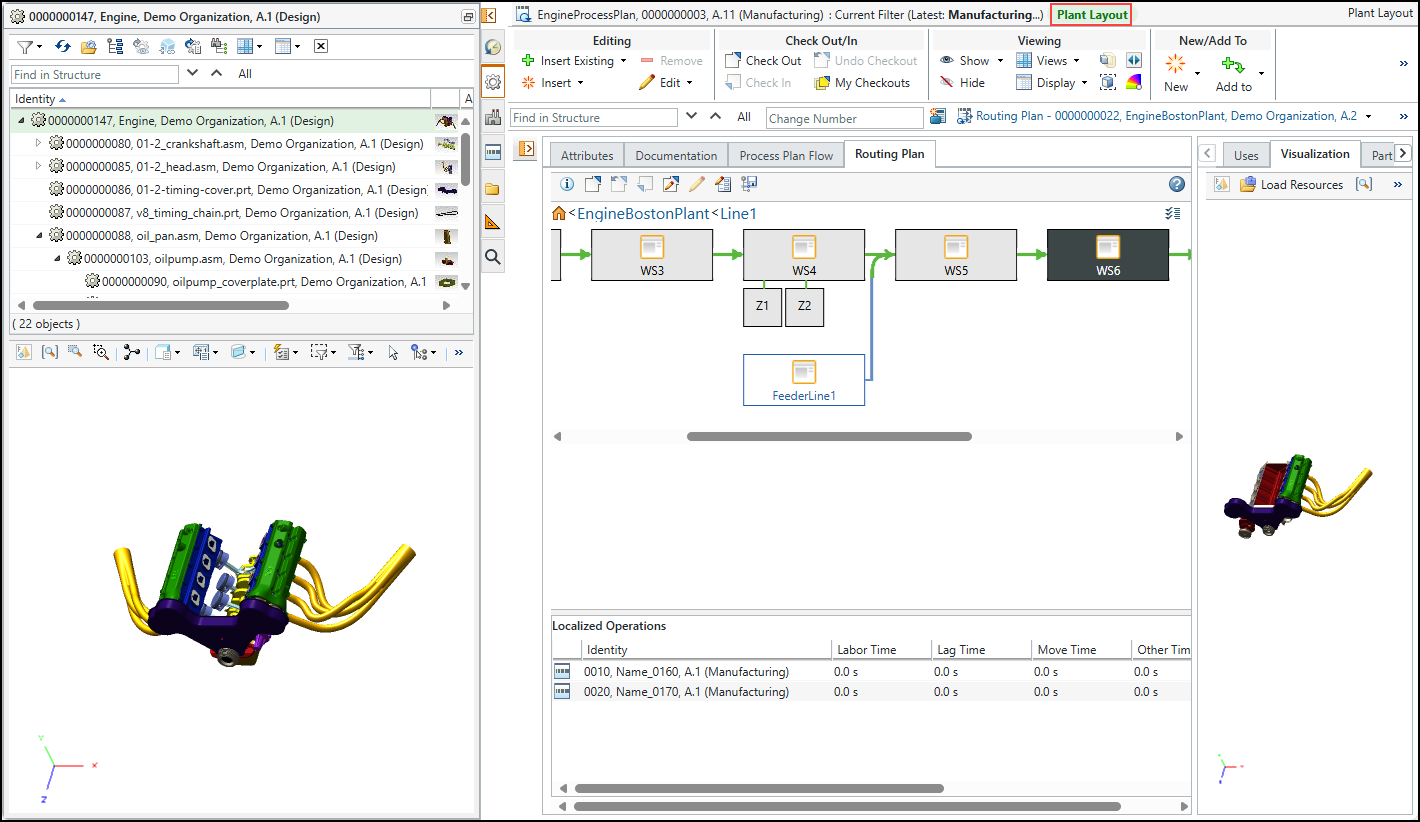
 | The process plan tree structure is hidden by default. You can click the  icon next to the Tree Picker to view the structure. icon next to the Tree Picker to view the structure. |