Generating Manufacturing Structures Using Routing Plan
In typical manufacturing workflows, new products are rarely built from scratch. Instead, you duplicate the existing product structures using the Save As action and then make the necessary modifications. After completing modifications to the duplicated structure, you can use the  Initialize Manufacturing Structures action to generate the manufacturing structures. This action uses the existing routing plan to automatically generate the manufacturing mBOM, process plan, and routing plan.
Initialize Manufacturing Structures action to generate the manufacturing structures. This action uses the existing routing plan to automatically generate the manufacturing mBOM, process plan, and routing plan.For more information about routing plans, see Managing Routing Plans.
Action Availability
Only those users who are members of the PTCBOMTransformationLicense or PTCMPMLinkModuleLicense profile can access the Initialize Manufacturing Structures action.
The action is available when selecting a part at the following locations:
• Tree Picker toolbar and right-click actions menu in the process plan opened in the routing plan context. For more information, see Opening Manufacturing Structures Associated with Routing Plan.
• Right-click actions menu on the upstream structure in BOM Transformer.
• Actions menu on the part information page.
• Actions menu and under New in the right-click actions menu on the folder browser page.
• Actions menu and under New in the right-click actions menu on the search results page.
Procedure
1. In BOM Transformer, select one or more parts from the upstream structure and then right-click and select Initialize Manufacturing Structures.
Initialize Manufacturing Structures.The Initialize Manufacturing Structures dialog box opens. It displays a set of rows for the selected parts, where you can provide details for the structures to be generated.
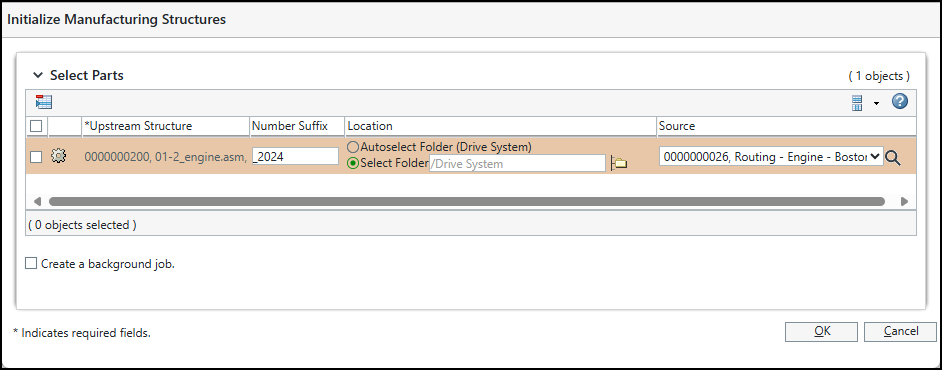
2. Specify the following details for each part:
◦ A number suffix that should be appended to the generated parts, process plan, and routing plan number.
◦ The location where the generated process plan, routing plan, and parts should be saved.
◦ The routing plan that can be used as the source for generating the structures. The Source list is populated based on the routing plan associated with the upstream part selected in step 1. You can select a routing plan from the list or click  to search for other routing plans.
to search for other routing plans. | • You cannot use the same routing plan and suffix combination for multiple parts. Specify a different routing plan or a unique suffix for each part. You can use the same routing plan without providing a suffix. • The Source list is auto populated only when you launch the action from the process plan opened in the routing plan context. |
3. Optionally, create a background job. When working on large structures, you can select Create a background job to generate the structures in the background. This allows you to continue working without waiting for completion.
Administrators can monitor the job status in MPM_Publish_Queue under > > .
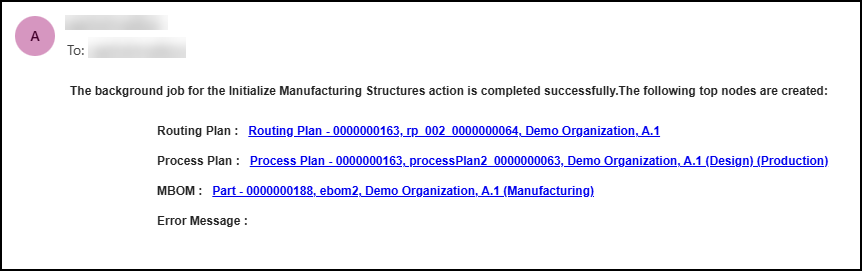
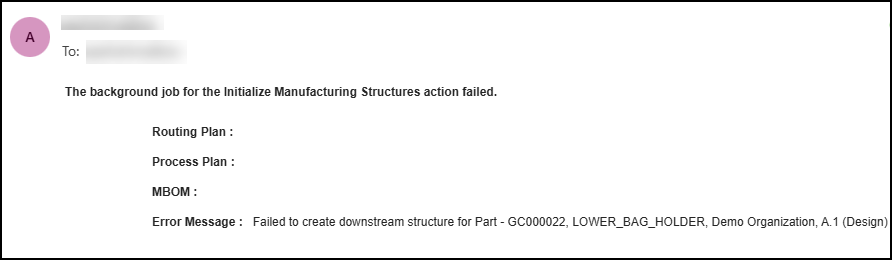
If email is configured, the user who initiated the job will receive an email notification upon job completion.
4. Click OK to generate the structures.
Email Notification
The following email notifications are sent upon successful or unsuccessful completion of job.
Viewing the Generated Structures
If a single part was selected, the selected structure opens in plant layout. If multiple parts were selected, only the first part in the selected list opens in plant layout. It displays the new process plan structure and routing plan associated with it. Any associated objects, such as operations and sequences, are also created and displayed under the process plan.
For more information on plant layout, see Opening Manufacturing Structures Associated with Routing Plan.
You can access all the objects from the confirmation message banner displayed at the top or from the folder location specified in the Initialize Manufacturing Structures dialog box. You can view the generated structures by navigating to the folder and opening the new part in BOM Transformer or opening the new routing plan in plant layout.
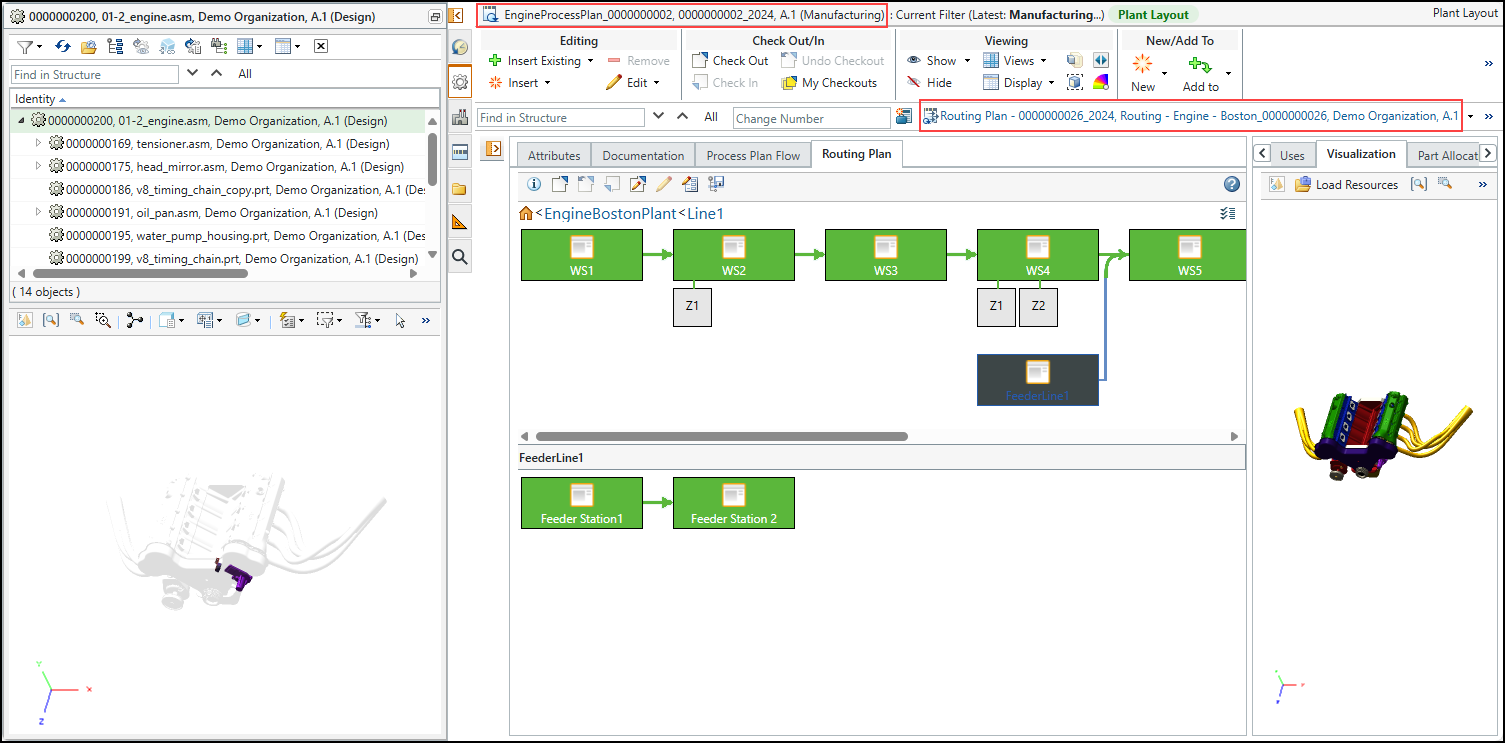
The name of the new process plan and routing plan is displayed in this format: <name of the source process plan or routing plan>_<number of the source process plan or routing plan>. The number suffix specified in the Initialize Manufacturing Structures dialog box is appended to the new process plan and routing plan number.
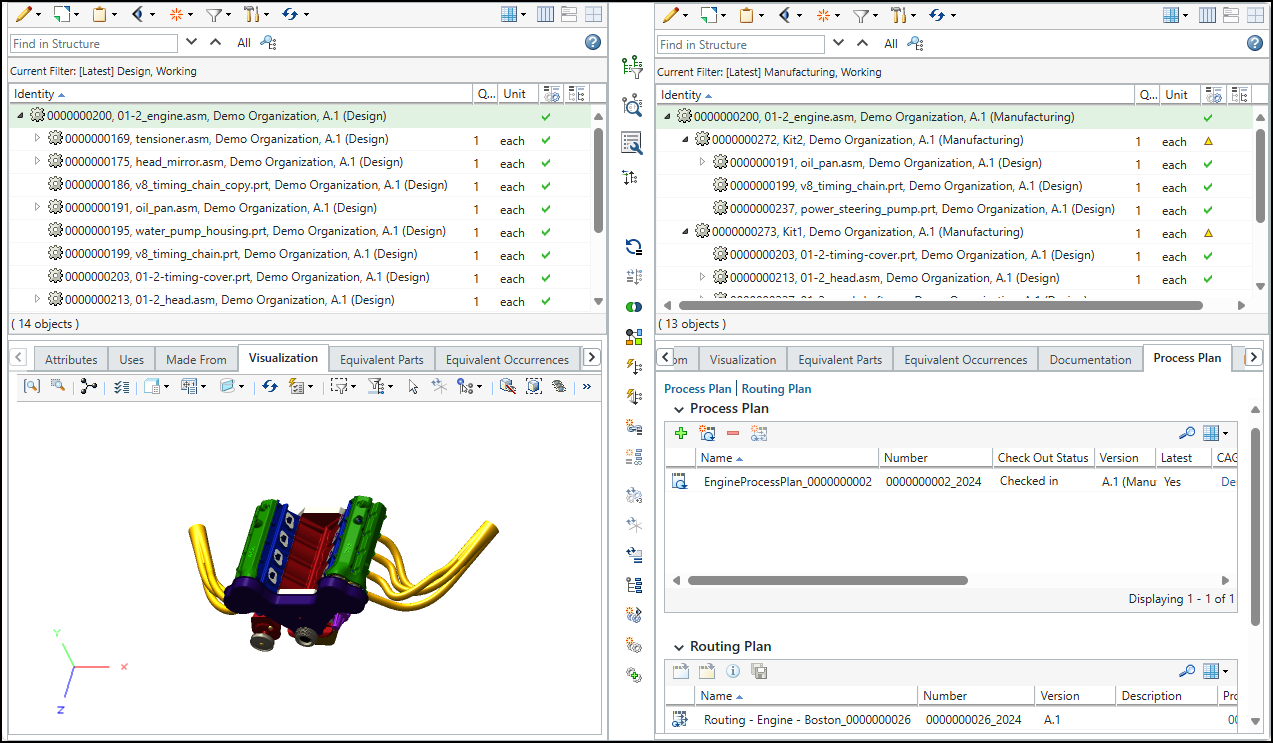
The new parts have the same names as the original ones, but you can identify them by the number suffix specified during generation.
Key Points About Generation of Manufacturing BOM
Manufacturing BOM generation depends on the downstream structure associated with the selected routing plan:
• When you select a routing plan associated with a downstream part that is not equivalent to any upstream part, the routing plan acts as a template for generating the downstream structure. You can specify transformation and restructuring rules in the rules file or properties file on the downstream part associated with the routing plan. To create equivalent links between specific parts, you can specify the equivalent link rules in the rules file or properties file using the equivalentLinkRules configuration. For more information, see Use Case 17: Generate a Downstream Structure and Create Equivalent Link Based on Template.
• When you select a routing plan associated with a downstream part that is equivalent to an upstream part, the downstream part associated with the routing plan acts as the template mBOM for generating the downstream structure and the upstream part acts as the similar eBOM. The transformation action that was used to generate the template mBOM, is now used to generate the similar mBOM. For more information, see Generating Using Existing BOMs.