Redline Actions Toolbar

The top part of the redline structure browser is the actions toolbar. The actions in the toolbar are divided into sections called action sets. These actions allow you to modify the redline.
These actions are also available from the right-click action menu.
The following table provides an overview of the actions available in each action set in the toolbar:
Action Set | Actions |
|---|---|
Editing | This action set includes Insert New, Insert Existing, Remove, and Edit actions. For more information on actions associated with this action set, see the Editing Action Set section in Redline Actions Toolbar. |
Check Out/In | This action set includes Check In, and Undo Checkout actions. For more information on actions associated with this action set, see the Check Out/In Action Set section in Redline Actions Toolbar. |
Clipboard | This action set includes Copy and Paste actions. For more information on actions associated with this action set, see the Clipboard Action Set section in Redline Actions Toolbar. |
Viewing | This action set includes Views and Display actions. For more information on actions associated with this action set, see the Viewing Action Set section in Redline Actions Toolbar. |
Filter | This action set includes Edit Filter, Current Filter, and Path Filter. For more information on actions associated with this action set, see the Filter Action Set section in Redline Actions Toolbar. |
Reports | The Reports action set provides the Export List to File action on the redline structure browser page. This action allows you to export the list to the CSV, HTML, PDF, TEXT, XLS, XLSX, XLS Report, and XML formats. For more information, see the Reports Export Action section in Redline Actions Toolbar. |
Editing Action Set
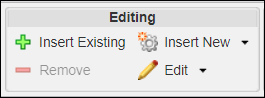
The Editing action set provides the following actions on a redline structure browser page:
Action | Description | ||
|---|---|---|---|
Insert Existing |  Insert Existing – Insert an existing part into the structure. For more information on how to insert an existing part, see Inserting an Existing Part. Insert Existing – Insert an existing part into the structure. For more information on how to insert an existing part, see Inserting an Existing Part. | ||
Insert New | Create and insert one or multiple new parts into the redline structure. The new part is created as a child of the selected redline in the redline structure pane. The following actions are available in the list:  Insert New – Create and insert one new part into the redline structure. For more information on how to create a new part, see Creating a New Part. Insert New – Create and insert one new part into the redline structure. For more information on how to create a new part, see Creating a New Part. Insert Multiple New – Create and insert multiple new parts into the redline structure. For more information on how to create multiple new parts, see Create Multiple New Parts. Insert Multiple New – Create and insert multiple new parts into the redline structure. For more information on how to create multiple new parts, see Create Multiple New Parts. | ||
Remove |  Remove – Remove a part from the redline. Remove – Remove a part from the redline.
| ||
Edit | The following actions are available in the list:  Edit Part – Edit version-specific attributes associated with a selected part. For more information on how to edit a part, see Editing a Part. Edit Part – Edit version-specific attributes associated with a selected part. For more information on how to edit a part, see Editing a Part. Edit Usage Attributes – Edit attributes associated with the relationship between the redline and child parts in a redline structure. For more information on how to edit usage attributes, see Editing Usage Attributes. Edit Usage Attributes – Edit attributes associated with the relationship between the redline and child parts in a redline structure. For more information on how to edit usage attributes, see Editing Usage Attributes.Import from Redline Spreadsheet – Launch the Import from Redline Spreadsheet window to import a redline importable spreadsheet. The Import from Redline Spreadsheet action is displayed only when you set the > preference to Yes in the Preference Management utility. For more information, see How to Import Redline Product Data from Excel.  Manage Redline Suspect – Set and unset the redline or child parts as suspect. For more information on how to manage redline suspect, see the Managing Redline Suspect in section Synchronization and Redline Suspect Status. Manage Redline Suspect – Set and unset the redline or child parts as suspect. For more information on how to manage redline suspect, see the Managing Redline Suspect in section Synchronization and Redline Suspect Status. |

Check Out/In Action Set
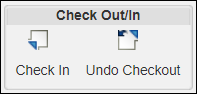
The Check Out/In action set provides the following actions on a redline structure browser page:
Action | Icon | Description |
|---|---|---|
Check In |  | Check in the redline. For more information on how to check in objects, see Checking In an Object. |
Undo Checkout |  | Clear the check out of the redline, discarding any changes that have been made. For more information on how to undo a checkout, see Undoing a Checkout. |
Clipboard Action Set
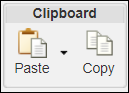
The Clipboard set provides the following actions on a redline structure browser page:
Action | Icon | Description |
|---|---|---|
Paste |  | The following actions are available in the list: Paste – Create part usage relationships by pasting a part from the clipboard to a part selected in the structure pane. Paste Selection – Create part usage relationships by pasting a part selected from the clipboard to a part selected in the structure pane. Paste Selection – Create part usage relationships by pasting a part selected from the clipboard to a part selected in the structure pane. |
Copy |  | Copy a part to the clipboard to be used in a subsequent paste operation. |
Viewing Action Set
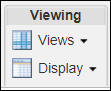
The Viewing set provides the following actions on a redline structure browser page:
Action | Icon | Description | ||||||||
|---|---|---|---|---|---|---|---|---|---|---|
Views |  | Use the Views icon to create table views that change the information displayed in the structure pane. Select a previously defined view from the list or create a new view using Manage Structure Views. For more information on managing structure views, see Customizing Table Views. | ||||||||
Display |  | The Display actions change how parts are displayed within the part structure and the number of panes shown in the redline structure. The following actions are available in the drop-down menu: • Select All – Selects and highlights all parts displayed in the structure, so that other actions may be performed on the selected parts.
• 2-Pane Display – Click to show all tabs in a single pane to the right of the structure. • 3-Pane Display – Click to show tabs in two panes, one to the right and the other beneath the redline structure browser.
•  Refresh – Re-displays the part structure preserving the expansion state. Refresh – Re-displays the part structure preserving the expansion state.
|

Filter Action Set
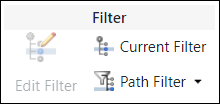
The Filter action set provides the following actions on the redline structure browser page:
Action | Icon | Description | ||
|---|---|---|---|---|
Edit Filter |  | Resolves the part versions based on the defined configuration specification. For example, on a redline, you can apply an edit filter to view only children of a certain type. When you click the Edit Filter action, the Edit Filters dialog box opens. It displays the filters available for the redline along with the name and number of the change notice on which the redline exists. You can select the desirable configuration specification for a particular child part. The filter resolves the child part according to the defined configuration specification.
| ||
Current Filter |  | Hover your mouse over the Current Filter icon to see a summary of the structure filters currently applied to the part structure. Click this icon to display the Current Filter window with a full description of applied filters. For more information, see Viewing a Structure’s Current Filter Properties. | ||
Path Filter |  | Filters a large number of parts, so that only those parts that you are currently working on are displayed in the redline structure. The following actions are available in this list: • Edit Path Filter – Opens the Edit Path Filter window, where you can clear, select, or reset all path filters. • Apply Path Filter – Applies the path filter to the parts that you have selected in the part structure tree. • Disable Path Filter – Removes the path filter applied to the parts in the part structure tree. |
Reports Export Action
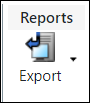
The Reports action provides a list of options to export a file in various formats:
Action | Icon | Description | ||
|---|---|---|---|---|
Export List to File |  | Allows you to export a file in the CSV, HTML, PDF, TEXT, XLS, XLSX, XLS Report, XML, and Redline Importable Spreadsheet formats. The exported file includes the following: • The expanded levels of the BOM redline. However, only a single-level BOM redline is included in the exported file when all child levels are collapsed. • The part attributes and the usage attributes of the BOM redline tree view.
|
Related Topics