Viewing Action Set - Process Plan Browser
The Viewing action set is located in the Structure tab toolbar on a process plan information page. The viewing actions are used to change the display of information in the process plan tree structure pane. The following actions are provided:
|
Action
|
Description
|
||
|---|---|---|---|
 Show Show |
Use the Show or  Hide actions to view or hide objects present under the operation holder (Process Plan, Standard Procedure, Operation, or Sequence) objects in the process plan tree structure based on your business requirements. You can selectively display objects in the process plan tree structure using these actions. For example, if you want to view only the resources present under an operation, you can select the operation in the process plan tree structure and click the Show action or the list to display only the resources present under the operation. These actions enable you to view a trimmed version of the process plan tree structure. For example, a process plan tree structure can contain over a thousand operation holder objects. Using these actions, you can focus on only those objects that are necessary for your work. Hide actions to view or hide objects present under the operation holder (Process Plan, Standard Procedure, Operation, or Sequence) objects in the process plan tree structure based on your business requirements. You can selectively display objects in the process plan tree structure using these actions. For example, if you want to view only the resources present under an operation, you can select the operation in the process plan tree structure and click the Show action or the list to display only the resources present under the operation. These actions enable you to view a trimmed version of the process plan tree structure. For example, a process plan tree structure can contain over a thousand operation holder objects. Using these actions, you can focus on only those objects that are necessary for your work.Select one or more operation holders in the process plan tree structure and then click one of the following: • Show icon — Displays all the valid objects in the process plan tree structure. The display and order of objects depend on the value set in the Show Process Plan Related Information and Define the Order for the Process Plan Assignable Objects preference. For more information, see Viewing Process Plan Related Information and Defining the Order for the Process Plan Assignable Objects. 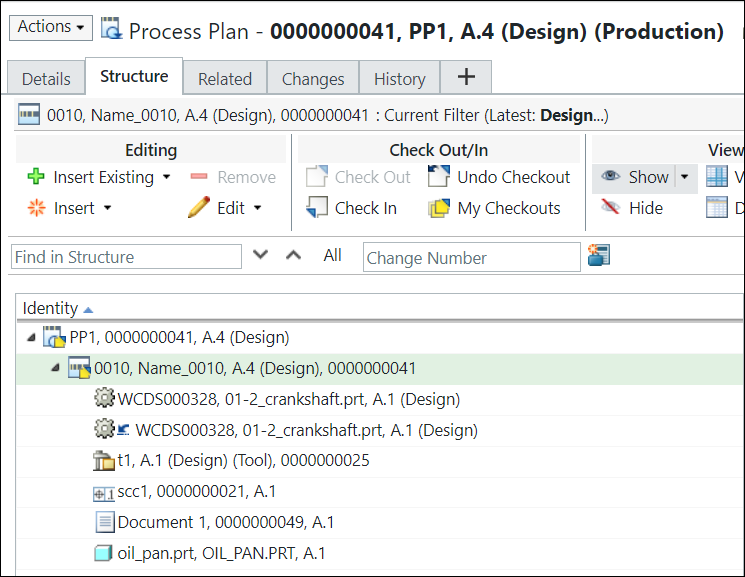 • Drop-down arrow next to the Show icon From this list you can select: ◦ Show All — Click to display all the objects ◦ Object types you want to display ▪ Allocated Parts ▪ Standard Control Characteristics ▪ Resources ▪ Operated on Parts ▪ Documents ▪ CAD Documents 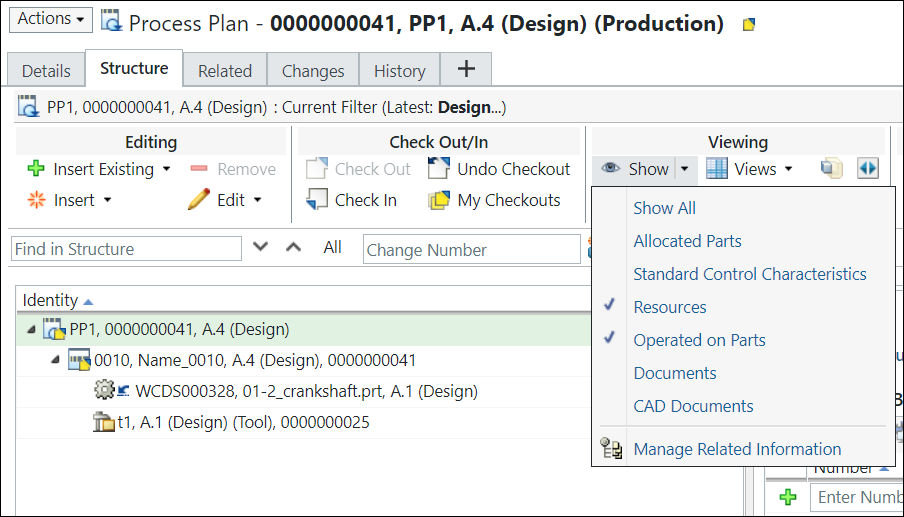 ◦ Manage Related Information — Opens a new window from which you can select and clear multiple related object types. 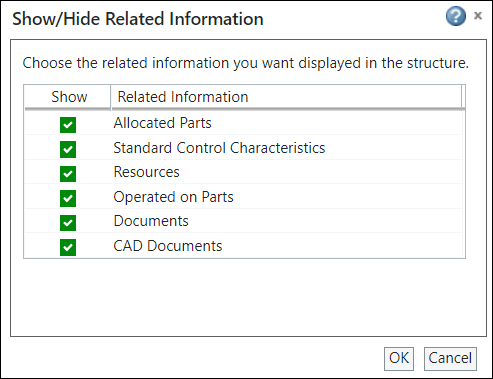 For more information, see Key Points
About the Show Action Refer the video for more details. To view the video in a larger window, click on the video title. This opens the video in YouTube in a new tab. |
||
| Hide |
Removes all related information from being displayed in the process plan tree structure for the selected operation holder object.
|
||
 Views Views |
The Views list enables you to create table views that change the information displayed in the structure pane. Select a previously defined view from the drop-down list or create a new view using Manage Structure Views. For more information, see Customizing Table Views.
|
||
 Display Display |
The Display actions change how parts are displayed within the process plan tree structure pane and the number of panes shown in the structure tab.
The following actions are available in the drop-down menu:
• 2-Pane Display – Show all tabs in a single pane to the right of the structure. • 3-Pane Horizontal Display – Show tabs in two panes, one to the right and the other beneath the process plan tree structure. 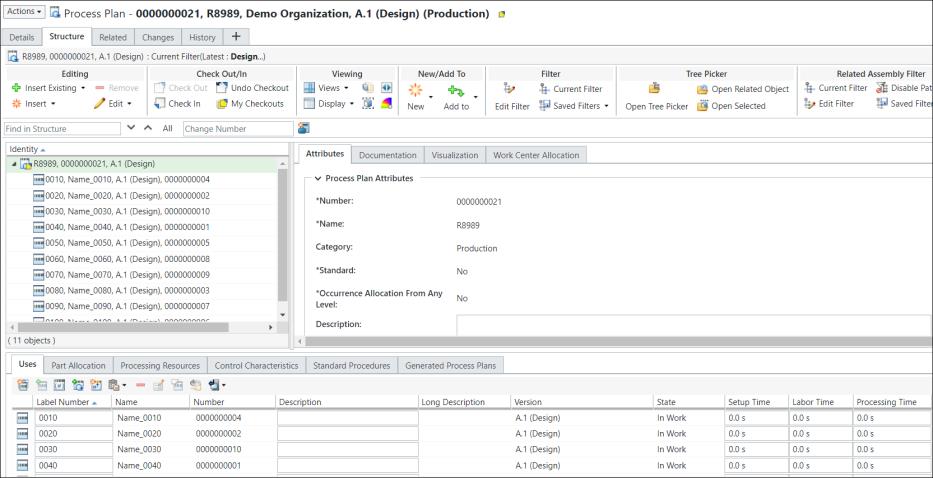 • 3-Pane Vertical Display – Show tabs in three vertical panes.
•  Expand All Levels – Select a collapsed entity in the structure pane and click to expand all levels recursively. Expand All Levels – Select a collapsed entity in the structure pane and click to expand all levels recursively.• Expand selected by – Select one or more assemblies in the process plan tree structure pane and choose from the following menu choices: ◦ Choices for 1 Level through 5 Levels – Expands the number of levels indicated by your choice. ◦ All Levels – Expands all levels. ◦ n Levels – Enter the number of levels to be expanded in the Expand By Levels window and click OK. The selected entities are expanded recursively by the selected number of levels. •  Collapse All Levels – Select one or more recursively expanded assembly parts in the structure pane and click to collapse all levels. Collapse All Levels – Select one or more recursively expanded assembly parts in the structure pane and click to collapse all levels.•  Refresh – Re-displays the process plan tree structure preserving the expansion state. Refresh – Re-displays the process plan tree structure preserving the expansion state. |
||
 Playback Actions Playback Actions |
Shows you the parts and resources that are allocated to the operations and sequences in the order that they are manufactured in a process plan. These objects are displayed in the Visualization task tab of a process plan Structure tab. For more information, see Viewing a Process Plan Playback.
|
||
 Emphasize parts not in their latest iteration Emphasize parts not in their latest iteration |
Highlights the parts that have not been updated to the latest iteration.
|
||
 Isolate Allocated Parts Isolate Allocated Parts |
Focuses the display on parts that have been allocated.
|
||
 Color code parts in 3d according to the first-level operation where they are consumed Color code parts in 3d according to the first-level operation where they are consumed |
Applies color codes to entities under the operations in the Visualization tab. For more information, see Color Codes in the Process Plan Browser.
|
Key Points About the Show Action
• You must select valid objects and then initiate the Show or Hide actions available in the Viewing action set of the process plan browser. For example, if you want to show or hide objects present under an operation, you must select an operation and then click the Show or Hide actions. In this case, only the objects present under the operation appear or disappear.
Show or Hide actions available in the Viewing action set of the process plan browser. For example, if you want to show or hide objects present under an operation, you must select an operation and then click the Show or Hide actions. In this case, only the objects present under the operation appear or disappear.• You can select multiple valid objects and initiate the Show or Hide actions. However, there should not be any conflicts in the selected objects. Consider the following scenarios:
Show or Hide actions. However, there should not be any conflicts in the selected objects. Consider the following scenarios:◦ Operation 1 and Operation 2 are present under process plan PP1. An allocated part A1 is present under Operation 1. An allocated part A2 is present under Operation 2. The checkbox in the Show list for A1 is selected. The checkbox in the Show list for A2 is also selected. In such a case, if you select Operation 1 and Operation 2 and click Show, the system displays the allocated parts for both the operations.
◦ Operation 1 and Operation 2 are present under process plan PP1. An allocated part A1 is present under Operation 1. An allocated part A2 is present under Operation 2. The checkbox in the Show list for A1 is selected.
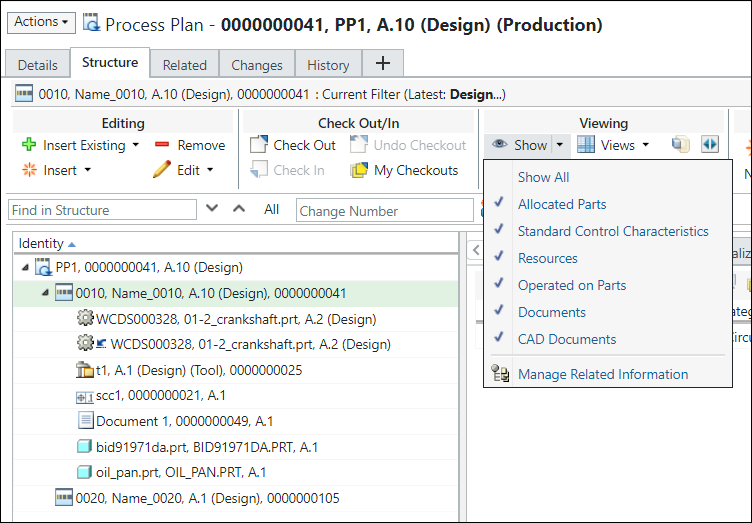
The checkbox in the Show list for A2 is not selected.
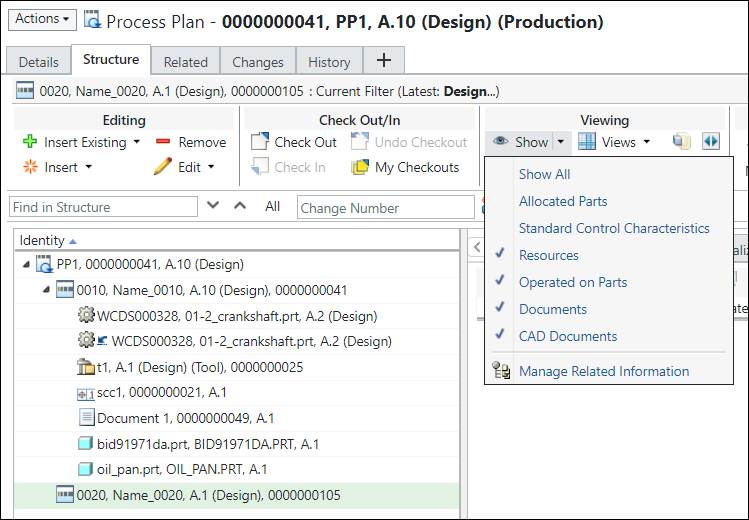
In such a case, if you select Operation 1 and Operation 2 and the click Show list, the system displays a square in front of indicating a conflict.
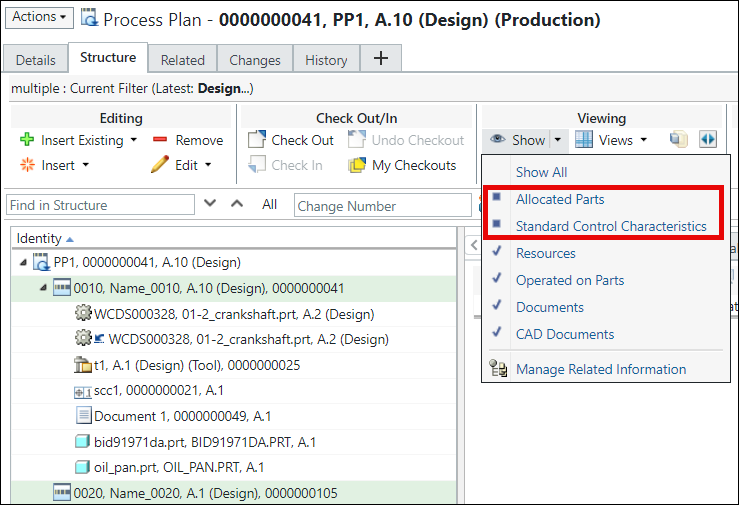
The allocated parts are not displayed.
 | If you click Show, the allocated parts are displayed. |
• The objects displayed in the process plan tree structure also depend on the value set in the Show Process Plan Related Information preference. For more information, see Viewing Process Plan Related Information.
• The order of the objects displayed in the process plan tree structure depends on the value set in the Define the Order for the Process Plan Assignable Objects preference. For more information, see Defining the Order for the Process Plan Assignable Objects.
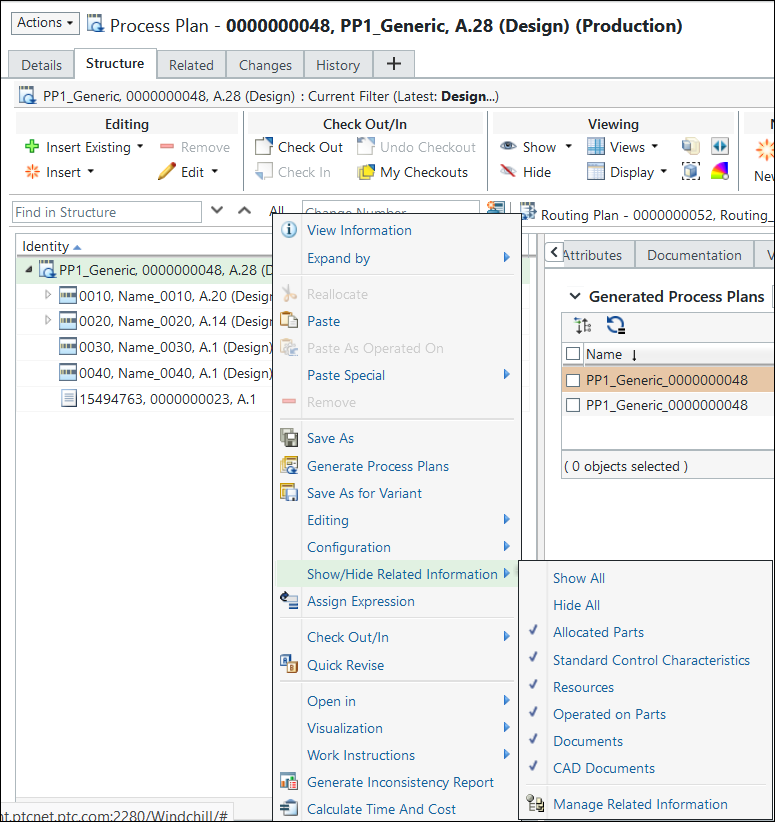
• You can also use the Show/Hide Related Information action available in the right-click menu to show all objects, hide all objects, show specific objects, or manage related information.
Related Topics