Import a Package of Business Administrative Changes
The Import Changes tab in the Business Administrative Change utility provides the ability to import business administrative changes package on a target Windchill system.
Before importing a package into the target system,
• Export the business administrative changes package from the source system
• Set com.ptc.windchill.bac.ignoreGUIDList property to All in the target system
To import business administrative changes package, perform the following steps in the target system:
1. Go to the Import Changes tab and click on the Browse button. The file explorer opens.
2. In the file explorer, browse to the location of the package folder that you previously exported from the source system and select it.
Alternatively, you can drag and drop the package folder into the Package box.
 |
Use the options available in the Import Changes tab to determine whether the conflict resolution and attribute mapping choices defined in the target system (integration system) should be carried forward when importing the package into the target system (testing or production system). The Use bundled mapping checkbox is displayed in the Import Changes tab. When selected, the system applies the attribute mappings that are defined within the package during export to the import process. For more information, see Use Bundled Mapping.
Conflict Resolutions are predefined rules or actions configured to handle specific types of conflicts that may occur during the import process. Windchill+ resolves known conflicts during BAC package import through the Import Changes tab, using an automated mechanism that reduces manual effort and improves success rates. The system refers to the defaultConflictResolution.xml file located at <Windchill_Home>/bin/customizationTools/templates for conflict resolution.
|
3. Click Import Changes to initiate the import process.
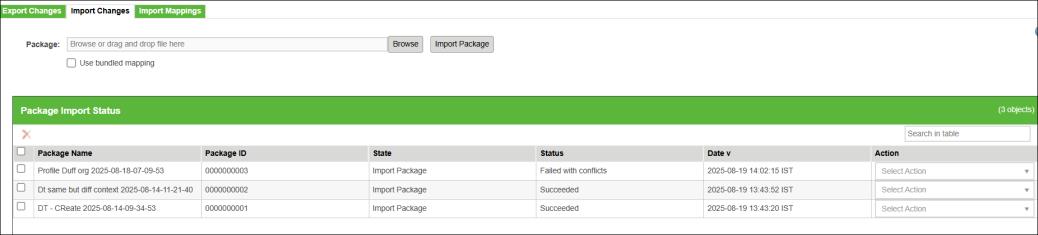
On completion of the import process, the Package Import Status table lists the imported packages along with the import status. The package ID is the unique identifier of the package. This ID can be used later while resolving conflicts to filter the relevant conflicts associated with the package.
Based on the import status of the package, you can perform the following actions on each package:
Status: Succeeded
• Download Report: Downloads import reports locally. The reports contain details of the contents of the package and any associated conflicts, mapping definitions, and conflict resolutions used to import the package.
• Download Zip: Downloads the package ZIP file locally. If new mappings or conflict resolutions were used to successfully import the package, re-downloading the package will generate a new version of the package which contains the latest mappings and conflict resolutions. This is the version of the package to be used for any subsequent downstream imports.
Status: Failed with conflicts
• Download Report: Downloads import report locally.
• Resolve Conflicts and Retry: Launches the Event Management utility to address conflicts and attempts the import again.
• Map Attributes: Opens the Import Mappings tab to map attribute values from the package to the attribute values in the target system.
If there are several conflicts listed in the Event Management utility, enter the ID of the relevant package in the Search in table box to filter out non-relevant conflicts. Select the  icon in the Actions column to see the list of conflicts and possible retry options. Then, click Retry to attempt to import again. For more information, see Managing Conflicts.
icon in the Actions column to see the list of conflicts and possible retry options. Then, click Retry to attempt to import again. For more information, see Managing Conflicts.Use the  action to delete the package from the system. Deleting a package from the system deletes the record of the package, but not the associated content.
action to delete the package from the system. Deleting a package from the system deletes the record of the package, but not the associated content.Handling Conflict Resolution During BAC Package Import Through Import Changes
Windchill+ resolves known conflicts during BAC package import through the Import Changes tab, using an automated mechanism that reduces manual effort and improves success rates. The system refers to the defaultConflictResolution.xml file located at <Windchill_Home>/bin/customizationTools/templates for conflict resolution.
If the conflict code exists in the file, the system applies the resolution and continues the import. If the conflict code is missing, the import fails and must be resolved manually.
Use the Event Management interface to resolve conflicts manually.
Examples:
Conflict Scenario | System Action |
|---|---|
MS_With_Same_Identity_Exists | Applies resolution from XML and continues the import process |
Organization_Does_Not_Exist | Fails import; requires manual resolution |
For more information, see Importing a BAC Package Using CCD Utility.
Use Bundled Mapping
This refers to using the attribute mappings that are defined within the package for the import process.
For example, if Profile1 was created against OrgA, but the package contains mapping definitions which map OrgA to Demo Organization, selecting Use bundled mapping will result in Profile1 being created under Demo Organization in the target system (testing or production system).
If a conflict (OrgA – Context Not Found) arises during the import process that matches an attribute mapping in the Mapping file (Mapping.xsl) in the package, and Use bundled mapping is selected, the import process will follow the corresponding attribute mapping (Demo Organization).
| | If the Use bundled mapping checkbox is selected, it will take precedence over the mapping values defined under the Import Mapping tab. This means that the system will prioritize the mappings included in the package over any mappings defined separately in the Import Mapping tab. |
From a sequencing perspective, attribute mappings take precedence over conflict resolutions. This means that if there is a conflict, the system will first try to resolve it based on the attribute mappings before applying any conflict resolution rules.
For example, when you map OrgA on the source system (integration system) with OrgB on the target system (testing or production system) in the Mapping file (Mapping.xsl), set the conflict resolution to SKIP for Container Not Found conflict, and import a package with two profiles - ProfileA associated with OrgA, and ProfileC associated with OrgC, the following will happen:
• ProfileA will be imported successfully and associated with OrgB as per the defined mapping.
• ProfileC will be skipped because a valid mapping is not defined for it. The conflict resolution rule (SKIP for Container Not Found) causes the system to skip importing the profile.