Tutorial 4: Replacing a Part in the Generic eBOM, Variant eBOM, and Generic mBOM
1. Consider that the following structure is present in the BOM Transformer:
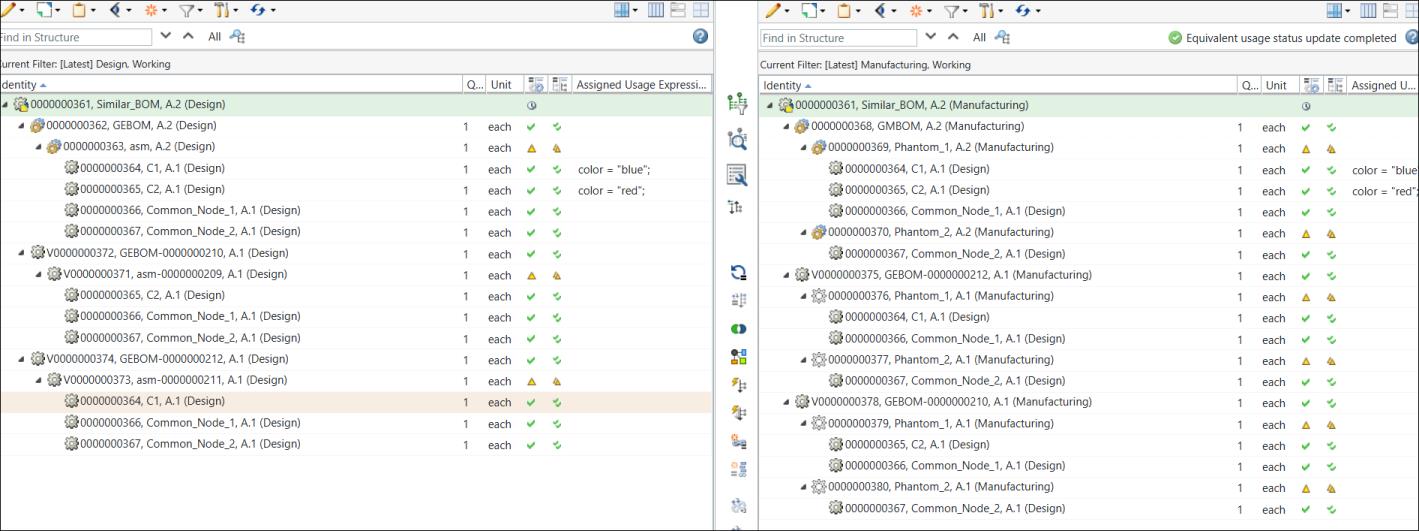
◦ The generic eBOM 0000000362, GEBOM, (Design) is present in the upstream view. An assembly 0000000363, asm, (Design) present under the generic eBOM 0000000362, GEBOM, (Design) contains two child parts 0000000364, C1 and 0000000365, C2. Different options and choices are assigned to parts 0000000364, C1 (Design) and 0000000365, C2 (Design). Two common nodes, 0000000366, Common_Node_1, (Design) and 0000000367, Common_Node_2, (Design) are present under the assembly 0000000363, asm, (Design).
◦ The generic mBOM 0000000368, GMBOM, (Manufacturing) is present in the downstream view.
◦ The variant eBOMs 0000000372 (Design) and 0000000374 (Design) are created for the generic eBOMs in the upstream view. The system generates variant mBOMs in the downstream view using the variant eBOMs.
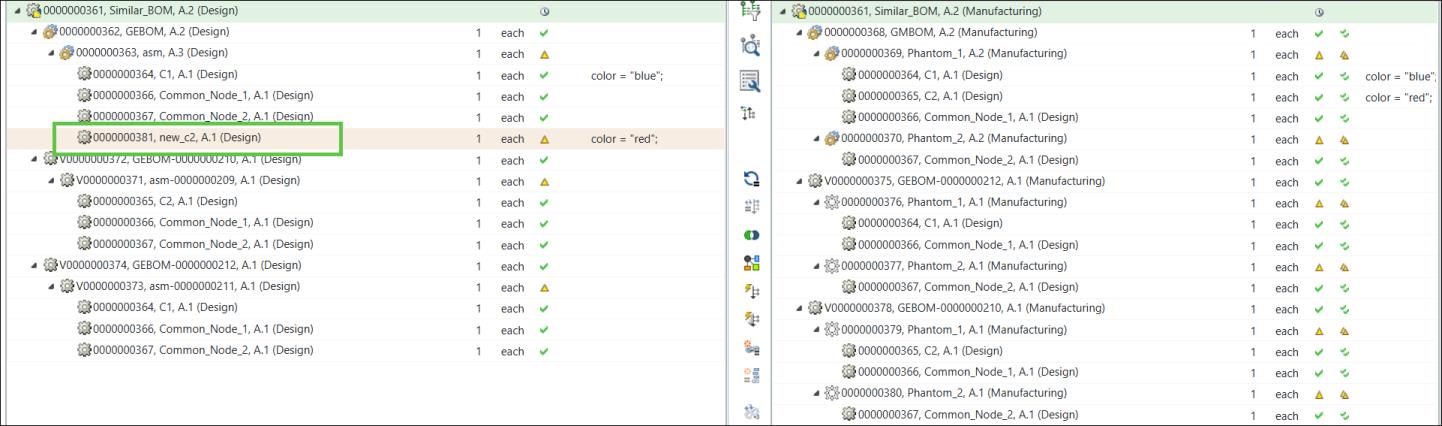
Observe the highlighted parts.
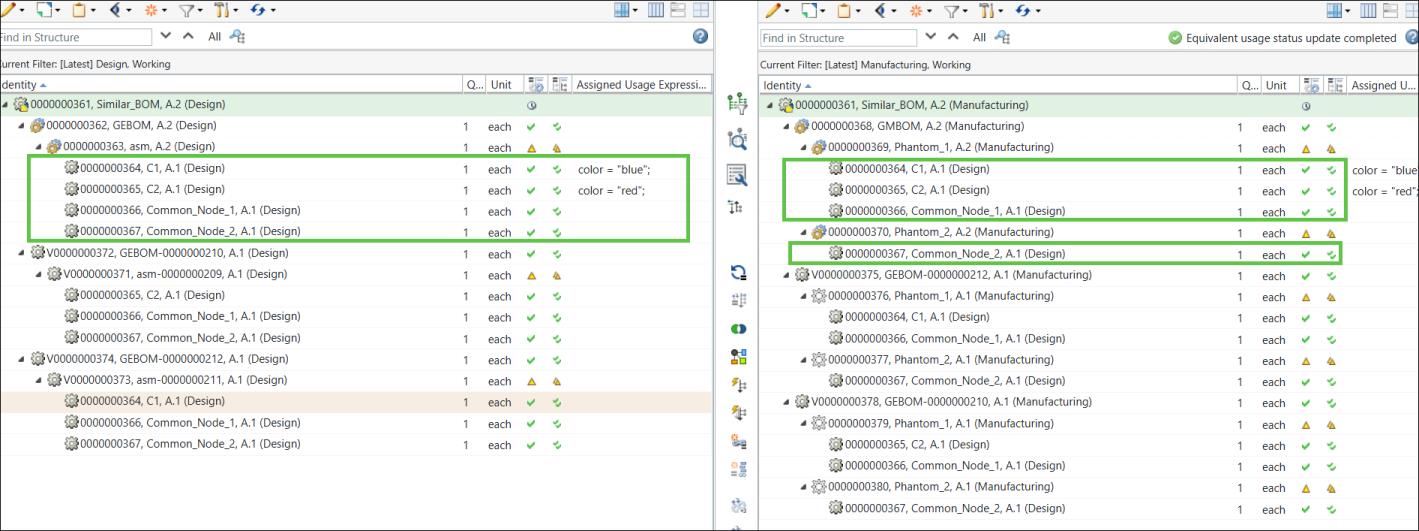
The parts are added under the phantom parts in the downstream view.
The requirement is to replace parts in the generic eBOM, generic mBOMs, and variant eBOMs.
2. Browse to the information page of generic eBOM 0000000362, GEBOM, (Design).
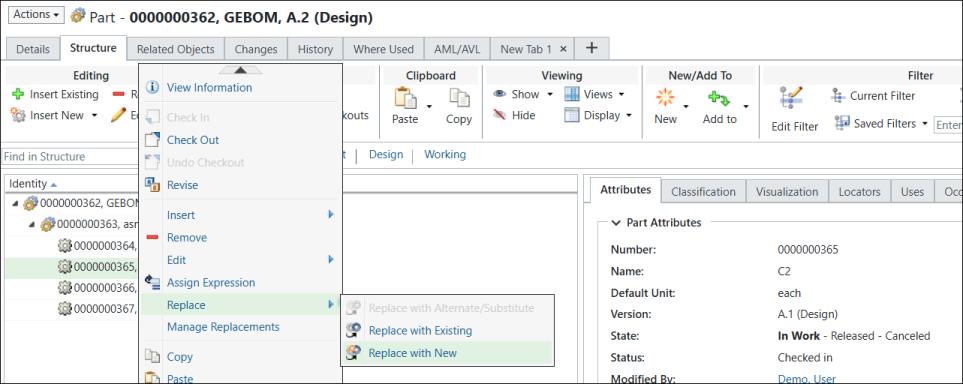
3. In the Structure tab, select part 0000000365, C2 (Design). Right-click and select > .
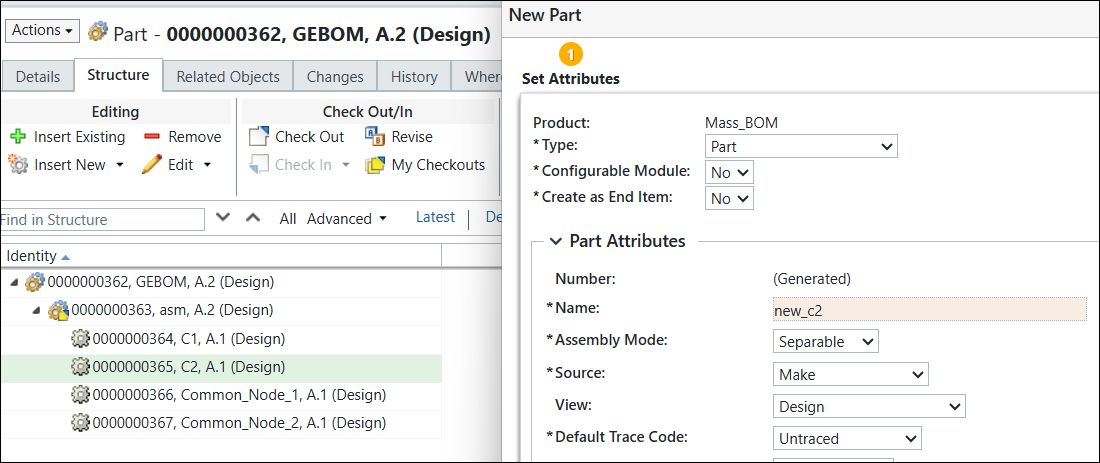
The New Part dialog box opens. Add the name as new_c2 and click Finish.
The New Part dialog box closes, and the part C2 is replaced with the part new_c2.
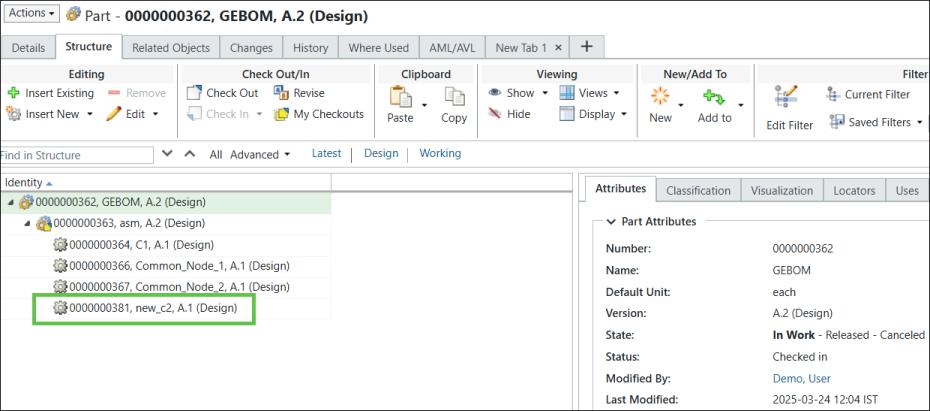
4. Check in the changes. The generic eBOM structure is updated in the BOM Transformer with the replaced part.
5. Select the part 0000000363, asm, (Design) in the upstream view and initiate the  Synchronize Structures action to update the changes.
Synchronize Structures action to update the changes.6. The Synchronize Structures dialog box opens. It lists the replaced part entry.
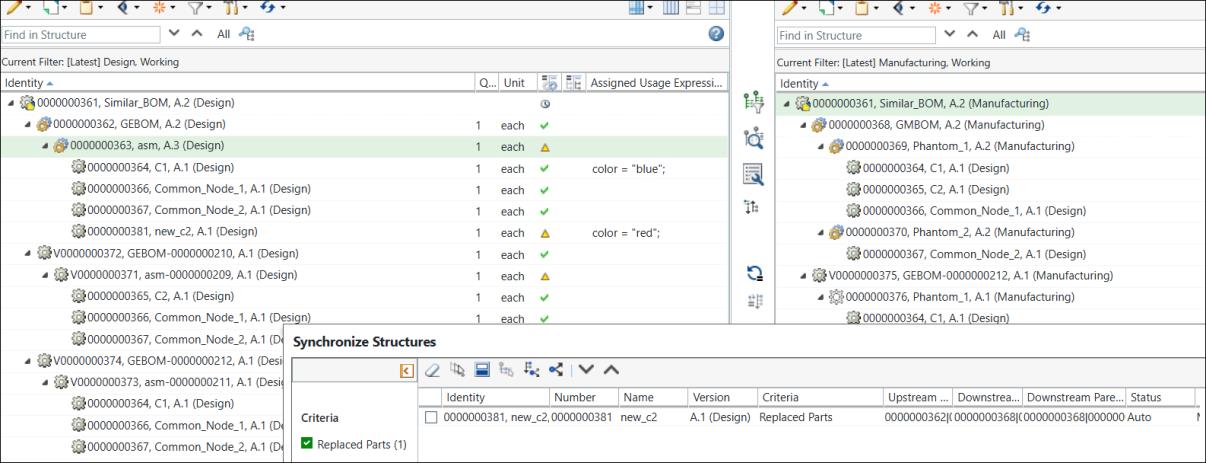
For more information, see Synchronizing Upstream and Downstream Structures.
7. Select the part in the Synchronize Structures dialog box and click  Propagate changes to downstream to propagate the selected changes.
Propagate changes to downstream to propagate the selected changes.The part appears in the downstream view.
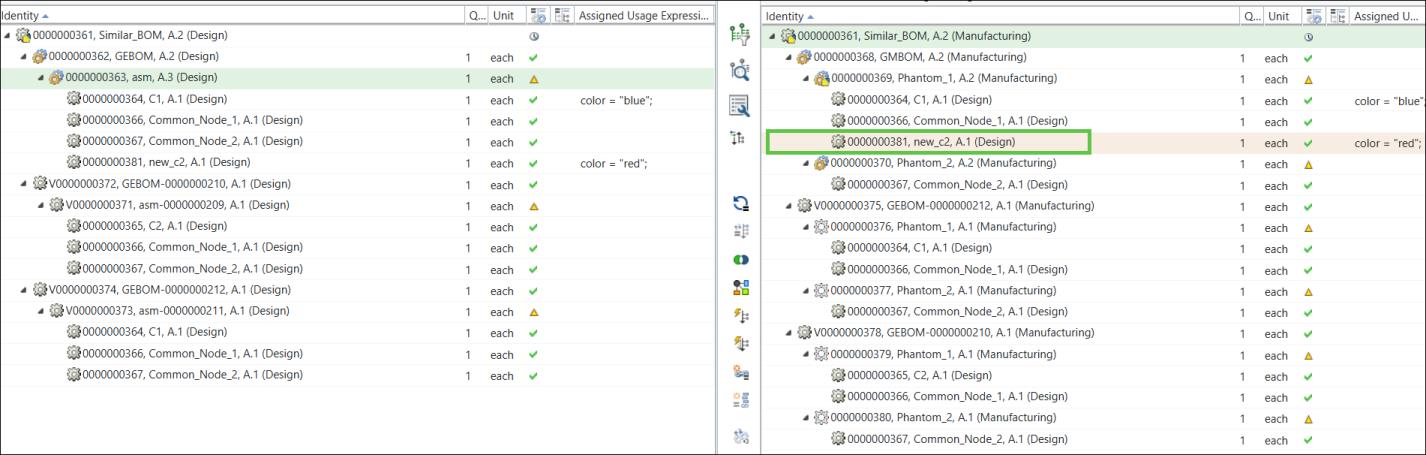
8. Reconfigure the variant specifications
You can view information about all variants by displaying the Variant Specifications table on the part information page. You can click on the variant specification entry to open the variant specification information page.
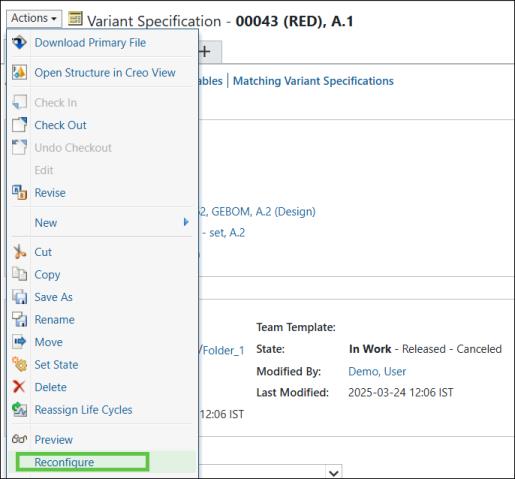
Open the 0043 (RED) variant specification and in the Actions list, select Reconfigure.
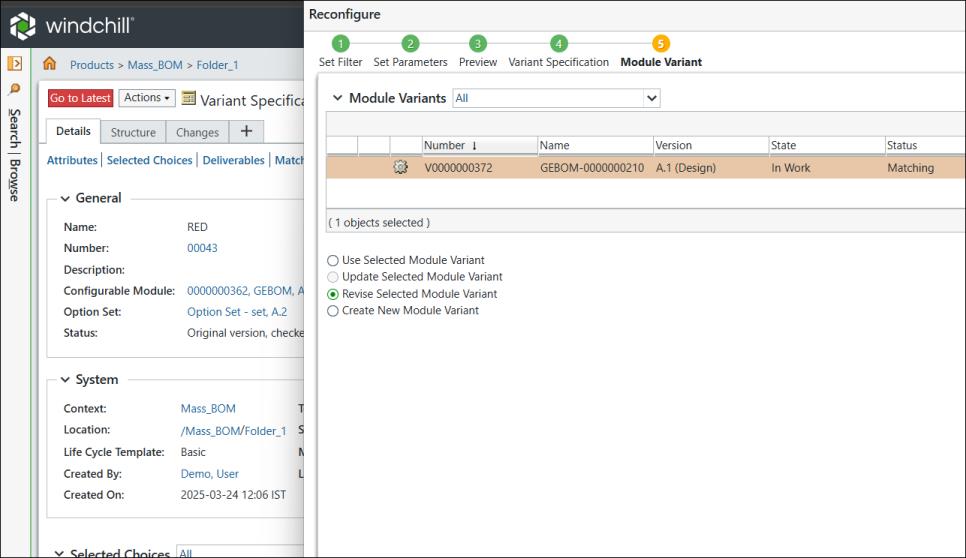
The Reconfigure dialog box opens. Make changes according to your business requirements.
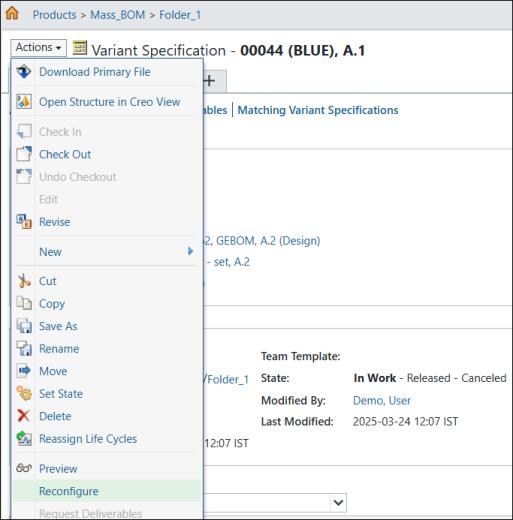
9. Open 0044 (BLUE) variant specification and in the Actions list, select Reconfigure.
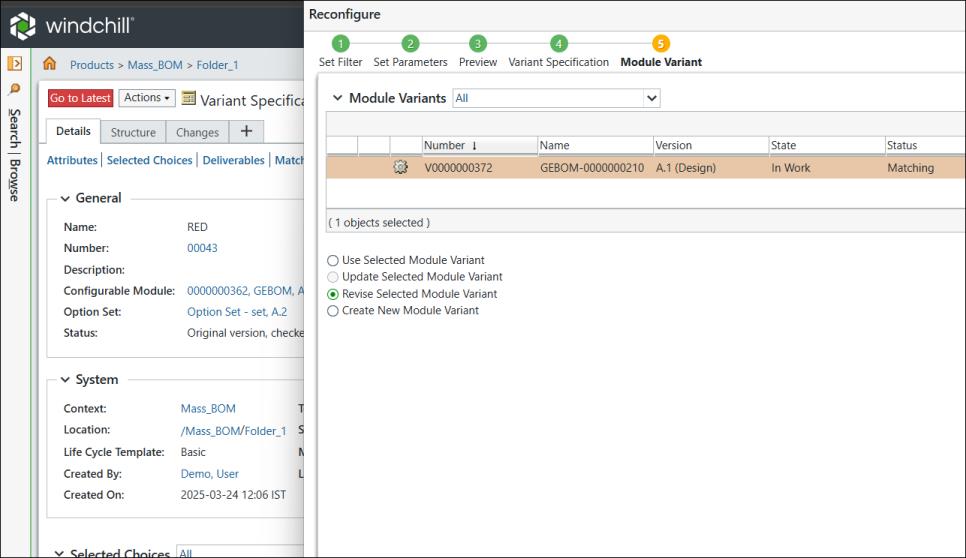
The Reconfigure dialog box opens. Make changes according to your business requirements.
10. In the upstream view of the BOM Transformer, part new_c2 appears under the variant eBOM 0000000372.
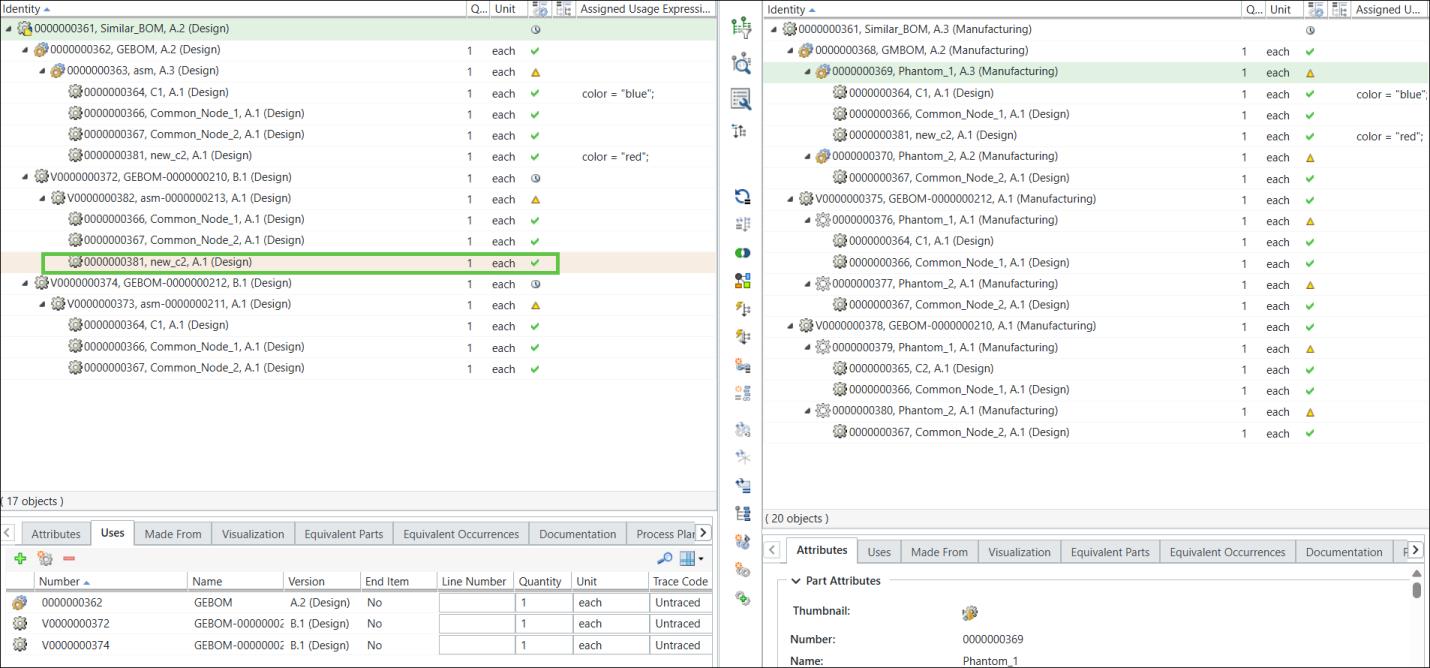
 | The iteration of the variant eBOM 0000000372 has also changed. |
11. Initiate the Update Mass Downstream BOMs action
Select the generic mBOM, 0000000368, GMBOM, (Manufacturing), in the downstream view, and click  New/Add >
  Update Mass Downstream BOMs.
New/Add > Update Mass Downstream BOMs.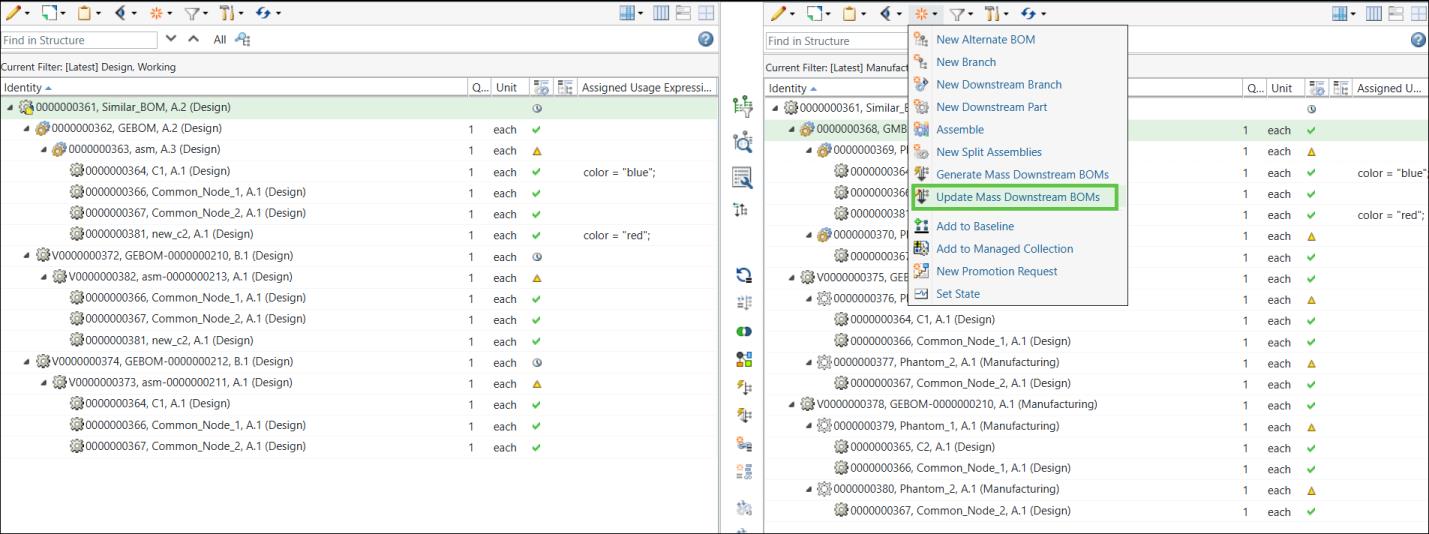
12. The following message is displayed when you initiate the Update Mass Downstream BOMs action:
Update Mass Downstream BOMs action: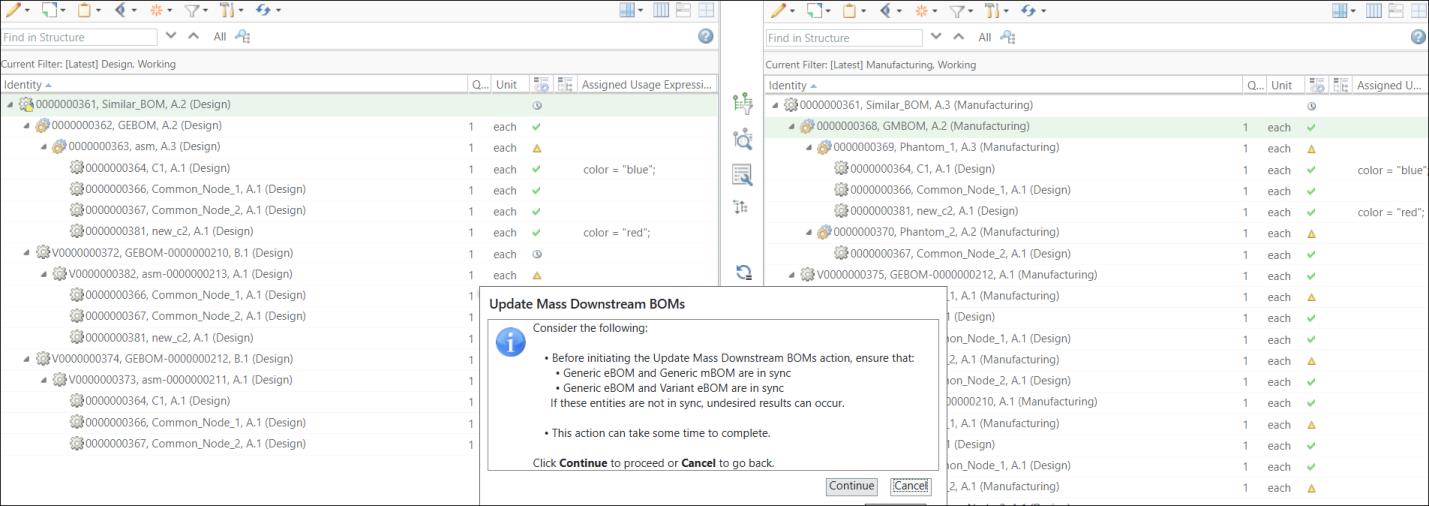
13. Click Continue.
14. The Update Mass Downstream BOMs dialog box opens. It displays the following information:

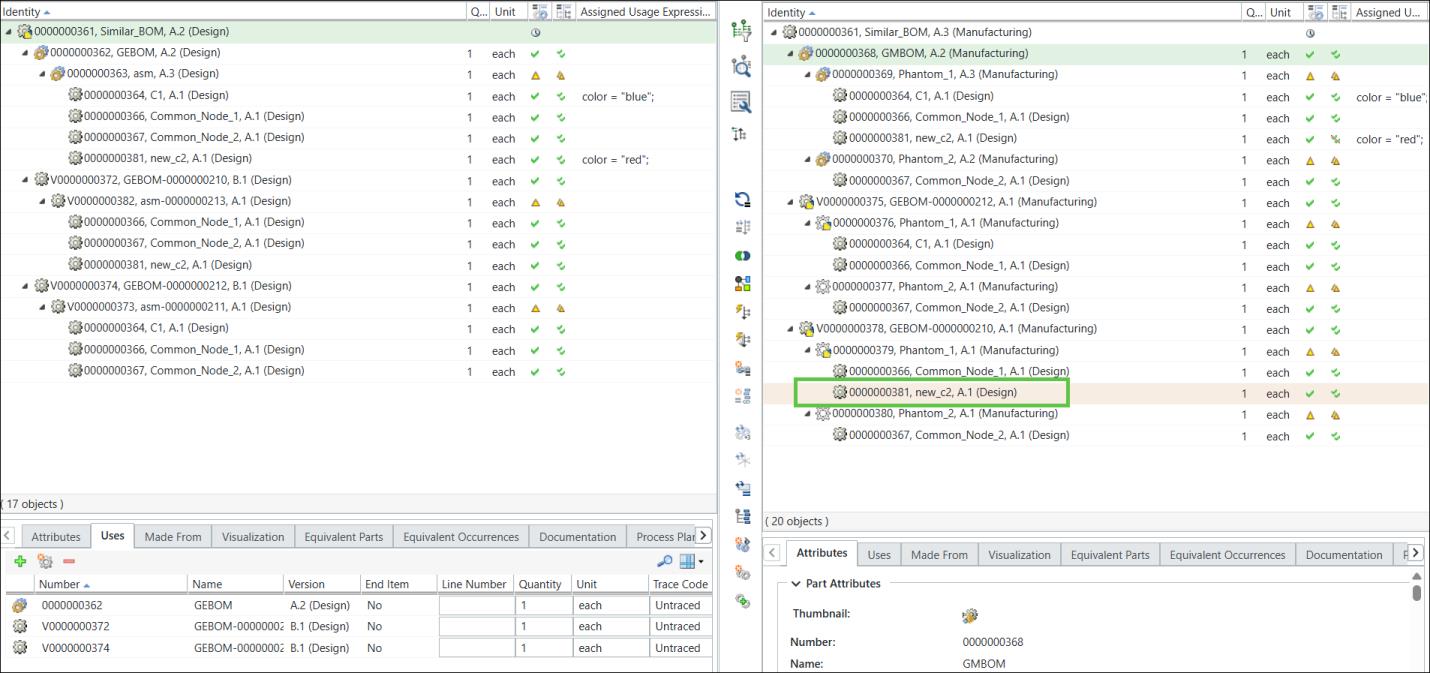
15. Click Finish. The Update Mass Downstream BOMs dialog box closes. The system updates all variant mBOMs based on the changes made in the generic eBOM, variant eBOMs, and generic mBOM structures.
Additional Information
In certain scenarios where the replacement process is only partially successful, the system displays the following message: Some of the resolved discrepancies might not have turned out as expected. You may want to reconfirm.