Creating Illustrations in a Process Plan Browser
To create an illustration for an operation, you can use Creo Illustrate.
Procedure
1. In the Process Plan Browser, right-click an operation and select > .
A success message appears below the structure toolbar.
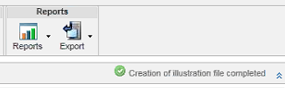
The action creates a .c3di file that opens in Creo Illustrate.
2. On the Home tab, click New Figure.
3. In the New Figure window, click Default, and then click Create.
4. If you are creating the illustration from the parent operation level and want to associate each figure with a child operation (when the com.ptc.windchill.mpmlink.manageCreoIllustrationFromParentOperation property is set to true), ensure that you rename the figure to match the child operation number:
◦ Right-click the figure name, add the child operation number in the New Figure Name dialog box, and click OK.
◦ To associate multiple figures with a child operation, append the child operation number with an underscore (_) and a number. For example, 000026_1.
For more information on the property, see Managing Illustrations from Parent Operations.
5. Click > > to save the file.
 | If you do not save the file, the illustration is lost. This is the default Creo Illustrate functionality. |
6. Click > > .
After the illustration is successfully created, a reference document is created in the References Documents table on the Documentation tab of the Process Plan Browser.
When Illustrations are Managed from Parent Operation
If the property com.ptc.windchill.mpmlink.manageCreoIllustrationFromParentOperation is enabled and “client_publish_as_package” preference is set to true in Creo Illustrate 12.1 or later, the system performs the following actions:
• Generates a separate .pvz file for each Creo Illustrate figure and publishes it as a ZIP file.
• Associates each figure with the child operation, based on the operation number you specified in step 4 above.
• Stores the image data from each figure in a reference document and links it to the matching child operation.
The name of the reference document follows this format:
PPB_MPM_Parent Operation Number_Child Operation Number_Parent Operation Name_C3DI File Number-(Illustration Images).
For example, PPB_MPM_00003_000026_LocalizationOperation_000065-(Illustration Images).
For more information on the property and preference, see Managing Illustrations from Parent Operations.
When Illustrations are Not Managed from Parent Operation
If the property com.ptc.windchill.mpmlink.manageCreoIllustrationFromParentOperation is not enabled, the .c3di file and reference document are associated with the matching child operation. The name of the reference document follows this format:
DOC_PPB_MPM_Associated Parent Operation Number_Associated Parent Operation Name_C3DI File Number-(Illustration Images).
For example, DOC_PPB_MPM_00003_CollectionOperation_000065-(Illustration Images).
| | • You can create multiple illustrations for an operation using the New Illustration action when the com.ptc.windchill.mpmlink.manageCreoIllustrationFromParentOperation property is set to false. The illustrations are visible in the References Documents table on the Documentation tab of Process Plan Browser. The system creates a reference published document for every illustration you create. You can create multiple illustrations for operations from both the Process Plan Browser and the Advanced Manufacturing Resource Browser. • If different object types are selected, the action is not available. |
Key Points
The following points apply when the illustrations are managed from the parent operation (the property com.ptc.windchill.mpmlink.manageCreoIllustrationFromParentOperation is set to true):
• The New Illustration action is disabled for an operation if an illustration already exists for that operation.
• When launching the New Illustration action from an operation, all tools associated with its child operations are loaded in Creo Illustrate. You can unhide the required tools in the sBOM tree and use them to create figures for each sub-operation within the parent context.
• If either the com.ptc.windchill.mpmlink.doNotGrayOutPreviouslyPlayedPartsInRepresentation or com.ptc.windchill.mpmlink.manageCreoIllustrationFromParentOperation property is enabled, the parts allocated to previously played operations are not grayed out when creating operation representations.