Configuring the Windchill AI Assistant Plugin
Follow these steps to configure the Windchill AI Assistant services for the plugin:
1. Go to > > .
2. Right-click the Windchill AI Assistant plugin, and then select Configure Plugin.

The Windchill AI Assistant Configuration window opens.
3. In the PTC SaaS Platform section, click  , and then specify the following details:
, and then specify the following details: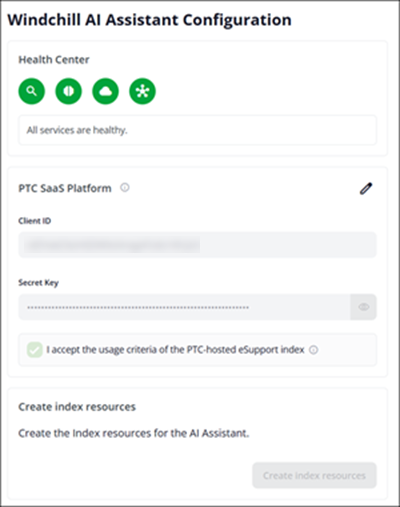
a. Client ID—Enter the client ID from the Connection Details tab of the registered Windchill product instance in PTC Admin Center.
b. Secret Key—Enter the secret key from the Connection Details tab of the registered Windchill product instance in PTC Admin Center.
4. Select I accept the usage criteria of the PTC‑hosted eSupport index to enable access to PTC-hosted support content. For more information, see Opting In to the PTC‑Hosted eSupport Index.
5. Click  to save the changes.
to save the changes.To discard the changes, click  . To remove an existing configuration, click
  .
.
. To remove an existing configuration, click .6. Click Create index resources. The plugin creates the index resources for the Windchill AI Assistant in PTC Admin Center.
7. Ensure that all services are healthy in the Health Center section. For more information. see Reviewing the Health Center.
8. Close the Windchill AI Assistant Configuration window.
 | If a field contains an invalid value, the plugin displays a validation error and prevents you from saving the configuration. Correct the highlighted value, and then select again. |
Opting In to the PTC‑Hosted eSupport Index
The I accept the usage criteria of the PTC-hosted eSupport index check box is selected default. When selected, it allows the Windchill AI Assistant to connect to the PTC-hosted Support & Services (SO&S) index and respond to your queries using content from the PTC help center and technical support knowledge base.
The availability of source modes depends on the state of this check box:
• If the checkbox is selected, both All Sources and Help/Support Only modes are available.
• If the checkbox is cleared, only Windchill Data mode is available.
Reviewing the Health Center
The Health Center displays the current status of the following services:
• Azure AI Search
• Azure OpenAI
• Azure Storage
• PTC SaaS Platform
Review the indicators in the Health Center section:
• Green—The service is reachable and configured correctly.
• Red—The service requires attention. The Detected problems list shows the issue and the recommended action.
When all required services are healthy, the Health Center displays All services are healthy.
If any indicator remains unhealthy, follow the guidance in the Detected problems list. For more information about troubleshooting, see Troubleshooting for SaaS Environment.