Troubleshooting for the SaaS Environment
This topic is intended for the Windchill SaaS business administrator.
Issue: Indexing Fails Due to Length of URL – 413 Payload Too Large Error
When using MPMLink, indexing stops while processing objects if the URL exceeds the acceptable length limits, resulting in a 413 Payload Too Large error.
Resolution
If you are using MPMLink, to enable indexing with long URLs, configure the AJP and Tomcat server settings as follows:
1. In a Windchill shell, navigate to the <HTTPServer> folder and execute the command:
ant -f config.xml configureAJPWorkers -DajpMaxPacketSize=16384
2. In a Windchill shell, navigate to the <Windchill>/Tomcat folder and execute the command:
ant -f config.xml configureConnectors -DajpMaxPacketSize=16384
3. Edit the HTTPServer/conf/httpd.conf file to include the following lines:
LimitRequestLine 16384
LimitRequestFieldSize 16384
4. Restart the Apache and Windchill servers to apply the changes.
 |
If the issue persists and the request continues to fail with a 413 Payload Too Large from GET error, review the configuration settings. Try increasing all four values mentioned in the steps above, using multiples of 1024.
|
For more information, see Article - CS378059 HTTP 413 "Request Entity Too Large" troubleshooting in Windchill PDMLink.
Issue: Bulk Indexing Jobs Fail with Various Errors
During the bulk indexing process, multiple jobs may fail with errors such as:
• Failed to upload PVZ
This issue typically occurs due to a network disruption during the upload process.
Resolution
Once network connectivity is restored, resubmit the failed jobs in Windchill by resetting the failed queue entries for these errors. Refer to the Performing Regular Queue Maintenance topic to reset the failed queue entries.
Issue: Plugin Requests Fail with Proxy Timeout Error
Plugin requests from the UI are taking longer than expected and exceed the default 60-second Apache proxy timeout. As a result:
• Long-running plugin requests fail after 60 seconds.
• Page refresh or Apache restart does not resolve the issue.
Resolution
To resolve the timeout issue, increase the timeout value for the AI Parts Rationalization Plugin (for example, to 120–300 seconds).
1. Locate the Apache proxy configuration file. This file is generated during plugin installation.
For example: /opt/ptc/plugins/AIPartsRationalization/AIPartsRationalization-proxy.conf
2. Add a timeout parameter to entries of this type. The value shown below (timeout=300) is only an example, and all code entries are provided for illustration purposes:
<Proxy balancer://AIPartsRationalization_lb/>
BalancerMember http://localhost:<plugin instance1 port>/Windchill/WCPlugins/partsearch route=AIPartsRationalization1
BalancerMember http://localhost:<plugin instance2 port>/Windchill/WCPlugins/partsearch route=AIPartsRationalization2
BalancerMember http://localhost:<plugin instance3 port>/Windchill/WCPlugins/partsearch route=AIPartsRationalization3
BalancerMember http://localhost:<plugin instance4 port>/Windchill/WCPlugins/partsearch route=AIPartsRationalization4
BalancerMember http://localhost:<plugin instance5 port>/Windchill/WCPlugins/partsearch route=AIPartsRationalization5
ProxySet stickysession=AIPartsRationalization_sticky
</Proxy>
BalancerMember http://localhost:<plugin instance1 port>/Windchill/WCPlugins/partsearch route=AIPartsRationalization1
BalancerMember http://localhost:<plugin instance2 port>/Windchill/WCPlugins/partsearch route=AIPartsRationalization2
BalancerMember http://localhost:<plugin instance3 port>/Windchill/WCPlugins/partsearch route=AIPartsRationalization3
BalancerMember http://localhost:<plugin instance4 port>/Windchill/WCPlugins/partsearch route=AIPartsRationalization4
BalancerMember http://localhost:<plugin instance5 port>/Windchill/WCPlugins/partsearch route=AIPartsRationalization5
ProxySet stickysession=AIPartsRationalization_sticky
</Proxy>
3. Restart Apache after making changes.
Issue: Unable to Restart Apache
In a cluster setup, if a node was down during the plugin installation or certificate rotation, Apache restart may fail when the node comes back online. In this case, you will see an error message in the MethodServer log.
Resolution
To resolve the issue, manually restart Apache.
Issue: Indexing User Configuration Fails with HTTP 500 Error
Configuration of the indexing user fails with an HTTP 500 error. This error appears in the UI and also visible in the Network tab or API logs.
Cause: The indexing user lacks the required Windchill license.
Resolution
Add the indexing user to the one of the base licenses through license exclusion group. For more information, see License Exclusion Groups.
Issue: “Too many duplicate searches requested, maximum is 15” in Parts Reuse Plugin
When performing shape similarity searches in the Search Indexed Database tab of the plugin, the system throws an error after 15 consecutive searches: “Too many duplicate searches requested, maximum is 15”.
This is expected behavior. Each search performed by an administrator user creates a new search entry. The system enforces a limit of 15 active searches to prevent overload.
End user searches, on the other hand, reuse existing entries and automatically delete older ones, keeping the count within limits.
Resolution
Perform a search as an end user by clicking Search for Duplicate Parts using an existing similarity range. This will delete older searches and free up slots for new ones. Retry the search after performing an end user search.
Issue: Plugin Update Failed
When you attempt to update the plugin, the update process may fail due to one of the following reasons: Possible Causes:
• Downloading or installing the ZIP file from the PTC SaaS Platform fails.
• Verifying the JAR file fails.
Result
In these cases, the plugin update fails, and the existing plugin version remains unchanged.
Issue: Plugin Manager Page Appears Blank in French
When the language is set to French, no content is displayed on the Plugin Manager page after selecting > , even though the plugin is installed and running.
Resolution
To view the Plugin Manager page, follow these steps:
1. Log in as the site administrator and navigate to the > page.
2. Click Text Tailoring in the Business Administration group. This opens in a new tab.
3. Expand Text Tailoring and Root.
4. Right-click Text Collection and select the New String Organizer option.
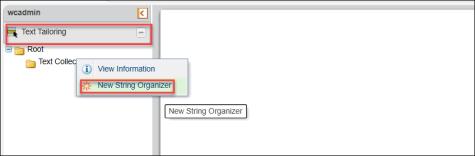
The New String Organizer dialog box opens.
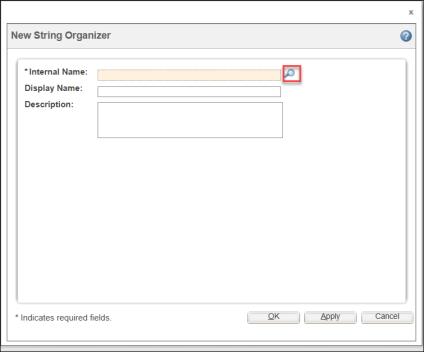
5. Click the Search icon.
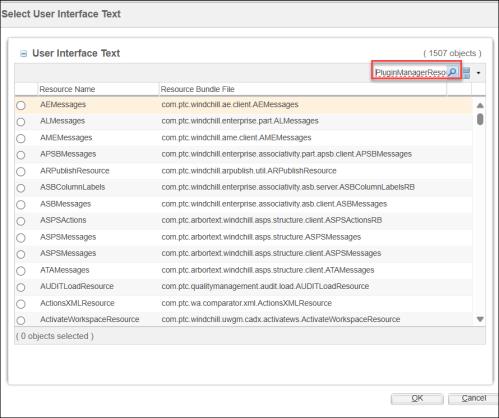
The Select User Interface Text dialog box opens.
6. Search for PluginManagerResource, select it, and click OK.
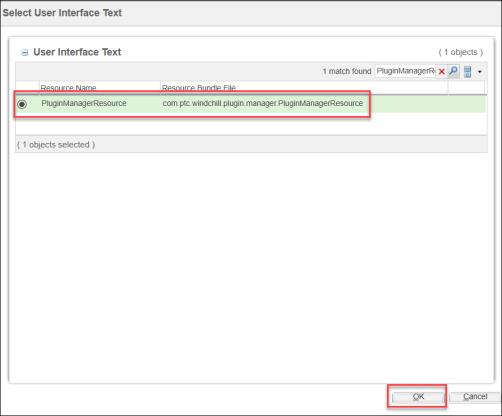
The New String Organizer dialog box displays the PluginManagerResource name.
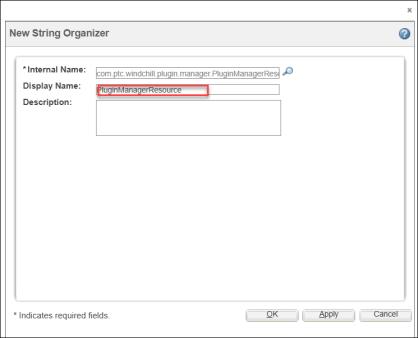
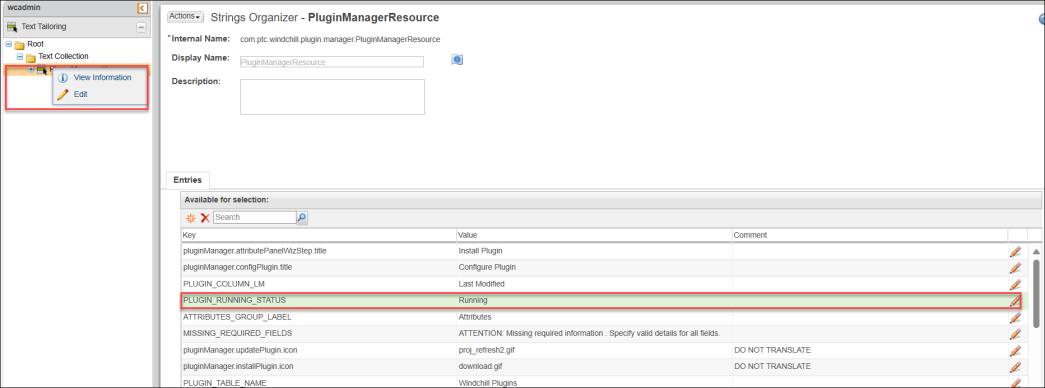
7. Click OK. The PluginManagerResource is added under Text Tailoring.
8. Right-click PluginManagerResource and select Edit.
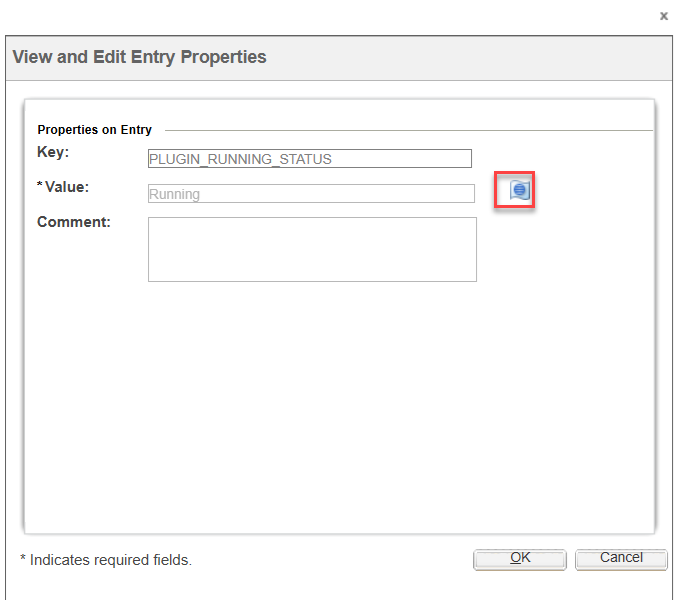
9. Select the PLUGIN_RUNNING_STATUS entry and click Edit. The View and Edit Entry Properties dialog box opens.
10. Click the Localize icon. The Localize dialog box opens.
11. Edit the translation to update the string for French locale to Running.
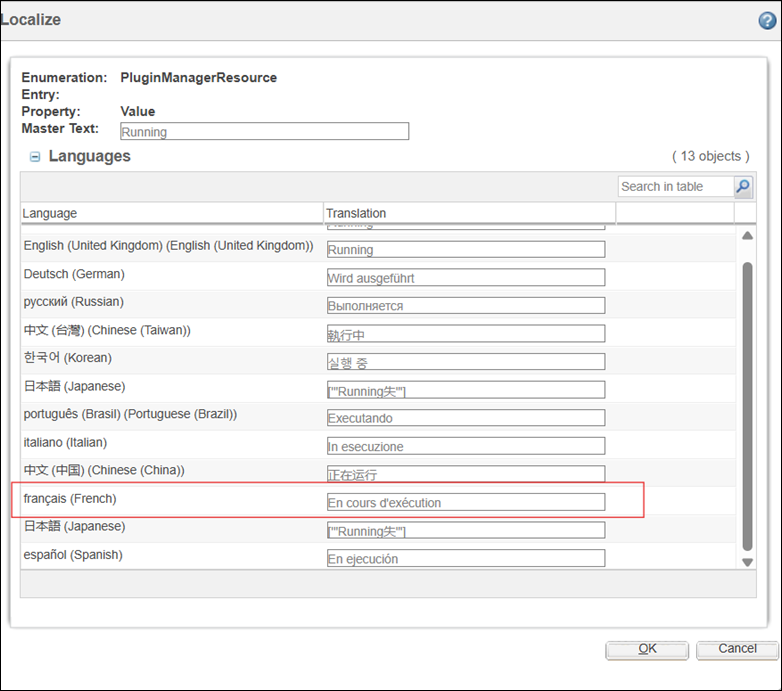
12. Click OK.
13. Click Save or Done.
14. Refresh the Plugin Manager UI to see the updated value.