Build the Product Identified Pop-up
In this section, you’ll add another pop-up for product identification.
1. In the Identification view, add another Popup widget to the canvas, and configure the following properties:
◦ Class—enter full-page-popup
◦ Width (px, %, vh, em)—enter 100%
◦ Height (px, %, vh, em)—enter 100%
◦ Visible—select the checkbox
◦ Studio ID—enter productIdentifiedPopup
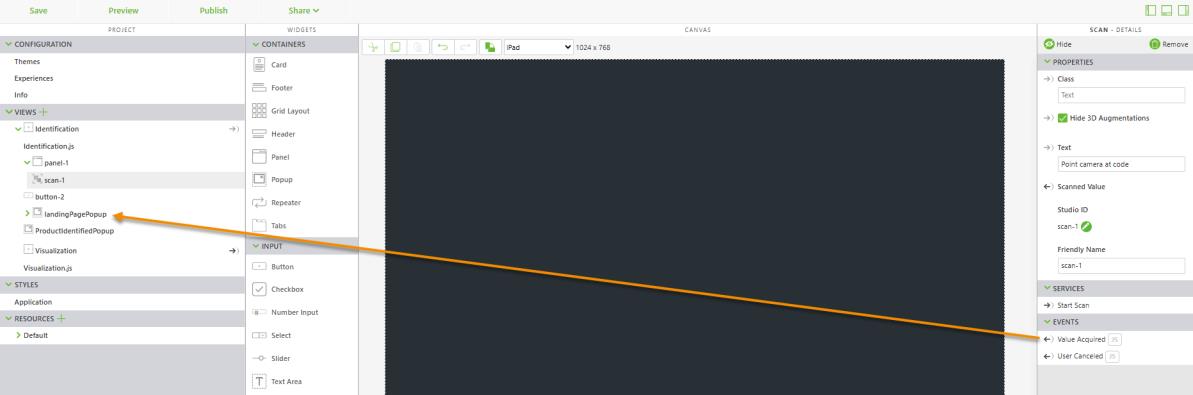
2. Click scan-1 in the project tree to display its properties. Drag and drop the Value Acquired event onto landingPagePopup in the project tree. Select Show Popup on the Select Event Handler window, and click Bind.
3. Next, add a Grid Layout widget to the new Popup widget to give the layout more structure.
4. With the Grid Layout widget selected, select Rows Divide Available Height Evenly checkbox in the DETAILS pane.
5. Add two more rows to the grid by clicking Add Row twice (under GRID ACTIONS in the DETAILS pane).
6. Leave the first row empty.
7. Select the second row and complete the following:
◦ Set Flex Direction to Column
◦ Set Justify Content to Center
◦ Set Alight Items to Center
◦ Add a Label widget, and configure the following properties:
▪ Text—enter Product identified
▪ Class—enter simple-label title-label
▪ Studio ID—enter productIdentifiedLabel
◦ Add a second Label widget, and configure the following properties:
▪ Text—enter ***
▪ Class—enter simple-label sub-title-label
▪ Studio ID—enter productIDLabel
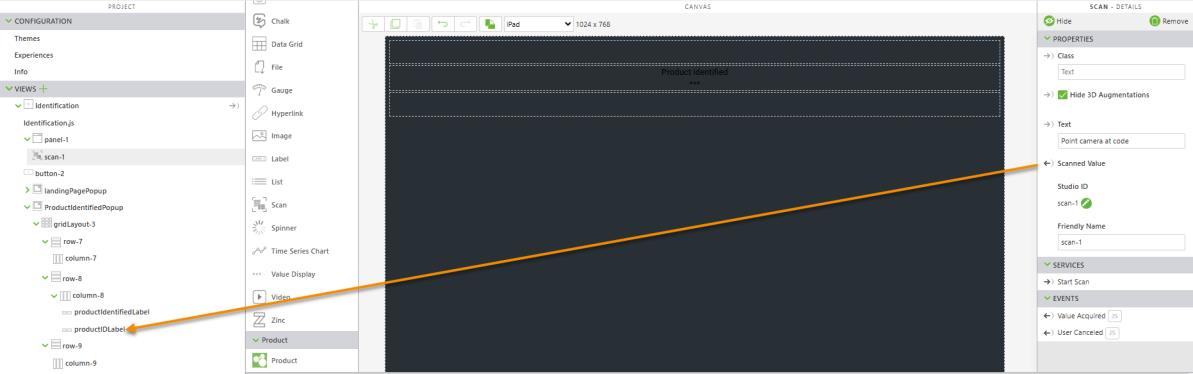
◦ Click scan-1 in the project tree to display its properties. Drag and drop the Scanned Value property onto productIDLabel in the project tree. Select Text on the Select Binding Target window, and click Bind.
8. Select the third row, and complete the following:
◦ Set Flex Direction to Row
◦ Set Justify Content to Center
◦ Set Alight Items to End
◦ Set Padding (i.e. 10px 10px 20px 10px) to 20px
9. Next, add a Button widget in the third row and update the following properties:
◦ Text—enter Show the product
◦ Class—enter long-button--green
◦ Studio ID—enter showProductButton
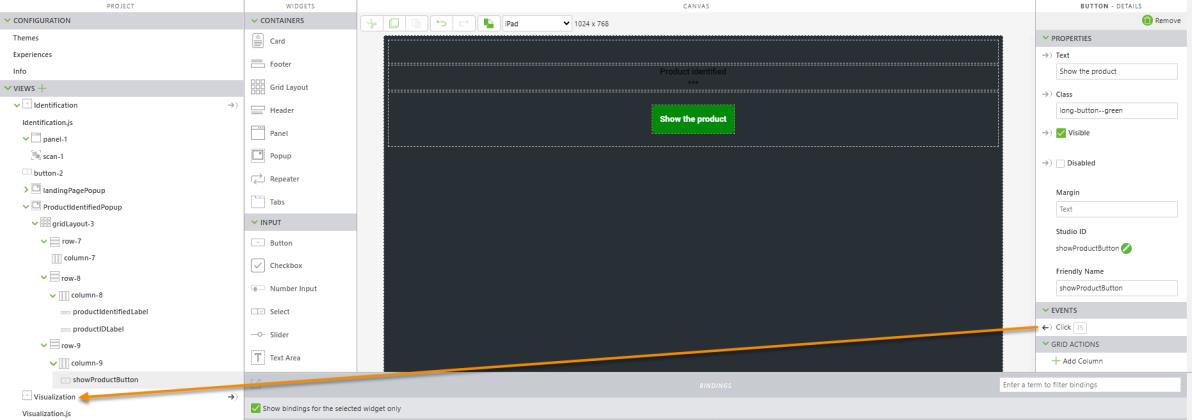
10. Drag and drop the Click event of the new button onto the Visualization view. Select Navigate on the Select Event Handler window, and click Bind.
11. Next, build a flow to restart the experience.