Shaders
 |
These shaders are not supported on HoloLens devices.
|
Parameter Entry
You can use the following format to pass custom shader values to a Vuforia Studio shader:
example_widget.shader = shader_name; uniform_name uniform_type uniform_value
Shaders
The following table describes available basic shaders for models and model items in Vuforia Studio.
|
Shader
|
Description
|
Parameters
|
||
|---|---|---|---|---|
|
Desaturate
|
Shader for reducing the model's color saturation.
|
saturation float [0-1]
Example JavaScript:
$scope.init = function() {
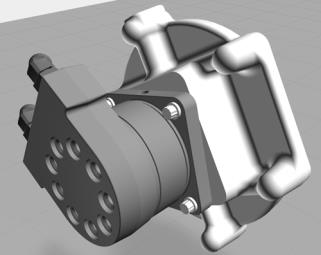
In the example below, the entire model was shaded with saturation=0 so that it appears in a gray-scale.
 |
||
|
Flow
|
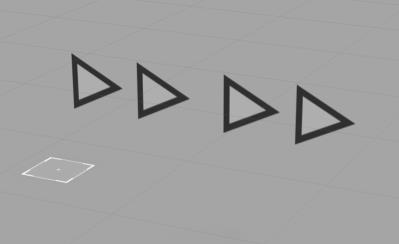
Shader for using texture mapping with animated UV coordinates to indicate direction.
|
• speedU—horizontal speed of the texture coordinates (one texture unit per second)
• speedV—vertical speed of the texture coordinates (one texture unit per second)
• scaleU—horizontal scaling (number of repetitions the image is rendered in the animation)
• scaleV—vertical scaling (number of repetitions the image is rendered in the animation)
• opacity—controls the opacity (0.0 = fully transparent, 1.0 = fully opaque)
Example JavaScript:
$scope.init = function() {
 |
||
|
Highlight
|
Shader for highlighting the entire model or specific parts.
|
The following parameters define the color of the outline and the surface fill:
• r float [0-1]
• g float [0-1]
• b float [0-1]
• a float [0-1]—defines the opacity of the surface fill. The outline will always be opaque.
• virtualMode—when set to true, the shader renders the virtual surface as standard solid and with standard depth-testing mode. This parameter should be set to false when the physical object is present.
Example JavaScript:
$scope.init = function() {
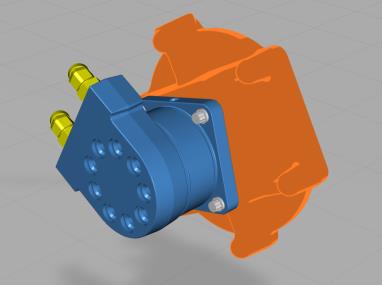
In the example below, the bottom half of the blue pump has been highlighted with an orange color.
 |
||
|
Planar cut
|
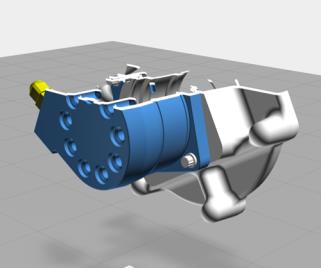
Shader for cutting away the model's geometry in the shape of a straight line or plane.
|
The following parameters define the location of the cutaway plane:
• clipCenterX float
• clipCenterY float
• clipCenterZ float
The following parameters define the orientation of the cutaway plane:
• clipAxisX float
• clipAxisY float
• clipAxisZ float
The following parameter defines the thickness of the occluded edge of the model in space units (meter).
• clipLineWidth float
Example JavaScript:
 |
||
|
Spherical cut
|
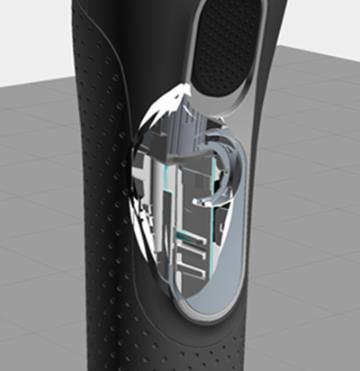
Shader for cutting away the model's geometry in the shape of a sphere.
|
• clipCenterX float
• clipCenterY float
• clipCenterZ float
• clipRadius float (in meters)
Example JavaScript:
$scope.init = function() {
|
||
|
X-ray
|
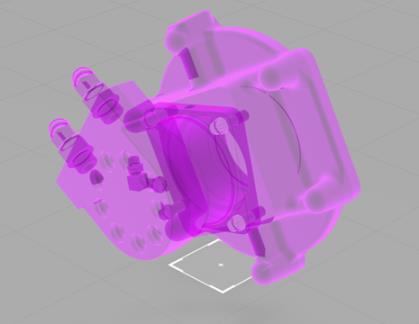
Shader for displaying an x-ray view of the model and revealing interior parts.
|
• r float [0-1]
• g float [0-1]
• b float [0-1]
• a float [0-1]
Example JavaScript:
$scope.init = function() {
Color is applied to recolor the model while also applying the shader, thus highlighting where the shader is applied.
 |
||
|
Contour
|
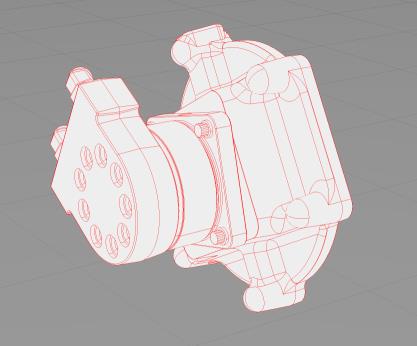
Shader for extracting contour lines based on depth gradients.
|
• lineR float [0-1]
• lineG float [0-1]
• lineB float [0-1]
• lineA float [0-1]
Example JavaScript:
$scope.init = function() {
 |
||
|
Wave radial
|
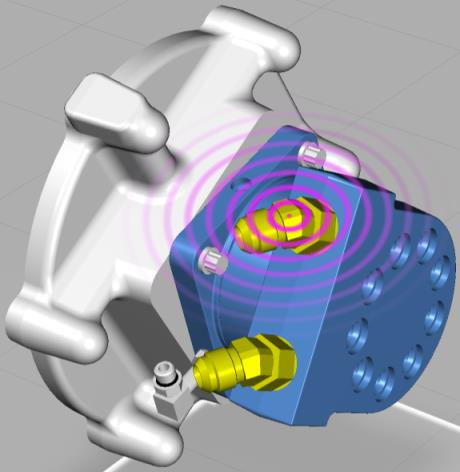
Shader that can display circle or ripple effect.
|
• offsetU/V—the origin of the wave circle
• surface(R/G/B/A)—the wave color at the origin
• waveLength—distance between two consecutive wave peaks
• speed—propagation speed of the wave front (in standard units)
Example JavaScript:
scope.init = function() {
 |
