Software Content Management Dashboard
The Dashboard allows you to review your action items, the overall status of packages and deployments, and the history of package deployment statuses.
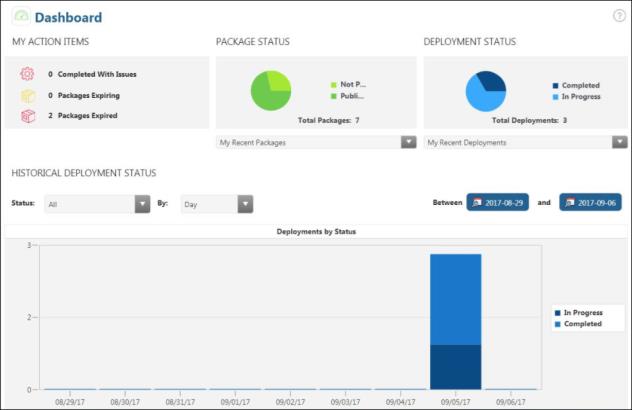
To access the Dashboard, browse to http OR https://<HostName>:<PORTNUMBER>/Thingworx/Runtime/index.html#master=TW.RSM.SFW.Master.ApplicationMaster&mashup=TW.RSM.SFW.Mashup.SoftwareDashboard.
To return to the Dashboard from other pages within Software Content Management, click  in the top left of the screen.
in the top left of the screen.The following sections describe the panes that make up the Dashboard.
My Action Items
The MY ACTION ITEMS pane lists the number of deployments for packages to which the current user has access and are in one of the following states:
• Completed With Issues
• Packages Expiring
• Packages Expired
 |
If you set a deployment to be automatically retried, and the delivery of the package failed or aborted and is awaiting retry, the status continues to display as Pending Retry until the deployment is retried. For information on the auto-retry feature, see Auto-Retry Deployments.
|
Package Status
The PACKAGE STATUS pane displays the status for all packages created in the Software Content Management utility to which the current user has access. It shows the total number of packages to which the user has access and the number of packages that have and have not been published. To view more information about Published or Not Published packages, double-click the appropriate section on the pie chart.
To view details about a specific package, select it from the My Recent Packages list. The View Package Details page appears.
For more information, see Packages.
Deployment Status
The DEPLOYMENT STATUS pane displays the status for all production deployments created in Software Content Management for packages to which the current user has access. It displays the number of deployments with a pie chart that illustrates the number of deployments in the Created, In Progress, and Completed states. Double-click a section of the pie chart to view more information for deployments in that status.
To view details about a specific deployment, select it from the My Recent Deployments list. The View Assets For Deployment page appears.
Historical Deployment Status
The HISTORICAL DEPLOYMENT STATUS pane displays a graph that organizes historical deployments by status and date for packages to which the current user has access. You can filter the graph using the Status or By lists, or by specifying a date range using the Between calendar pickers above the graph. If you select All from the Status list, all statuses are displayed together in a stacked graph.