Manufacturing Tasks
Windchill Navigate Manufacturing tasks allow users to see Windchill data that can help them perform tasks on the factory floor. To see the MANUFACTURING TASKS COLLECTION on the Windchill Navigate landing page, make sure you have the necessary license.
View Work Instructions
View Work Instructions allows the user to search Windchill process plans that are authored in Windchill MPMLink. It enables them to select an assembly, a subassembly, or a part, to see the operations that must be followed to manufacture them on the shop floor.
Searching for Work Instructions
Follow the steps below to search for work instructions that will enable you to put together an assembly, a subassembly, or a part:
1. From the Windchill Navigate landing page, open the View Work Instructions task.
2. Click Select Product. In the window that opens, search and select a product or select a product from the Recent Products list. You can search by part name or number. All revisions and views of the part appear in the search results.
You can also enter product details in the search box and select  . Partial matches for part name and number search are supported.
. Partial matches for part name and number search are supported.3. After selecting the product, click Select.
4. In the secondary search, enter information in the following fields and click :
:◦ Variant (Required): You can only select one variant. If the product does not have any variants this filter is disabled.
◦ Process Plan (Required): You can only select one process plan.
◦ Work Center Type: You can only select work centers for the selected process plan. If no work center is selected, results appear for all relevant work centers.
5. From the displayed search results, select the Enterprise Operation for which you need step-by-step work instructions.
Task Overview
Once an operation is selected, a step-by-step instruction set for performing the required operation is displayed. For each step, the user can view detailed instructions on the left pane and simultaneously perform the steps in their assembly. The ellipsis button  enables viewing all steps in the instruction set with a progress tracker. The forward arrow
  and backward arrow
  buttons allow moving to the next or the previous step. Selecting any step number from the progress tracker takes you to the work instructions for that step. An image and a 3D representation of the assembly, if available, are also displayed for each step.
enables viewing all steps in the instruction set with a progress tracker. The forward arrow and backward arrow buttons allow moving to the next or the previous step. Selecting any step number from the progress tracker takes you to the work instructions for that step. An image and a 3D representation of the assembly, if available, are also displayed for each step.Parts, documents, control characteristics, and tools related to the work instruction step are displayed in a tabular format on the right pane. Selecting the check box next to a part or tool from this table selects the respective part or tool in the 3D representation Selecting a part or tool from the 3D representation highlights the respective part or tool in the table. Selecting the document name either downloads the document or opens it in a browser, depending on the format available in Windchill.
Following is a sample image of the instructions displayed in the View Work Instructions task.
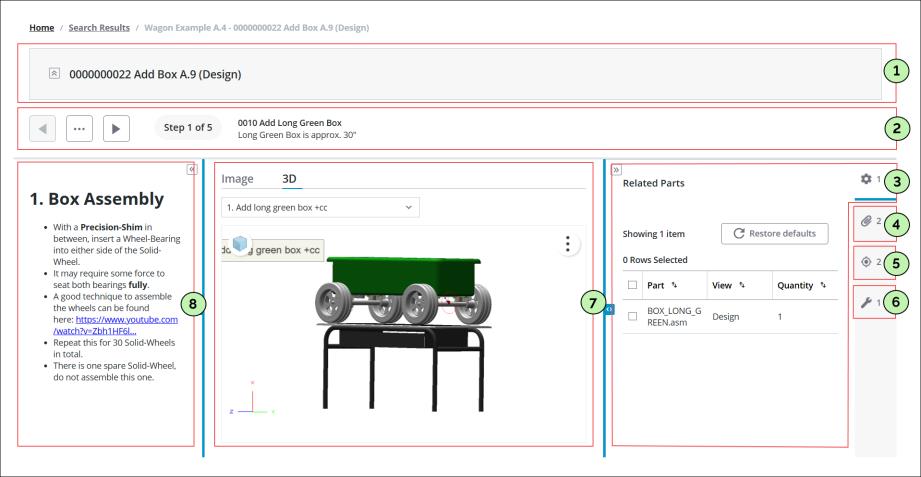
Details for each numbered panel:
1 – Displays details of the enterprise operation that is selected in the search page.
2 – Displays child operations from the current enterprise operation.
3 – Lists all parts allocated to the selected step. For details, refer to the Allocating Parts topic from the Windchill documentation.
4 – Lists all primary content for the selected step. For details, refer to the Associating a Document with an Object topic from the Windchill documentation. Note that associating CAD documents is not currently supported.
5 – Lists standard control characteristics assigned to the selected step. For details, refer to the Standard Control Characteristics topic from the Windchill documentation.
6 – Lists processing resources of type "Tooling" assigned to the selected step. For details, refer to the Allocating a Processing Resource to an Operation in Process Plan Browser topic from the Windchill documentation.
7 – Displays 3D and 2D content, that is created through Creo Illustrate or Creo View, for the selected step. For details, refer to the Managing Illustrations in the Process Plan Browser using Creo Illustrate and Working with Creo View topics from the Windchill documentation.
8 – Displays the long description attribute for the selected step.