Using Your Home Page
Servigistics InService provides a personalized home page that opens when you log in. The home page has the following sections:
• Favorite Products – Enables you to save a product to the home page and quickly go to that product.
• General Content – Provides access to product and service information that is not directly associated with a specific product.
• What’s new? – Provides access to the latest information in the system.
• Important Links – Contains links to important external web sites.
You can return to the home page any time by clicking on the

icon displayed in the upper right corner of the interface.
Favorite Products
This part of the home page enables you to save the products on which you work the most to the page. You can save just the product or the product with one or more filters applied:
Click on a product to go directly to that product. Products saved to the home page are also available in your
bookmarks. On the bookmarks page, a product also saved to the home page has the

icon next to the date when it was saved.
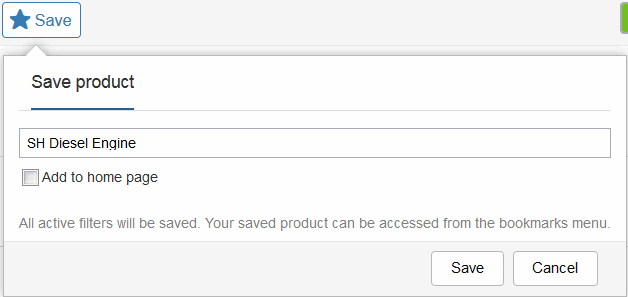
To save a product to your home page, first open the desired product in the product hierarchy. Click on the
Save button

to open the
Save product window:
Check the Add to home page box and click Save. The product is added to both the home page and your bookmarks.
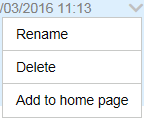
For a product already in your bookmarks, you can add that product to your home page from the bookmarks page by clicking on the menu icon

beside a bookmark to open the bookmarks menu:
Select Add to home page to add that product to the home page. For a product already on the home page, you can use this menu to remove that product from the page. In this case, the menu choice is Remove from home page.
General Content
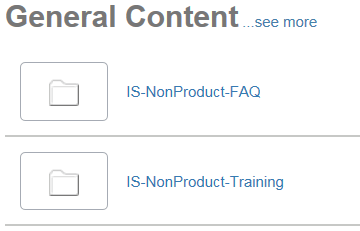
Servigistics InService can contain information that is not directly associated with a particular product. This part of the home page provides access to that information:
Click on one of the folders to open that content. To see all of the general content stored in the system, click see more to open the General Content page.
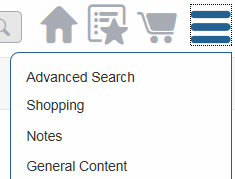
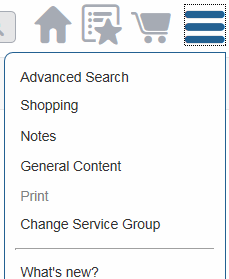
You can also open the General Content page from the menu:
What’s New
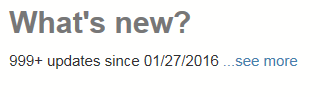
This part of the home page displays the most recent information added to your Servigistics InService system:
When there are too many updates to display directly on the home page, Servigistics InService displays the number of updates and the most recent date that the information was updates. In this case, click see more to open the What’s new page.
The
What’s new page is similar to the
advanced search page. It contains the following additional filter options:
Use these filters to narrow down the list of new items based on when they were loaded or the type of update. You can use the other filters on the page to filter new items as well. In addition, You can use the Search for field on the What’s new page to search the list of new items. Enter the desired search terms and click the search button. The search returns the new items that match the search criteria.
You can also open the What’s new page from the menu:
Important Links
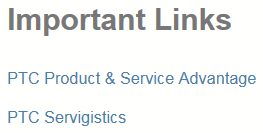
This part of the home page provides links to important external web sites:
Click on one of the links to open that web site.