Signing in to Service Board as Another User
|
Prerequisites
|
|---|
|
Verify that you have the System Administrator role in Service Board. Confirm the user you want to sign in as meets all eligibility criteria. For more information, see Sign In As Overview.
|
The Sign In As feature is designed to help administrators diagnose issues, reproduce reported problems, and validate user-specific configurations. The session runs entirely within Service Board and does not affect the administrator’s Salesforce session.
The dispatcher can continue working during the Sign In As session. Both the administrator and the user operate independently, allowing parallel activity without conflicts.
All activity performed during a Sign In As session is fully auditable. Service Board records session start and end times, tracks data changes, and attributes modifications to both the signed‑in‑as user and the administrator.
To use the Sign In As option:
1. Sign in to Service Board using an account with the System Administrator role.
2. Go to > >
A user list is displayed.
3. Click the target user in the list to open the user's record form.
4. Click the gear icon in the top right of the record form.
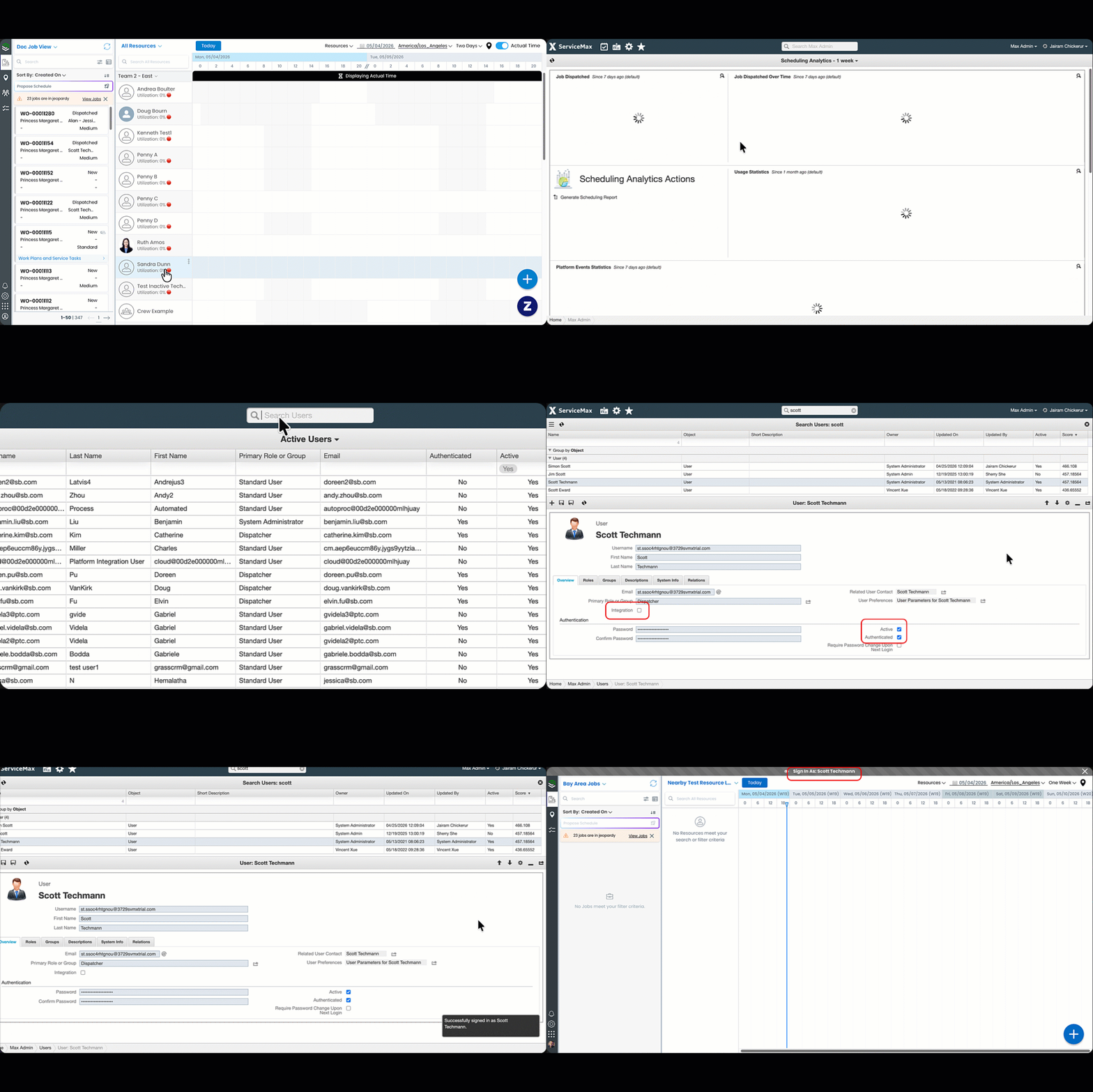
5. Click Sign In As in the Actions section. A success notification appears in the bottom right of the screen.
Service Board refreshes the page and opens the landing page defined in the selected user’s display preferences. A banner at the top of the page confirms that the Sign In As session is active.
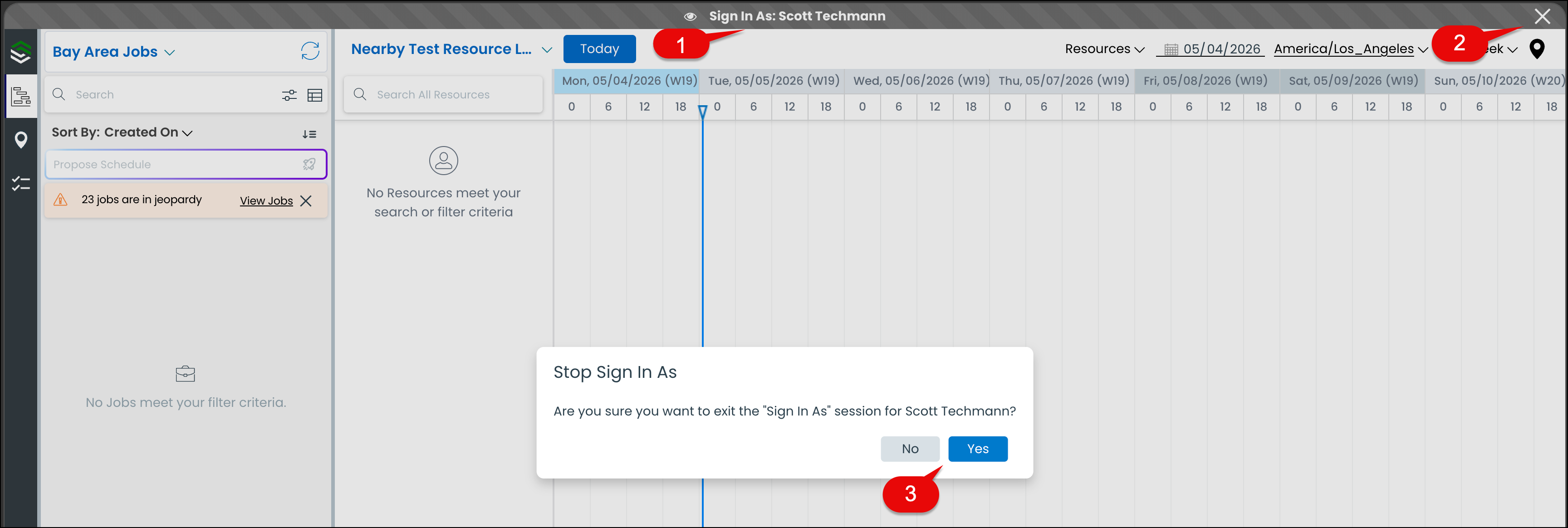
To end the session, close the banner at the top of the page. Alternatively, click the profile icon and select Stop Sign In As. The session details are recorded in the Impersonation Log, and any data changes made during the session appear in the Change Logs with your account as the Acting User.
For more information, see Session Behavior and Audit Trail.
The following GIF explains the process of using Sign In As feature.
Service Board ends the Sign In As session and returns to the Max Admin page.
|
Callout Number
|
Description
|
|---|---|
|
1
|
Sign In As user
|
|
2
|
Close button
|
|
3
|
Confirmation message to close the Sign In As session
|
Related Topics